Guides
Get to gripswith Vroom
Short guides, step by step and on video, to get the most out of Vroom GPS: rides, navigation, voice guidance, road trips and settings.
Got a question? See the FAQ →No guide matches your search.
Navigation
 Break-in
New
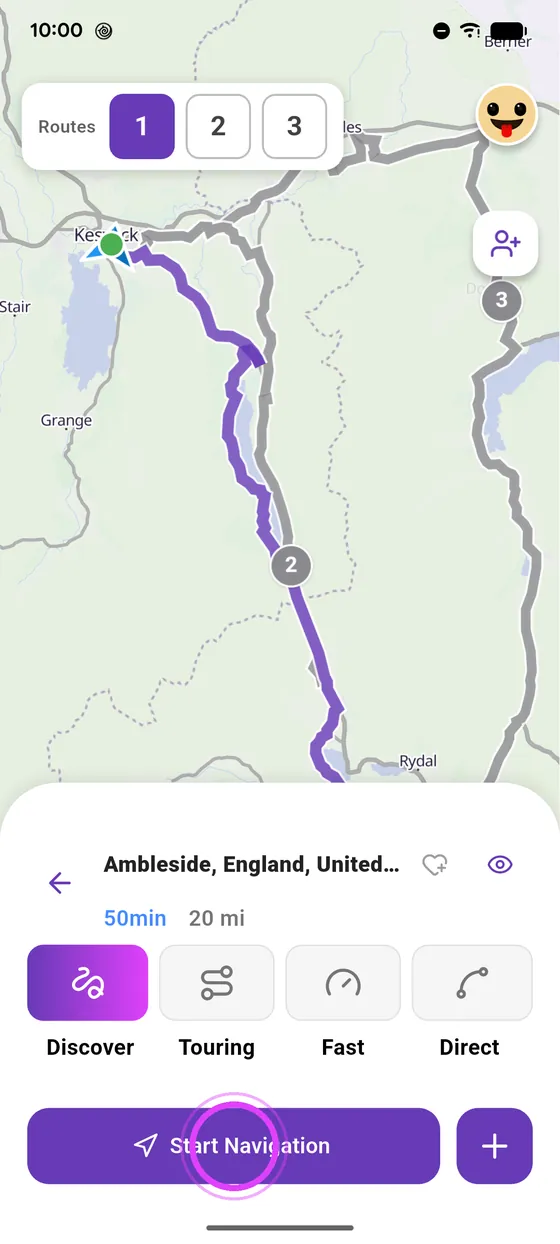
Search for a destination and pick your route
A town, an address, a place: type it in the search bar, Vroom computes your motorcycle route and suggests alternatives.
4 steps · Read the guide →
 Cruising
New
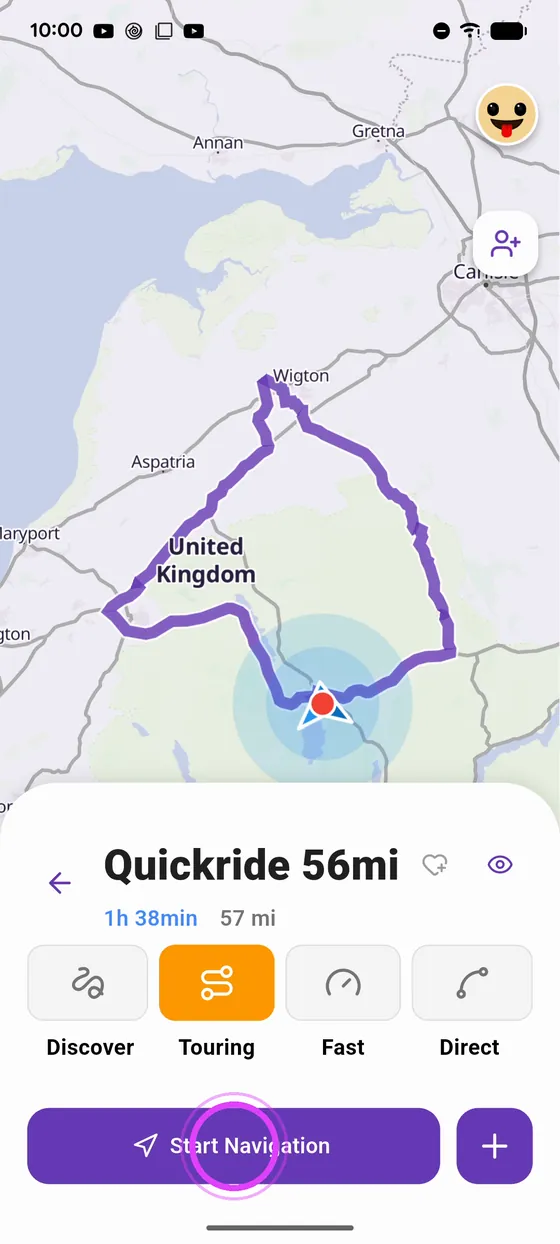
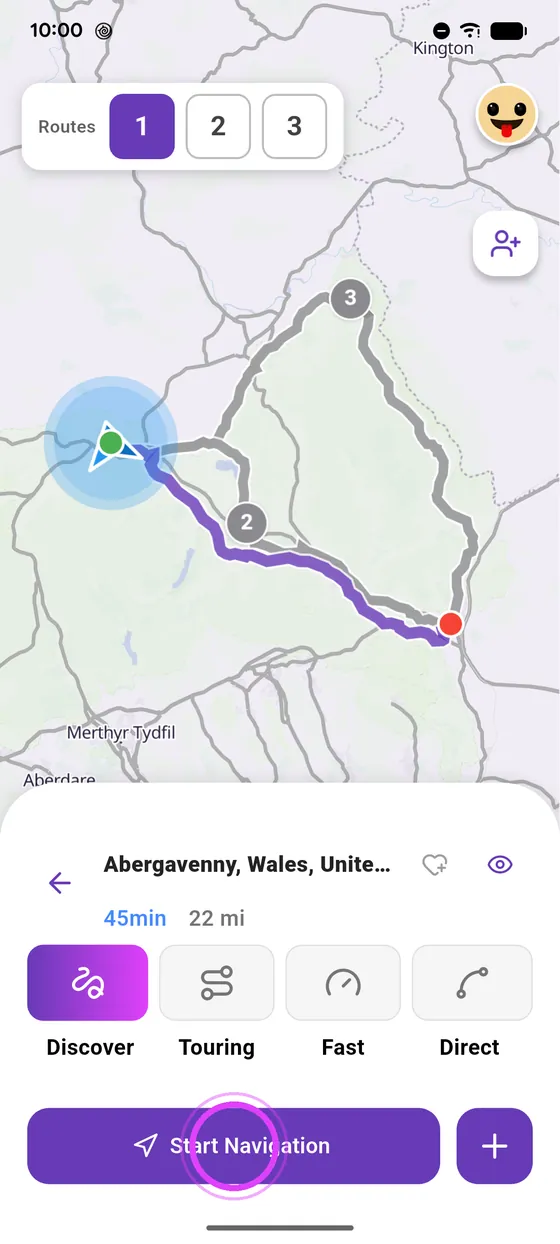
Choose your riding style: Discover, Touring, Fast or Direct
Discover, Touring, Fast, Direct: the same trip can give four very different routes. Here is what each style is for.
6 steps · Read the guide →
 Break-in
New
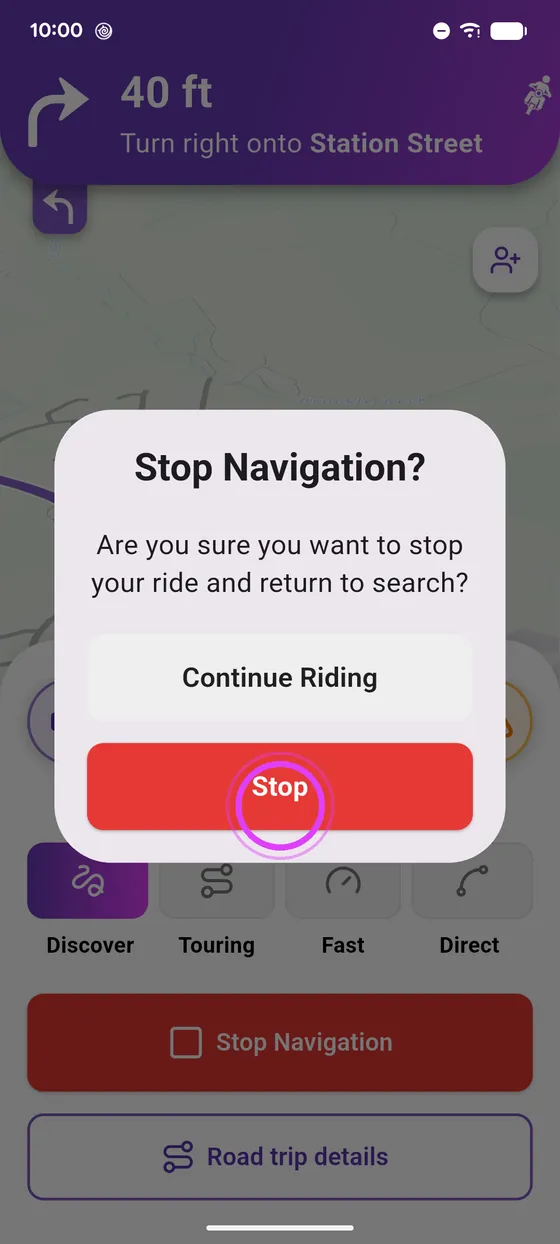
Start and stop motorcycle navigation
A destination, one button, and off you go. Here is how to start guidance, read the navigation screen and stop it once you have arrived.
4 steps · Read the guide →
 Cruising
New
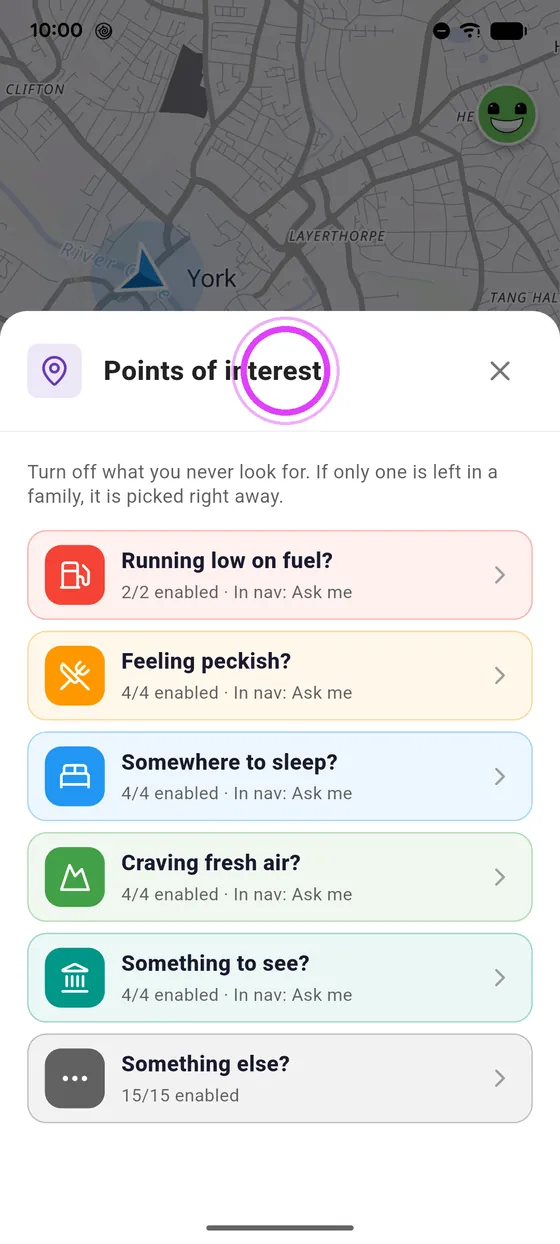
Find a petrol station, a restaurant or a hotel nearby
Running low on fuel, getting hungry or need a bed? The tiles under the search bar ask what you are after, and the places around you show up.
6 steps · Read the guide →
 Cruising
New
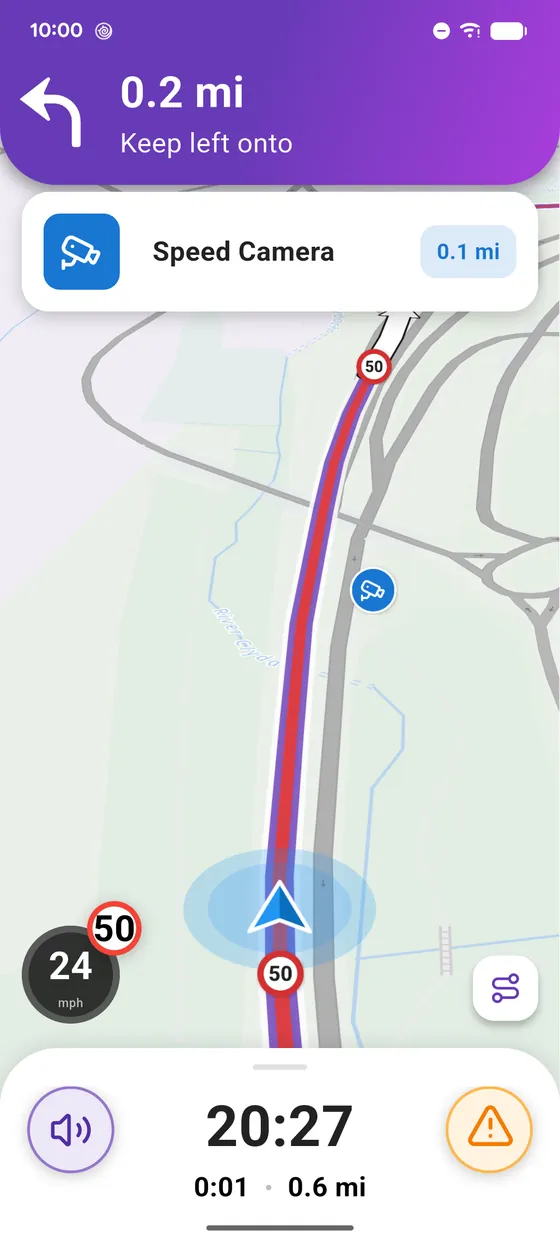
Speed cameras: shown and announced where the law allows it
Where the law allows it, Vroom shows fixed speed cameras on your route and warns you as you approach, on screen and out loud.
6 steps · Read the guide →
 Break-in
New
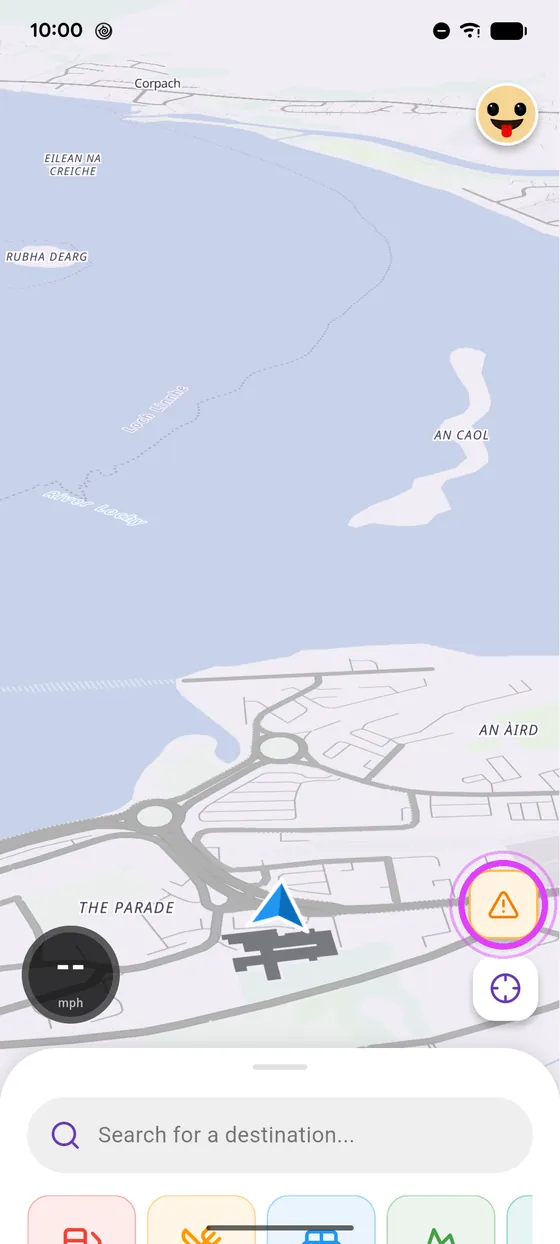
Discover the Vroom GPS home screen
Everything starts from the bottom panel: search, ride, plan a road trip or a ride with friends.
5 steps · Read the guide →
 Break-in
New
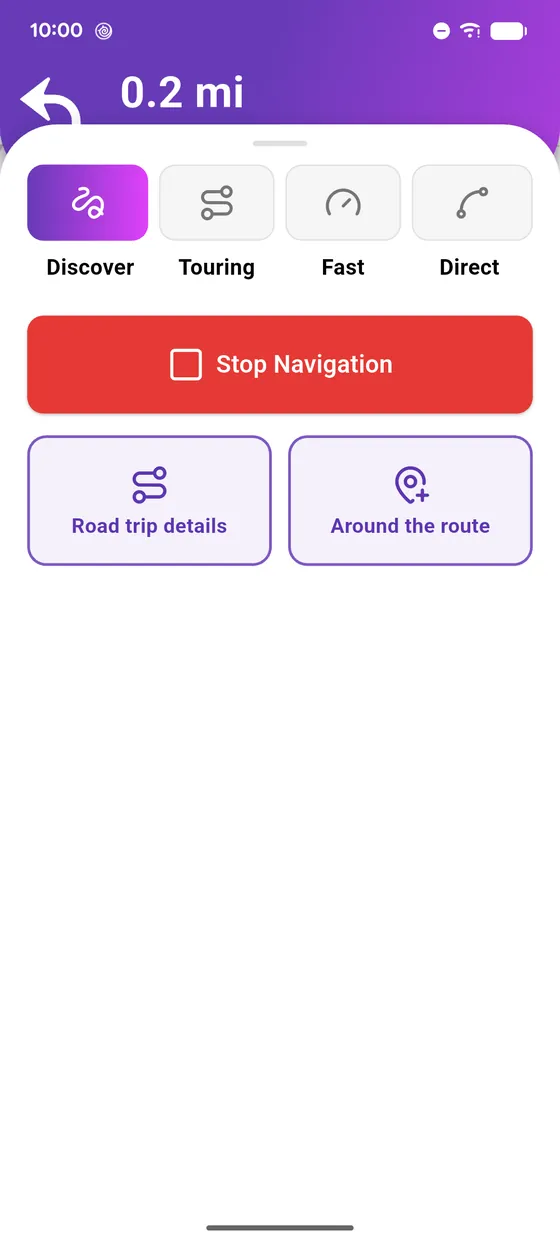
Understand the Vroom GPS navigation screen
One glance is enough: the next manoeuvre at the top, your speed and arrival at the bottom, everything else within glove reach.
5 steps · Read the guide →
 Knee down
New
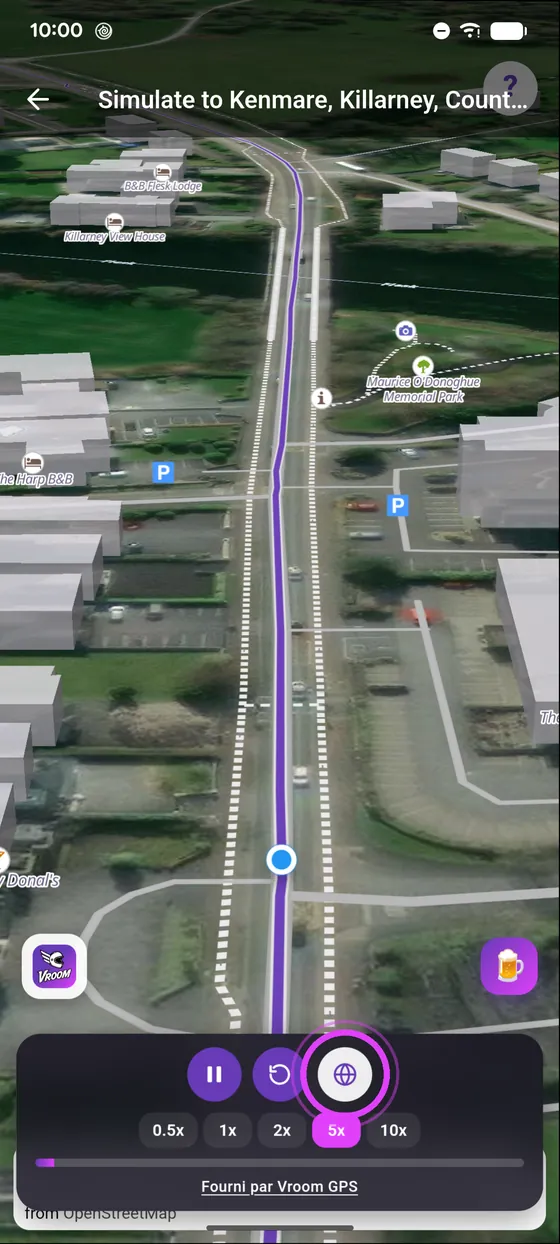
Simulate a ride before you leave
Before you leave, watch the road unfold: bends, villages, scenery. Sped up, and even in satellite view.
4 steps · Read the guide →
 Cruising
New
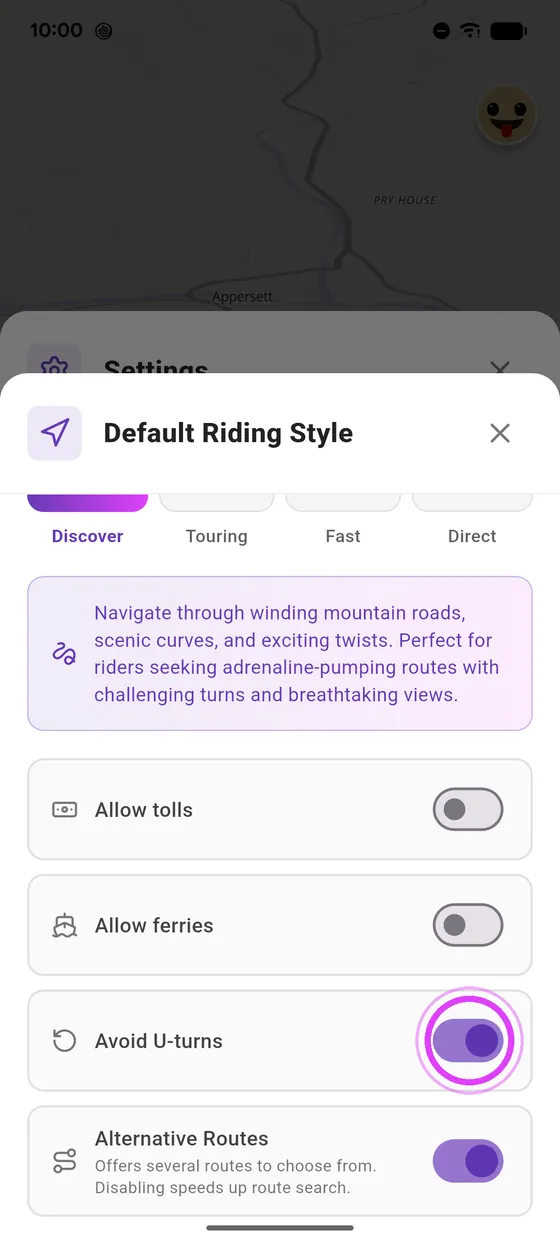
Avoid tolls, ferries and U-turns
No toll roads, no boat crossings, no forced U-turns: three switches, and all your routes follow.
4 steps · Read the guide →
 New
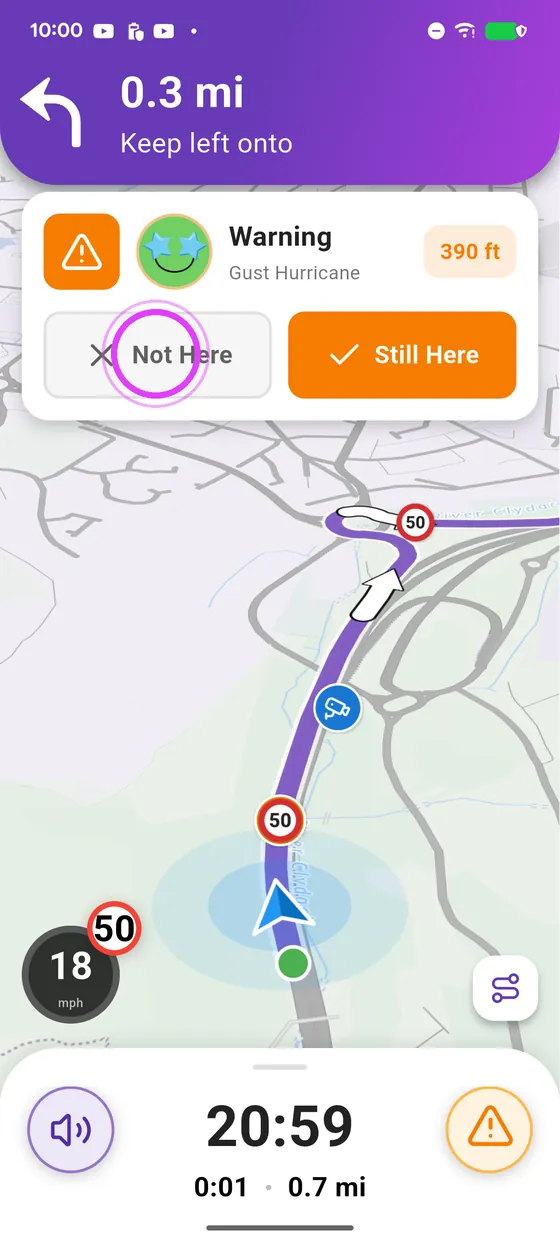
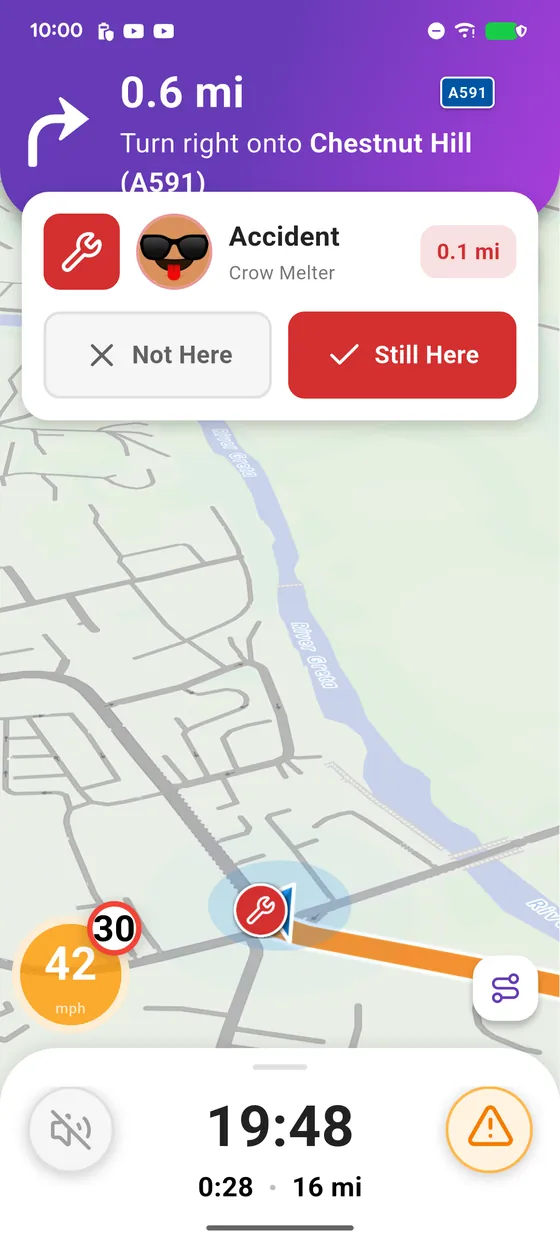
Report a road hazard and confirm an alert
An accident, gravel, a slippery road? Report it in two taps: the alert shows up for every rider coming that way.
6 steps · Read the guide →
 Break-in
New
Resume navigation after the app closes
A cut does not lose your trip: Vroom offers to pick it up again.
4 steps · Read the guide →
 Break-in
New
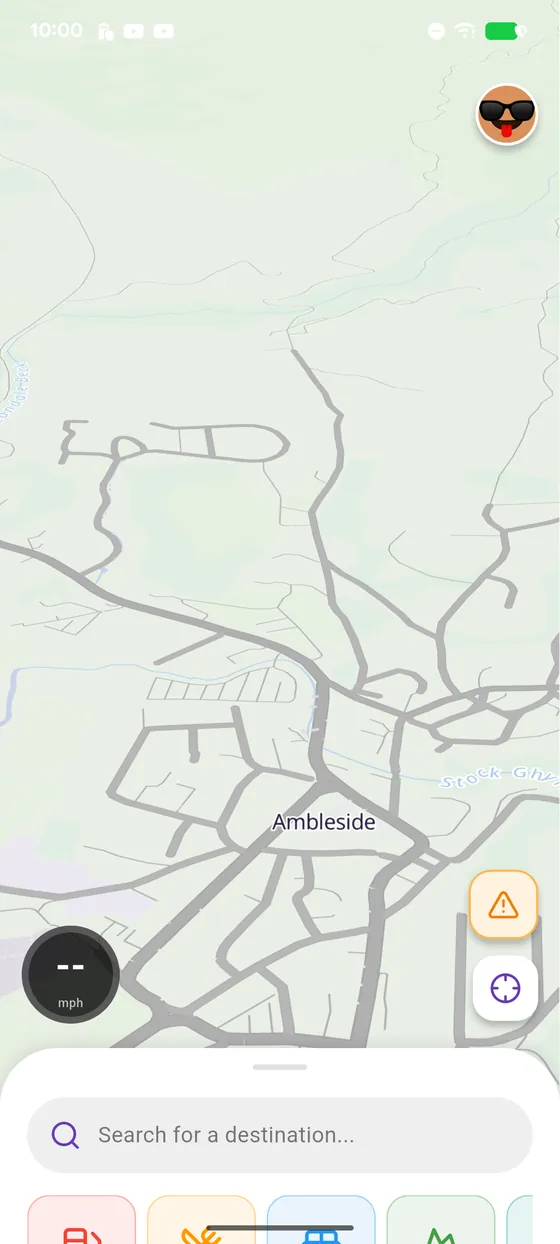
Arriving and ending navigation
Guidance takes you all the way: Vroom tells you when you arrive.
4 steps · Read the guide →
 Cruising
New
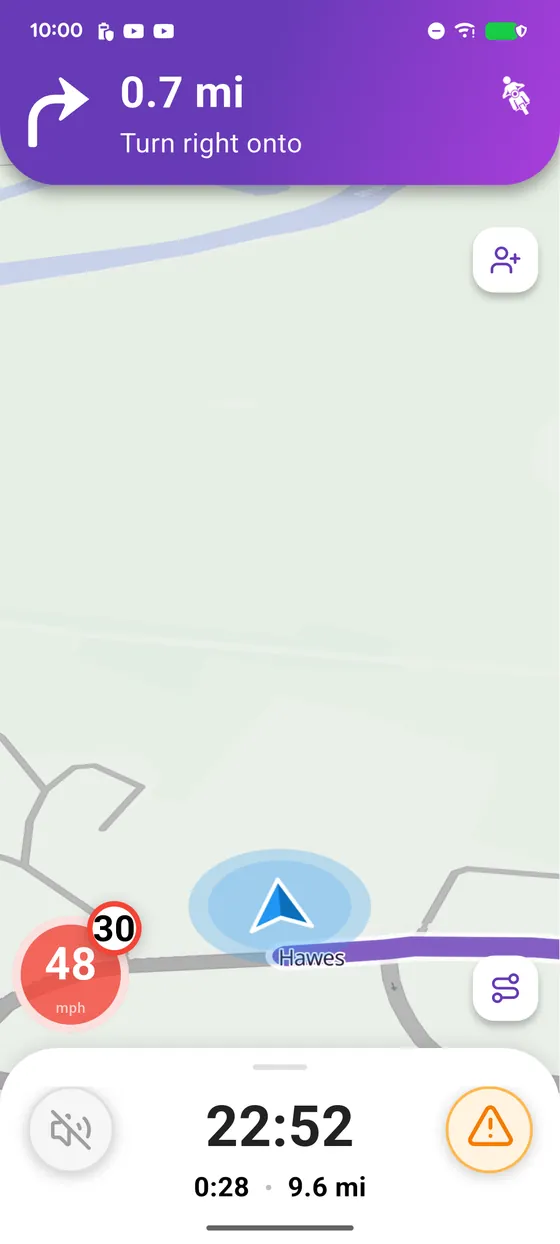
Skip a stop or go back to a past stop while navigating
No time left for a stop? Ride straight to the next one, without stopping navigation.
5 steps · Read the guide →
Road trips
 Knee down
New
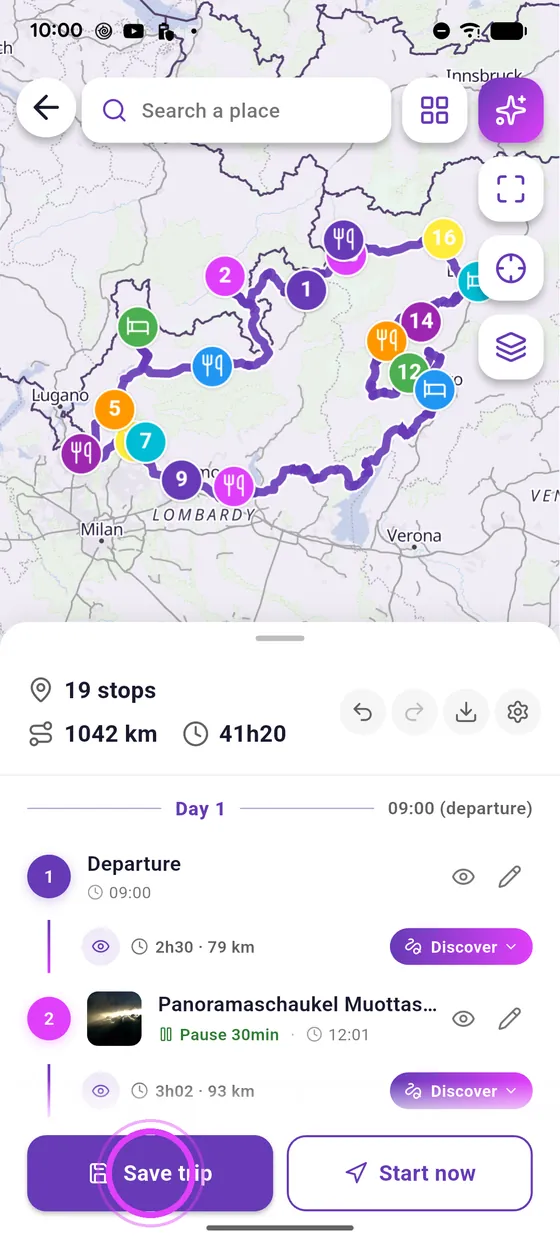
Create a motorcycle road trip with the AI wizard
Start, length, riding time per day, interests, budget: the AI wizard suggests three road trips and builds the one you pick.
7 steps · Read the guide →
 Knee down
New
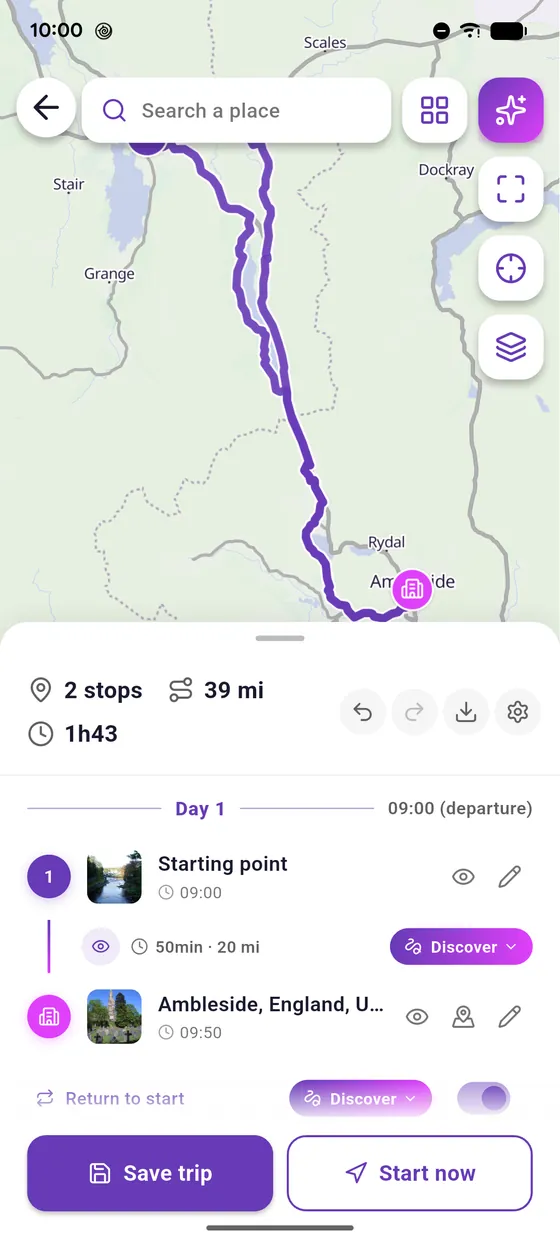
Create a road trip by hand in the editor
A long press on the map to drop a stop, the search to add more: the editor then works out the route on the best roads.
5 steps · Read the guide →
 Knee down
New
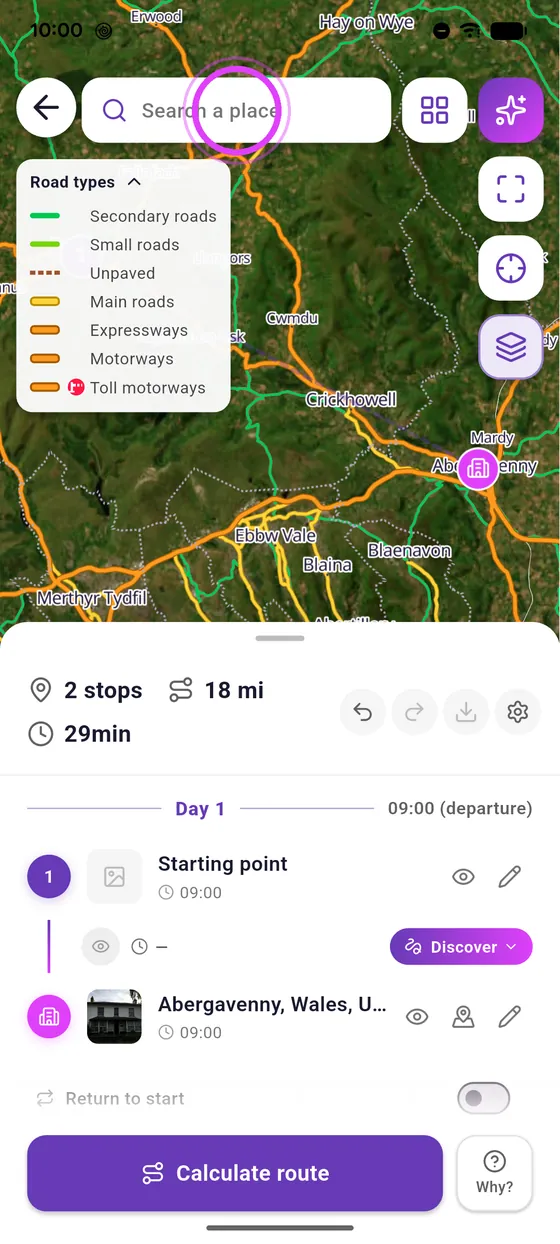
Rider view in the editor: spot the best roads
Where are the small twisty roads? Rider view colours them on the editor map: green for riding roads, orange for the ones to avoid.
5 steps · Read the guide →
Offline
 Break-in
New
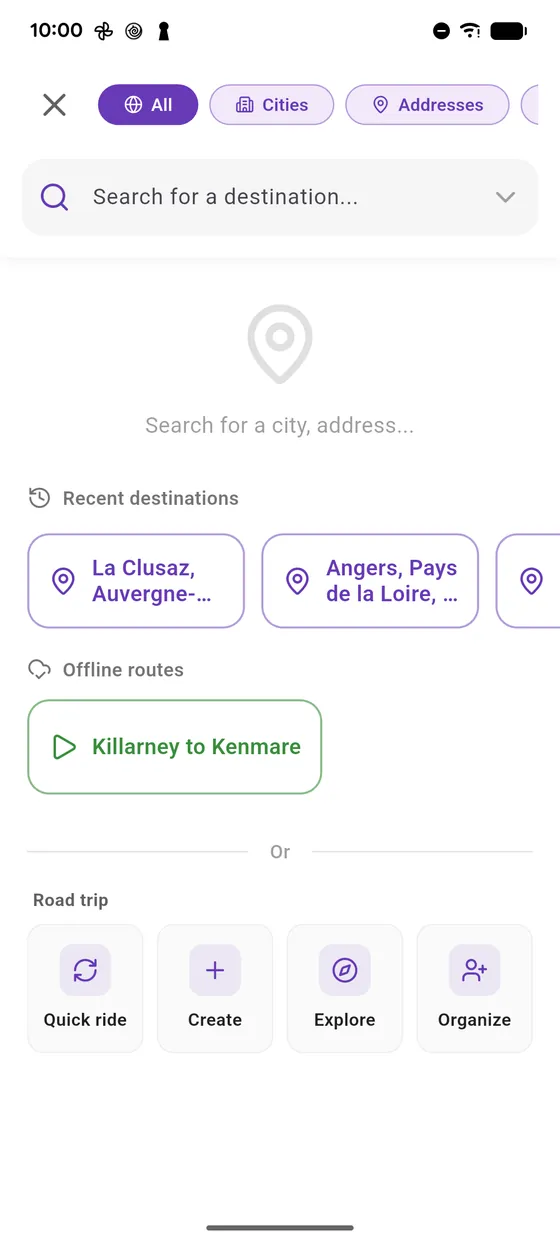
Make a ride available offline
A valley with no signal on your way? Download the ride before you leave: the map and the route stay on your phone.
⏳ Coming soon · v2.3
4 steps · Read the guide →
 Break-in
New
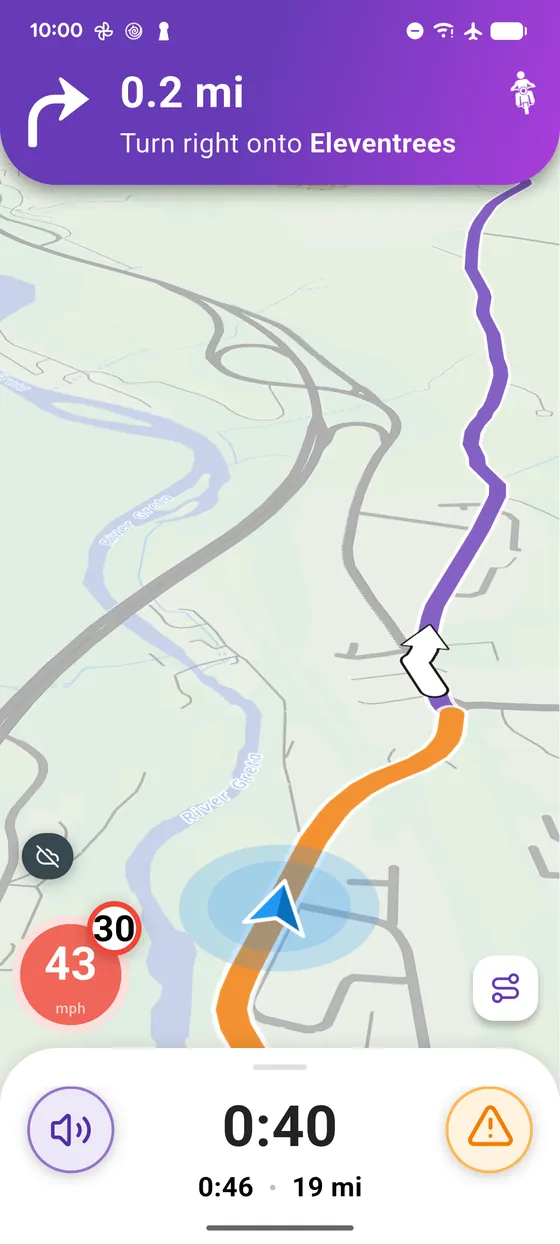
Ride without signal with Vroom GPS
No signal? Your downloaded ride still starts, and guidance keeps going.
⏳ Coming soon · v2.3
5 steps · Read the guide →
 Break-in
New
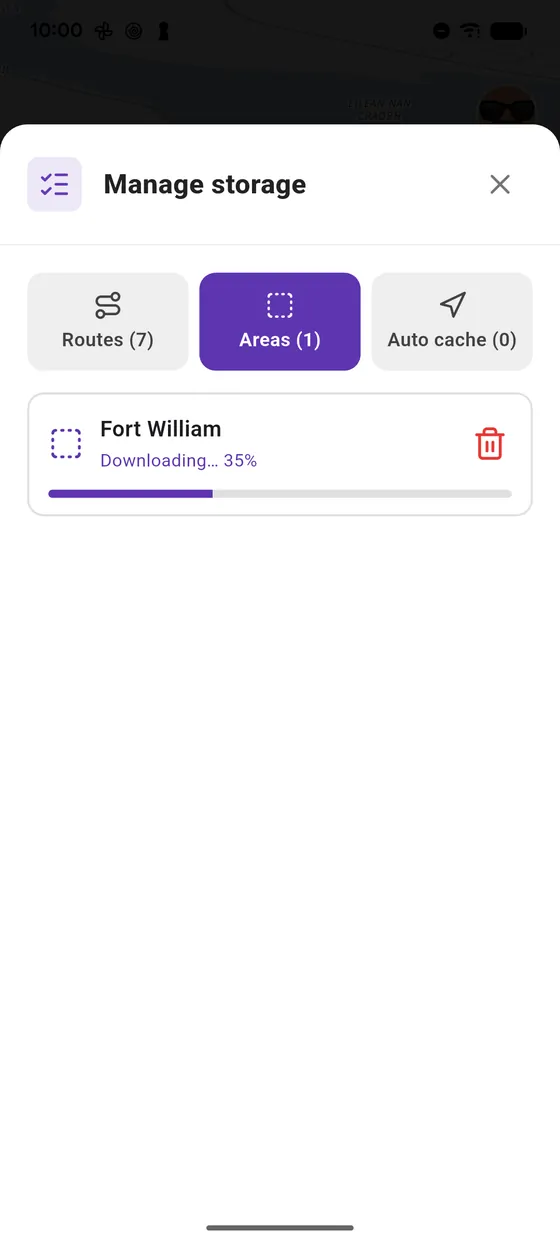
Download a map area for offline use
Heading out with no set route in a region with poor signal? Download the whole area.
⏳ Coming soon · v2.3
7 steps · Read the guide →
 Break-in
New
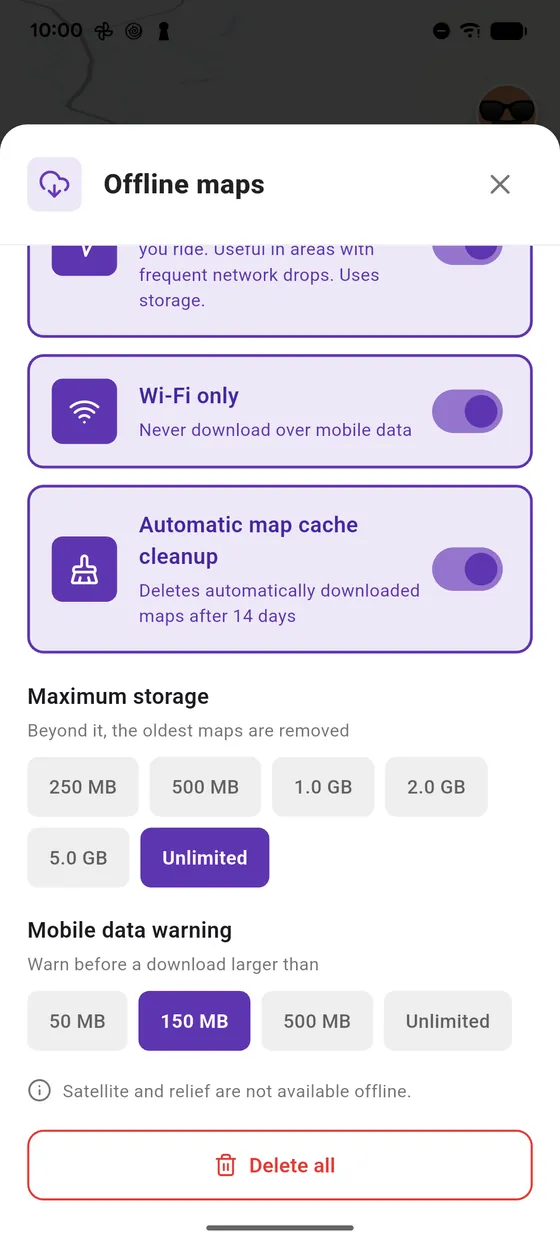
Automatic map download
Often riding where signal is poor? Let Vroom download the map ahead, on its own.
⏳ Coming soon · v2.3
4 steps · Read the guide →
 Break-in
New
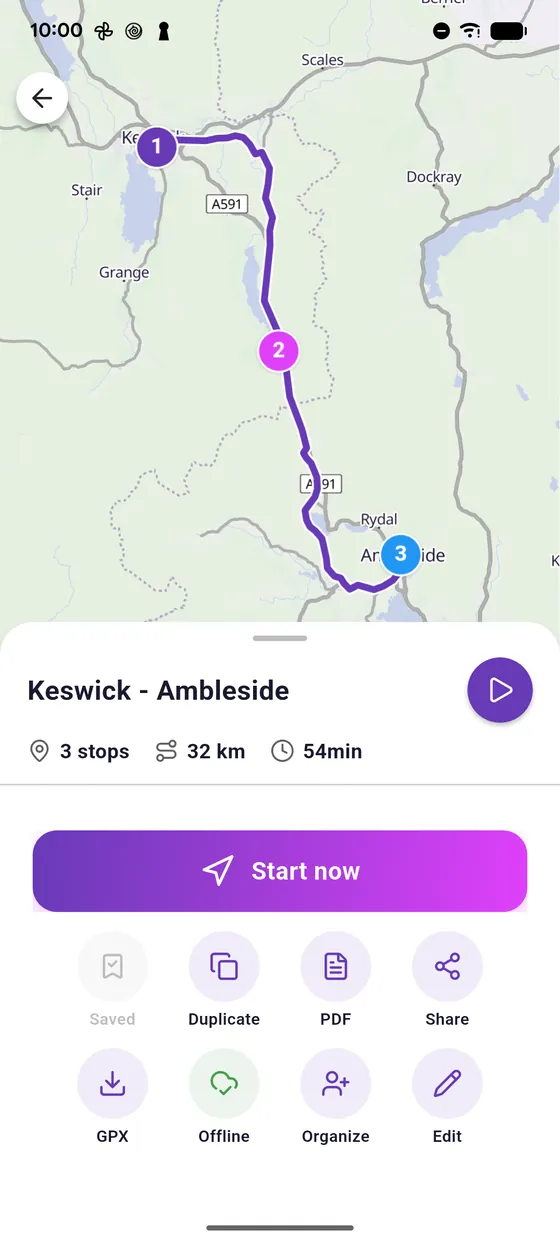
Download a road trip for offline use
A road trip over several days, valleys with no signal? Download it before you leave.
⏳ Coming soon · v2.3
3 steps · Read the guide →
 Break-in
New
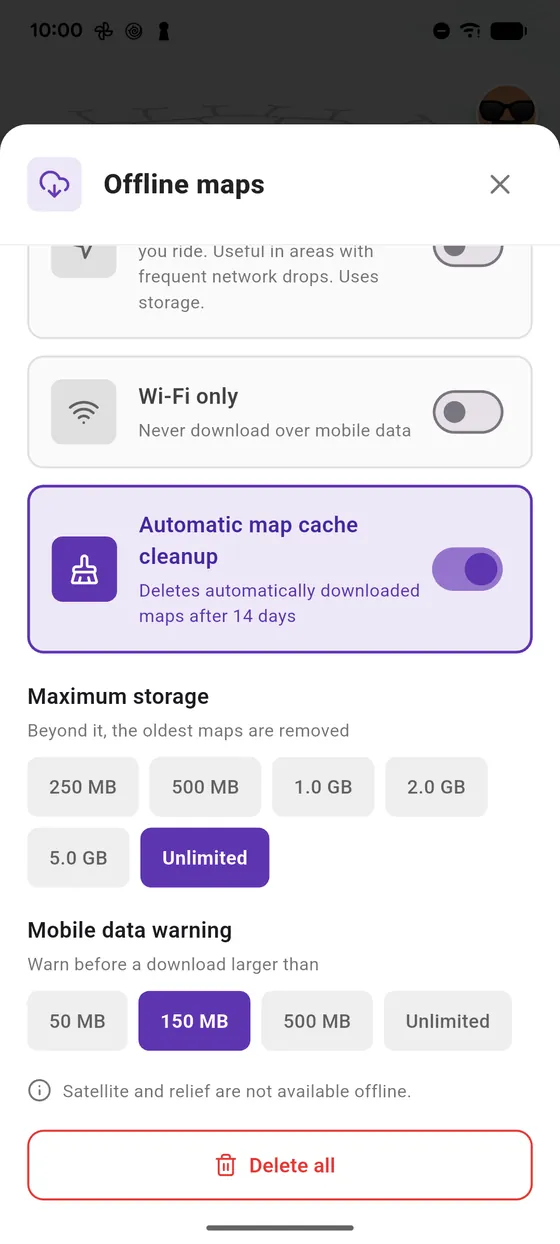
Manage offline map storage
Your offline maps taking up room? It is all managed from one page.
⏳ Coming soon · v2.3
6 steps · Read the guide →
Riding together
 Break-in
New
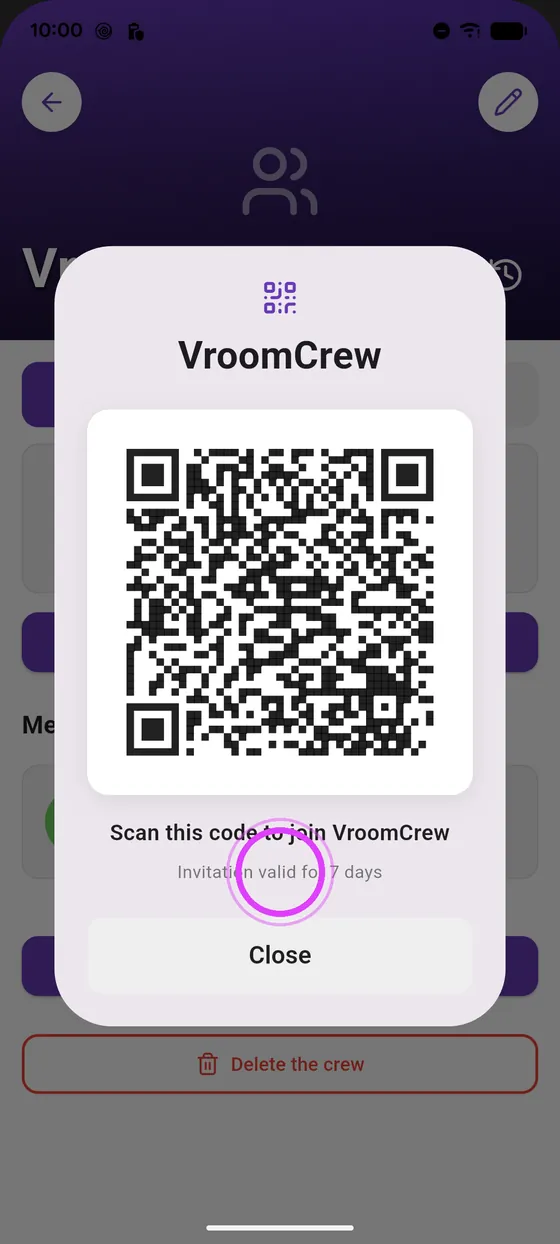
Create a crew and invite your friends
A crew is your riding gang in Vroom GPS: a name, your friends, and all your rides in one place.
6 steps · Read the guide →
 Cruising
New
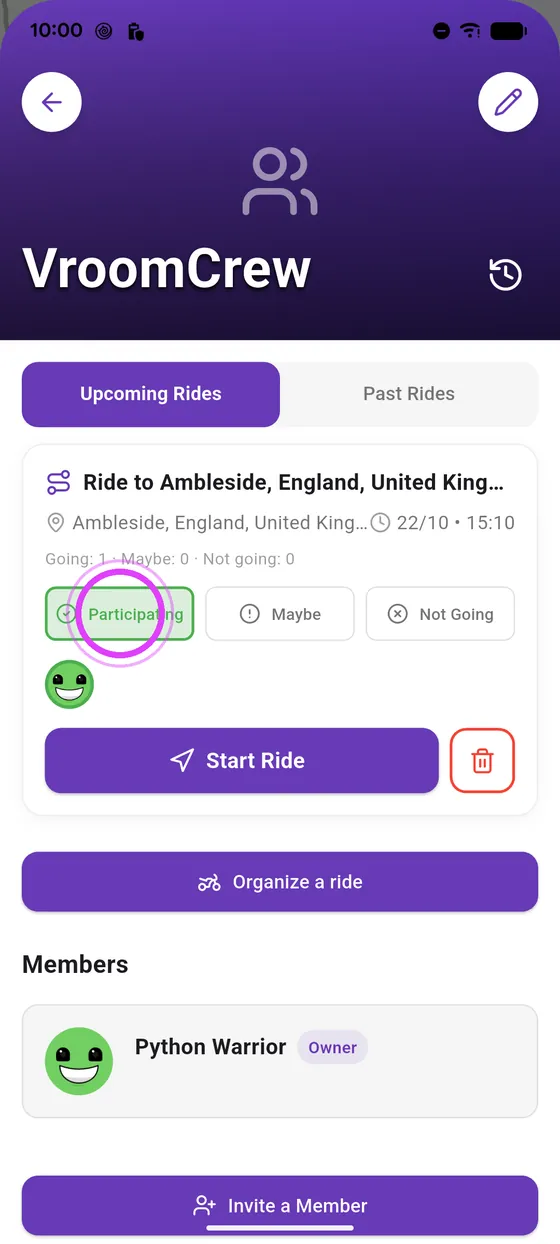
Organise a motorcycle ride with your crew
Where, when, who: in three screens your ride is planned and your whole crew gets the invitation.
7 steps · Read the guide →
 Break-in
New
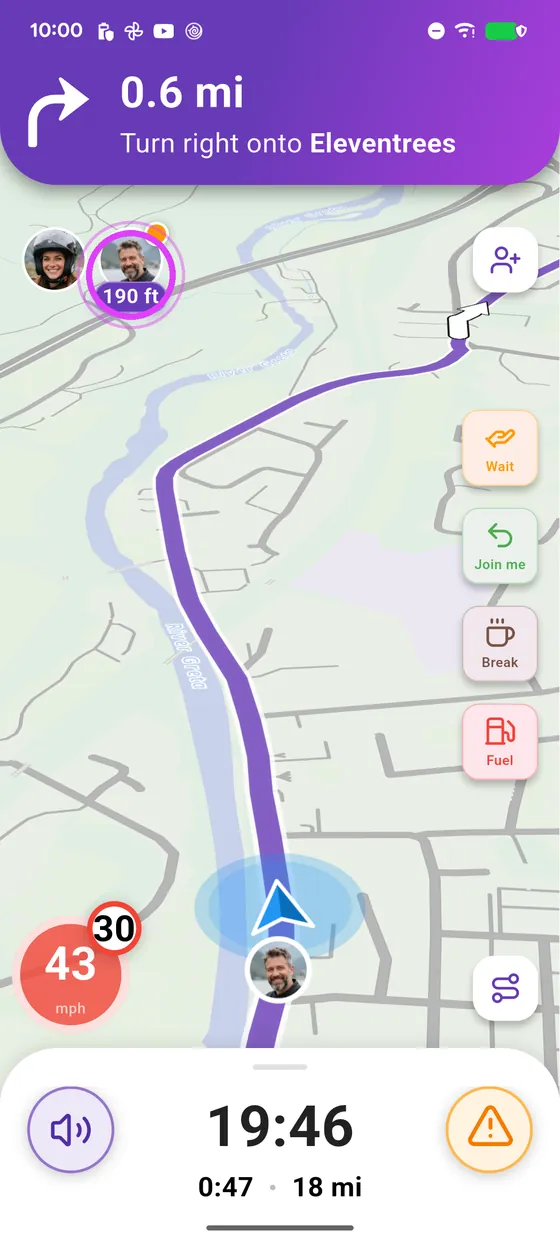
Invite a friend on your ride, no crew needed
No crew needed to ride together: a QR code, your friend scans it, and you are on the same ride.
4 steps · Read the guide →
 Cruising
New
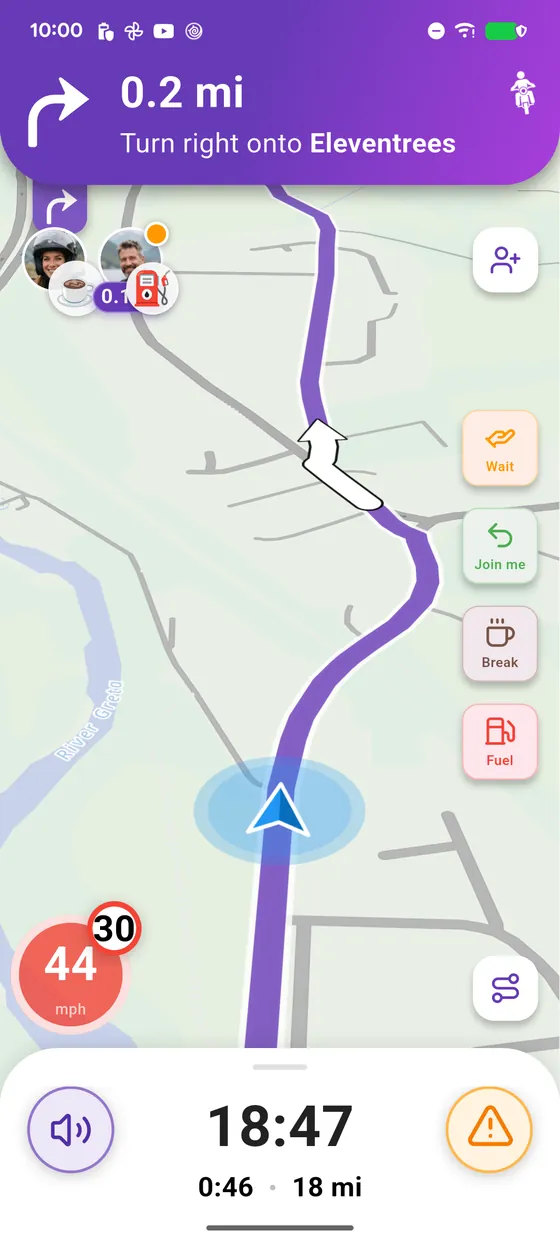
Riding together: distance, zoom on a friend and quick messages
On a group ride you always know where the others are: their distance at the top of the screen, and one tap to ask them to wait.
5 steps · Read the guide →
 Break-in
New
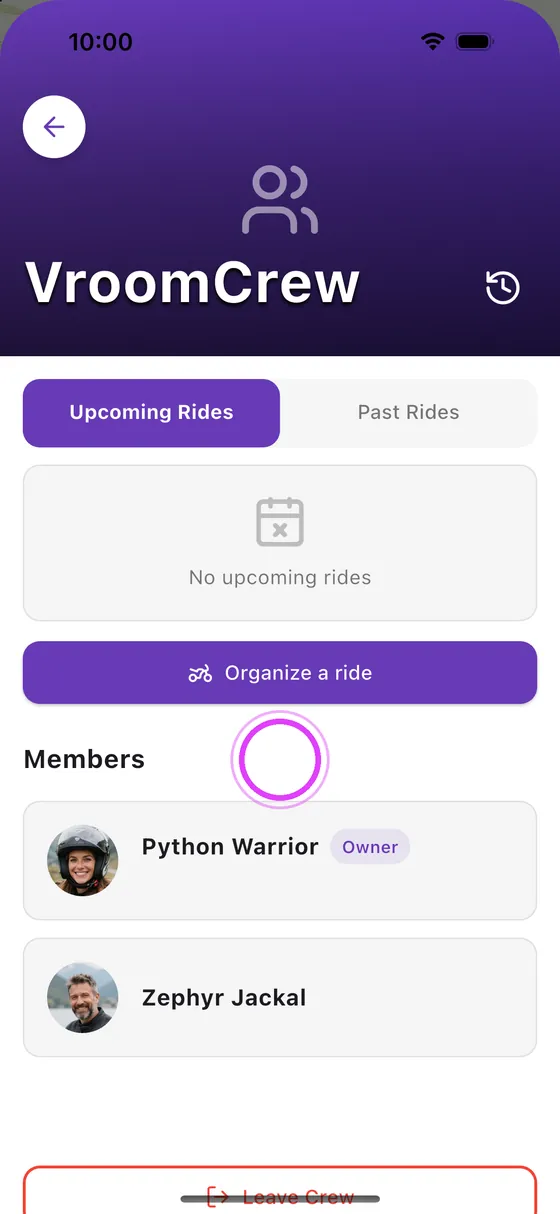
Get a friend to join your crew
Crew created? Only your friends are missing: a QR code, they scan it, and they are part of the gang.
3 steps · Read the guide →
 Cruising
New
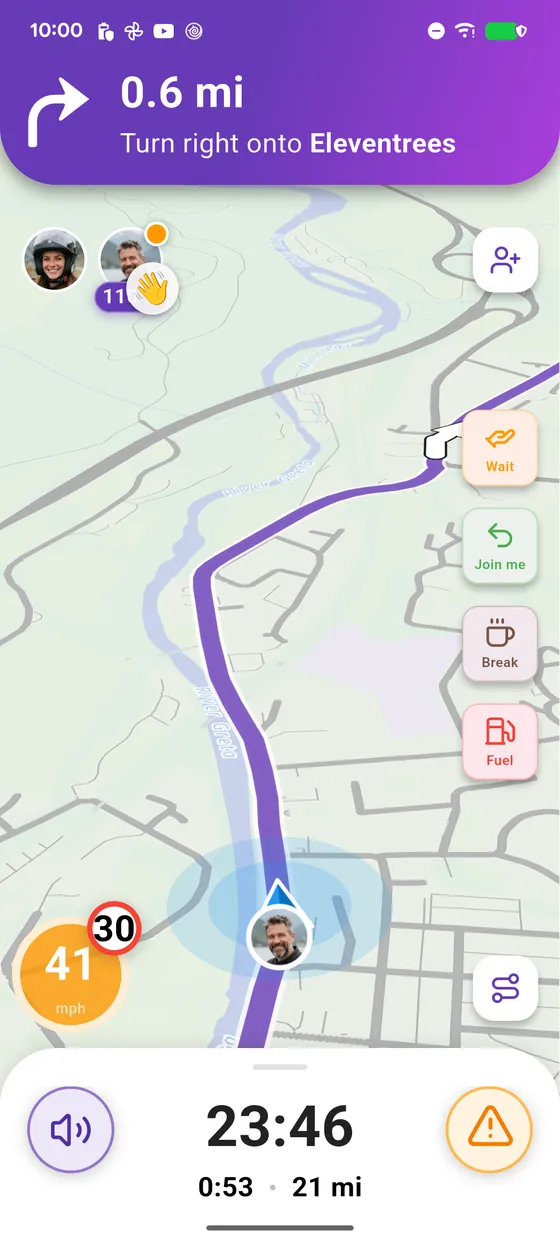
Go for a ride with your crew
Leaving now? Invite your crew in three screens: everyone starts the ride from the crew page, and you ride on the same route.
6 steps · Read the guide →
Connected screen
 Break-in
New
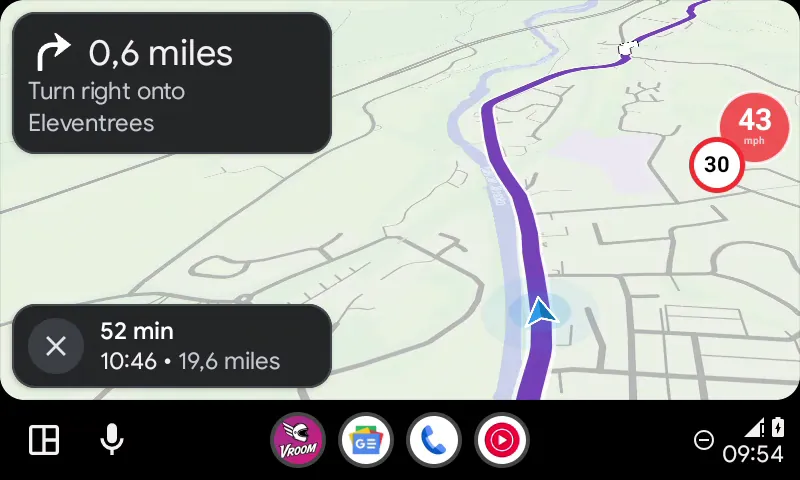
Start navigation from the connected screen
Your phone stays in your pocket: everything starts from the connected screen.
5 steps · Read the guide →
 Break-in
New
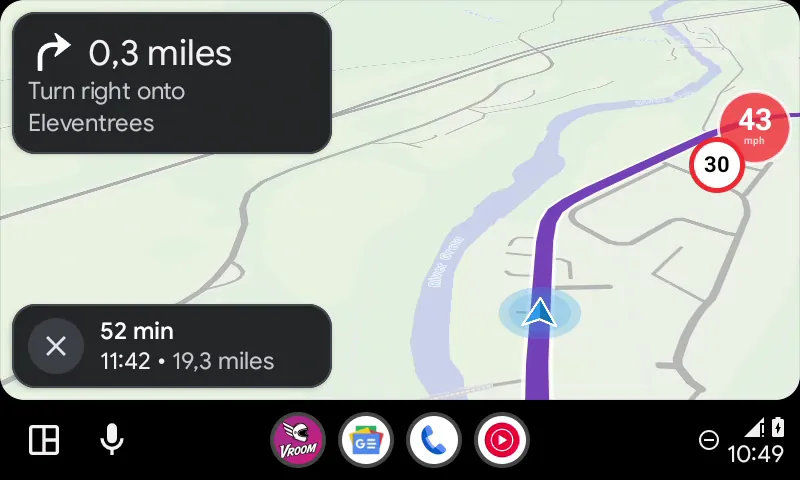
Add a fuel stop or a break from the connected screen
Running low on fuel or getting hungry: Vroom finds the stop on your route in two taps.
5 steps · Read the guide →
 Cruising
New
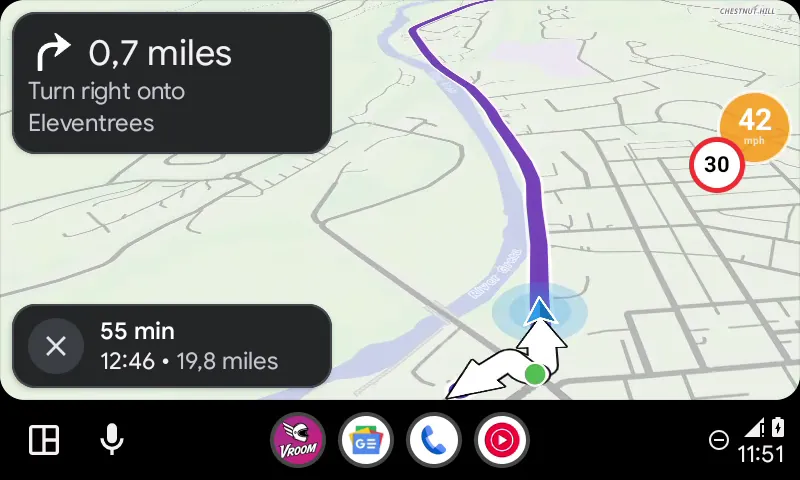
See your road trip details on the connected screen
Your breaks, your stops and the finish, at a glance on the connected screen.
5 steps · Read the guide →
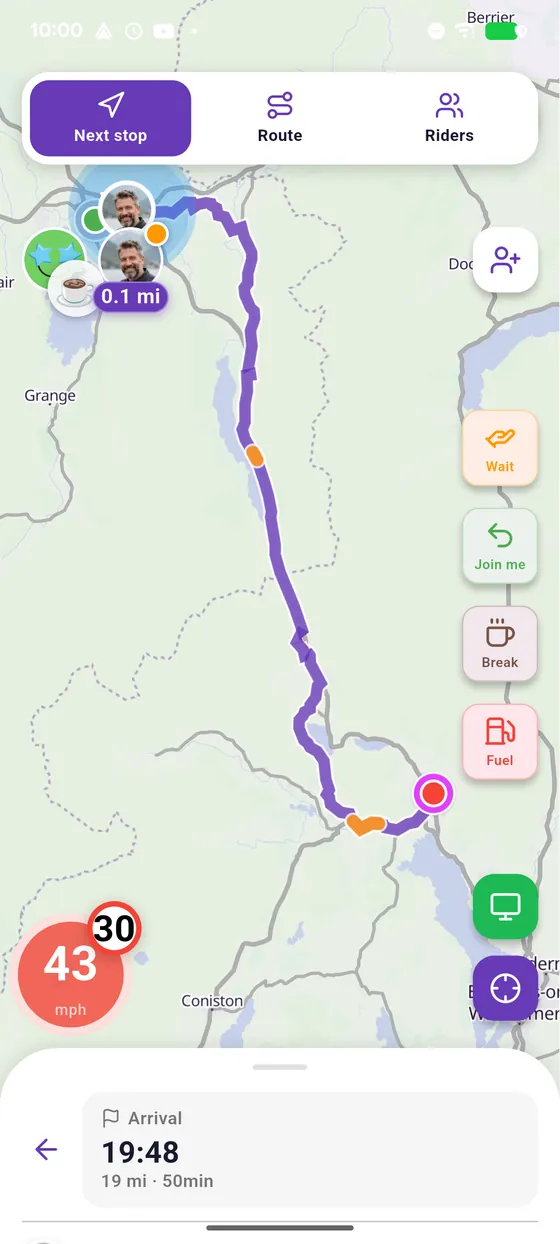 Cruising
New
The phone companion screen during navigation
The map is on the connected screen, your phone becomes your remote.
7 steps · Read the guide →
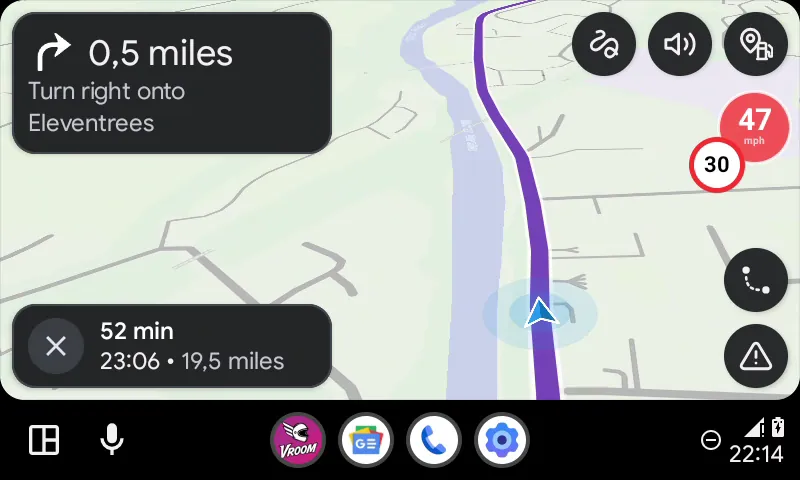 Break-in
New
Report a hazard from the connected screen
An accident, gravel, a slippery road? Two taps on the connected screen and every rider is warned.
5 steps · Read the guide →
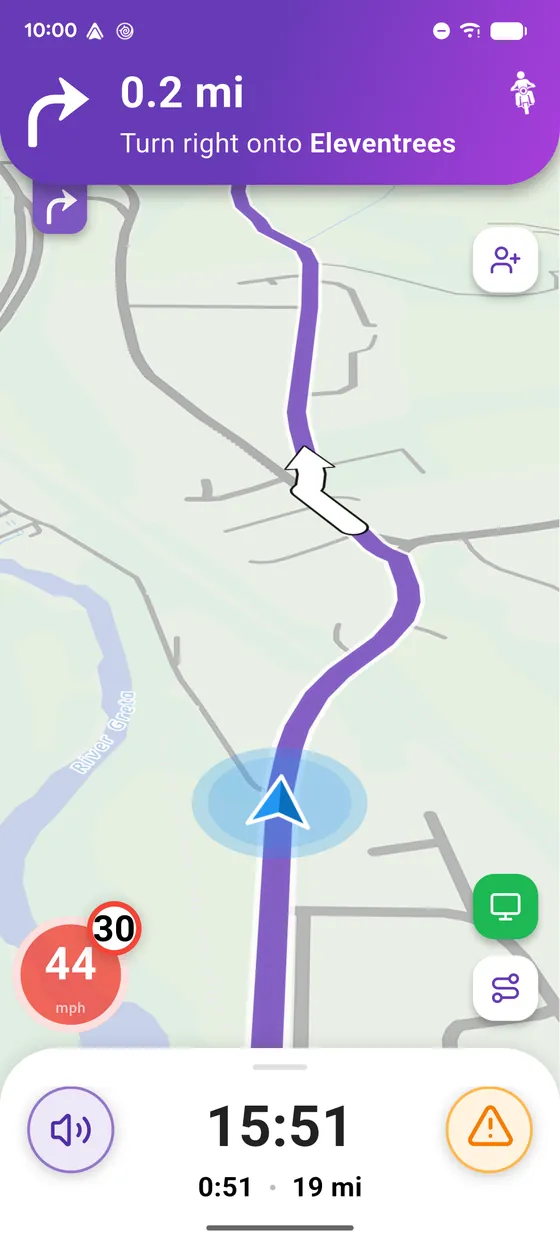 Break-in
New
Connected screen, phone or both: Vroom GPS setups
Connected screen, phone, or both at once: Vroom fits your gear.
5 steps · Read the guide →
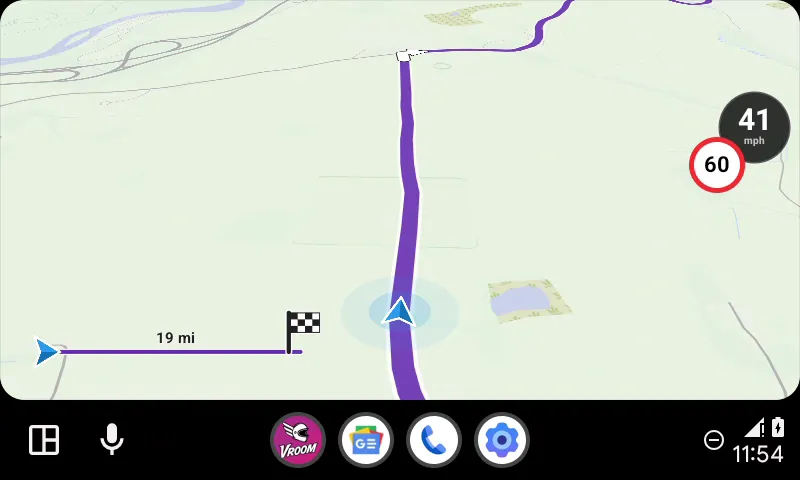 Break-in
New
Set up the Android Auto screen: instructions, progress bar
More or fewer instructions, a route progress bar at the bottom, the top or the left: the bike screen is set up from your phone.
11 steps · Read the guide →
 Break-in
New
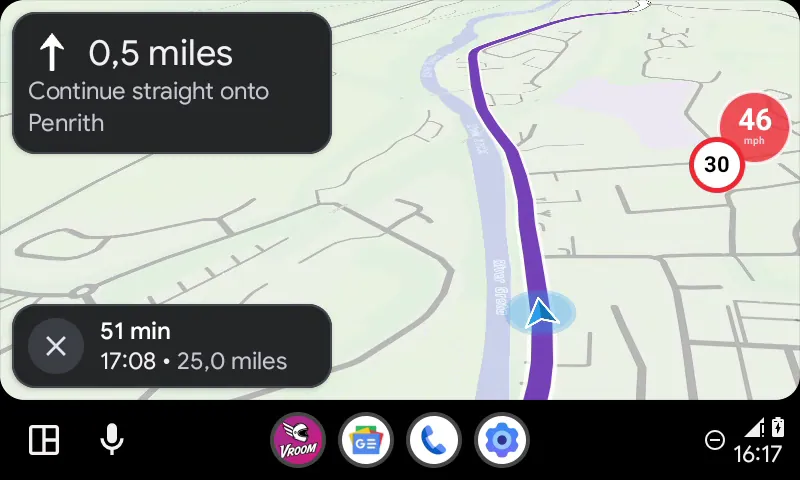
Route preview on Android Auto: riding style and routes
Before you start, the preview shows your routes, with their duration and distance.
7 steps · Read the guide →
 Break-in
New
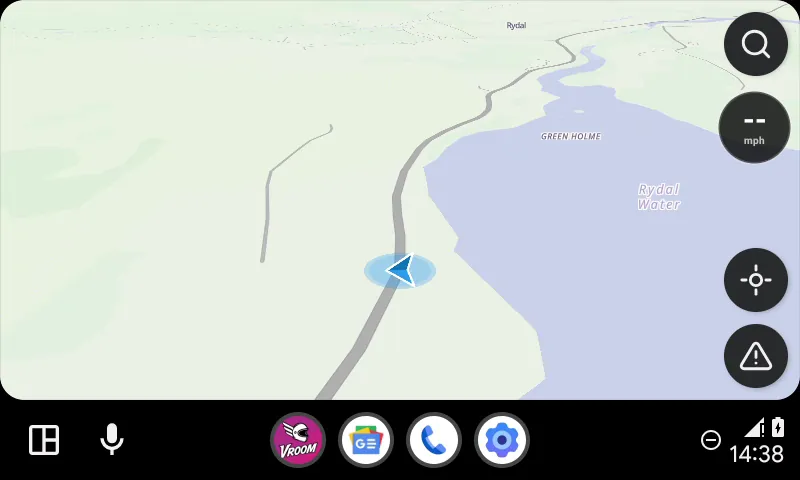
Arriving and stopping navigation on Android Auto
Guidance takes you all the way: the bike screen tells you when you arrive.
4 steps · Read the guide →
 Break-in
New
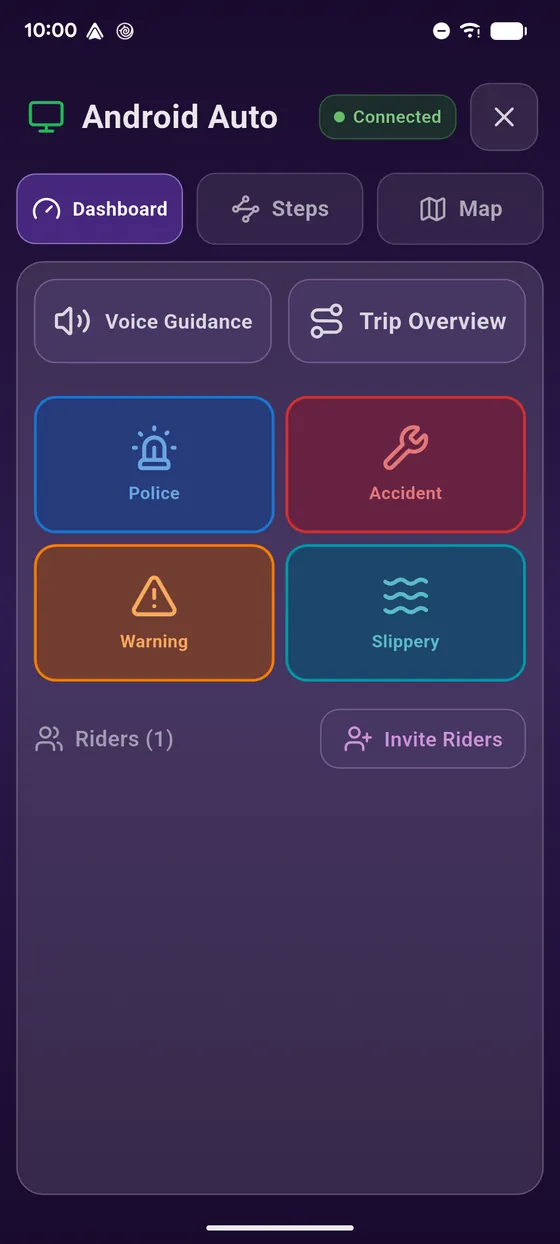
Do you need to keep Vroom open on your phone with Android Auto?
No need to keep Vroom open: guidance carries on on the bike screen.
5 steps · Read the guide →
 Break-in
New
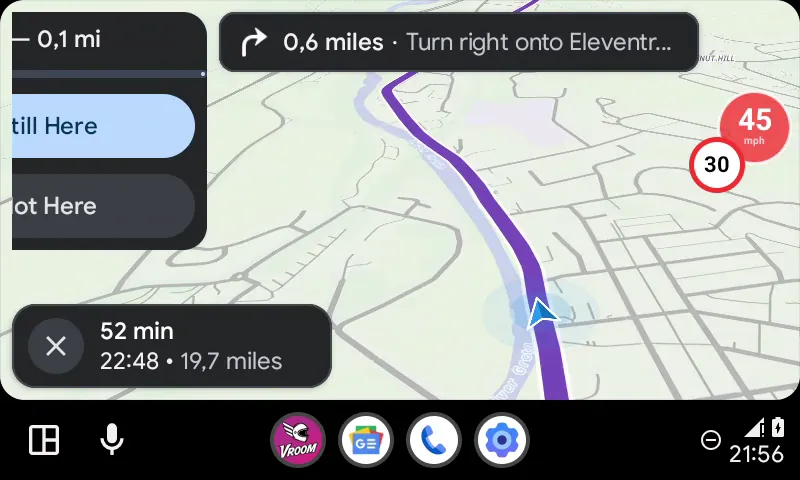
Resume an interrupted navigation on Android Auto
A cut does not lose your trip: Vroom offers to pick it up again.
4 steps · Read the guide →
 Break-in
New
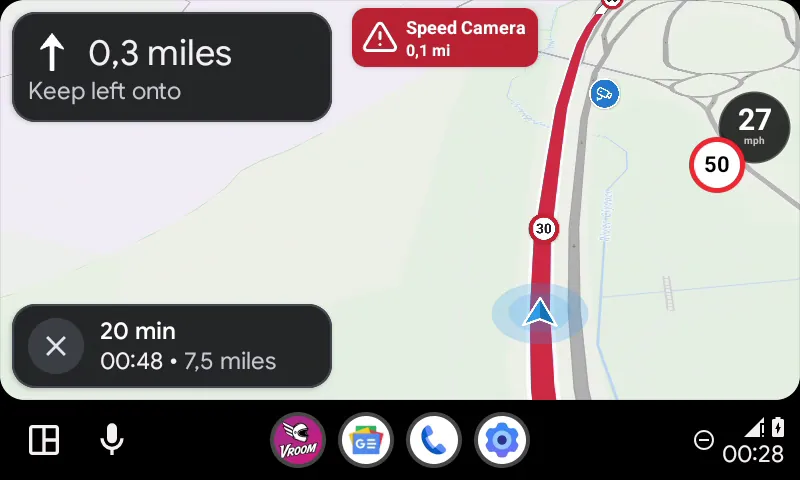
Speed, speed limit and cameras on the Android Auto screen
Your speed and the limit always in sight, and an alert as you approach speed cameras.
3 steps · Read the guide →
 Break-in
New
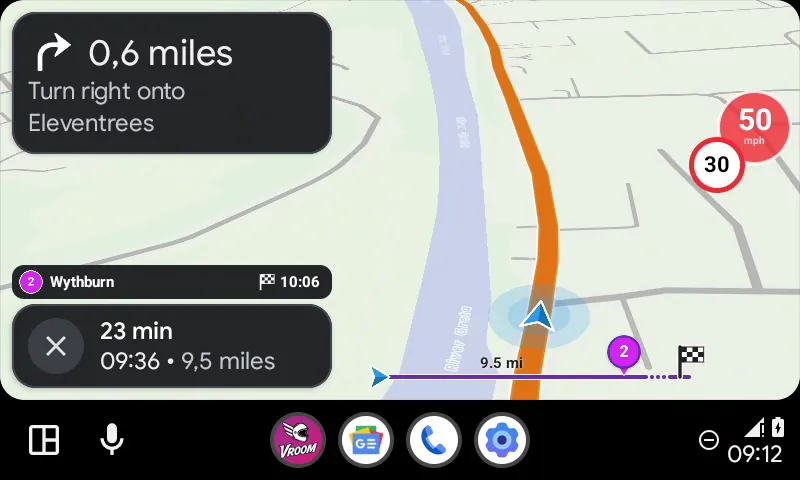
Start a saved road trip on Android Auto
Plan your road trip on your phone, start it from the bike screen.
6 steps · Read the guide →
 Cruising
New
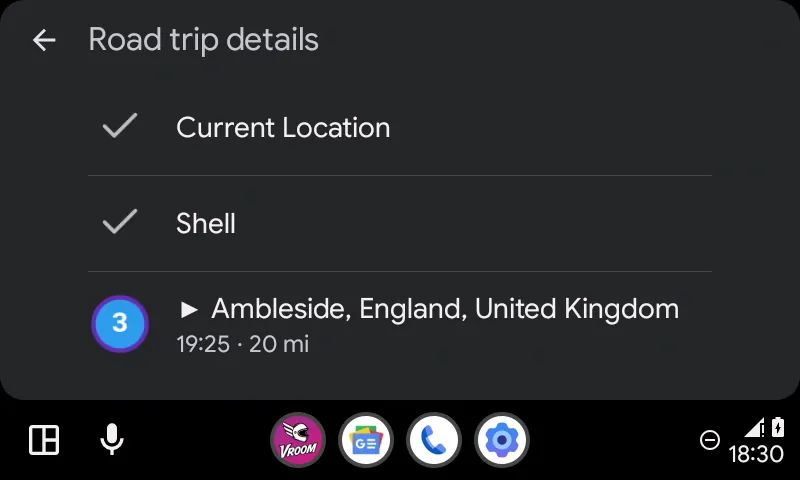
See your past stops on the connected screen
The road trip details start at the current stop: the stops you passed are tucked away above.
5 steps · Read the guide →
 Break-in
New
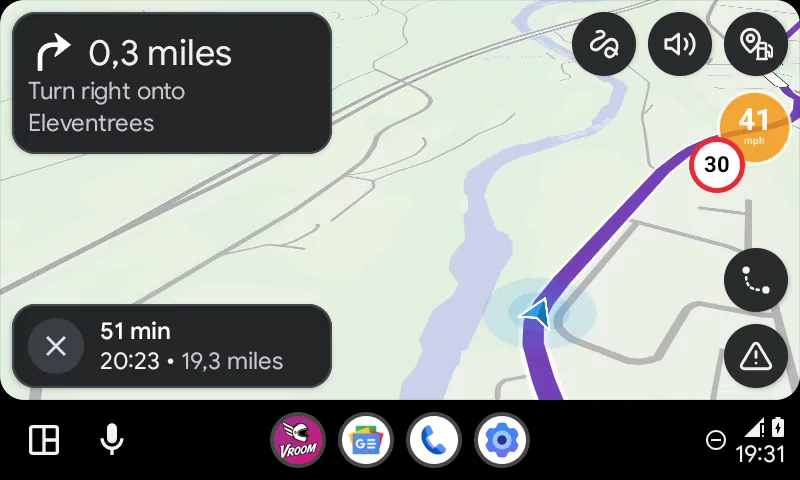
See the whole route on the connected screen
A glance at the whole route, without stopping navigation.
4 steps · Read the guide →
 Break-in
New
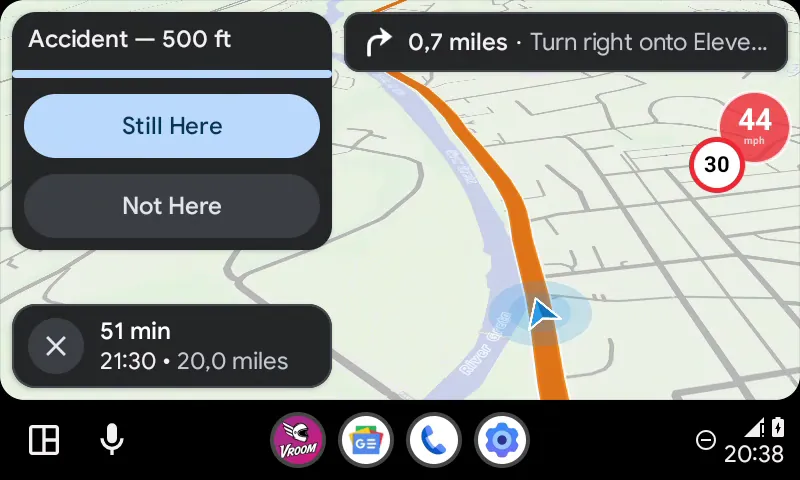
Plan your ride on the phone and follow it on the connected screen
Picking a destination is easier on the phone: do it before you set off.
4 steps · Read the guide →
 Break-in
New
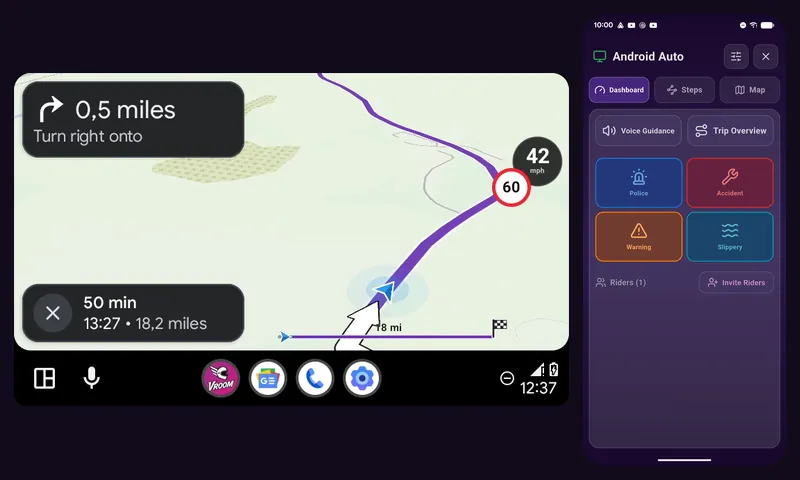
Set up the Android Auto screen mid-ride
No need to stop navigating: at a break, set up the bike screen from the phone companion.
6 steps · Read the guide →
 Cruising
New
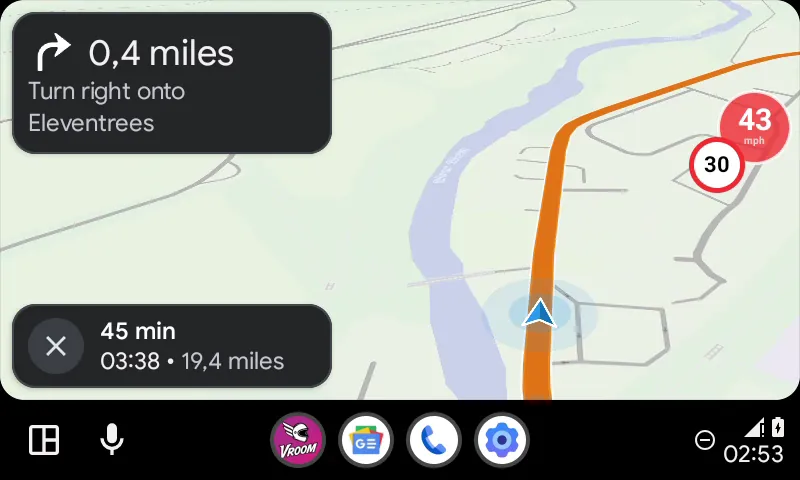
Send a quick message to the group from the connected screen
Riding together, a message bubble shows up on the bike screen.
4 steps · Read the guide →
 Break-in
New
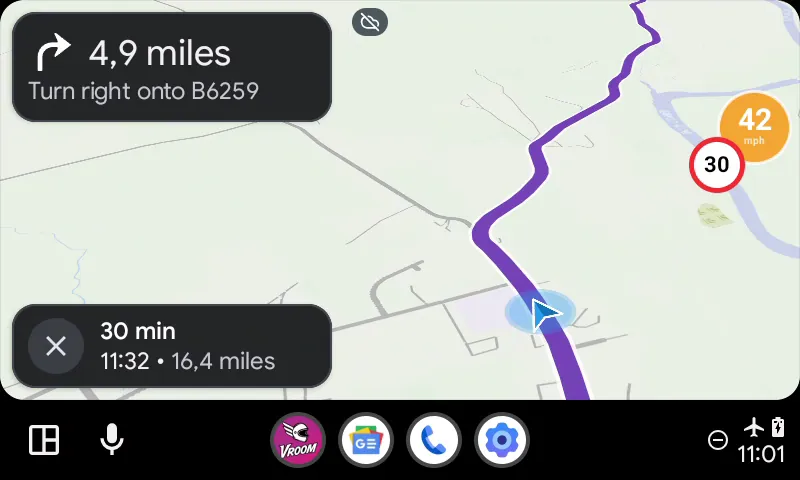
Start an offline route on Android Auto
No signal on the road? Your downloaded rides start from the bike screen.
⏳ Coming soon · v2.3
5 steps · Read the guide →
Map
 Cruising
New
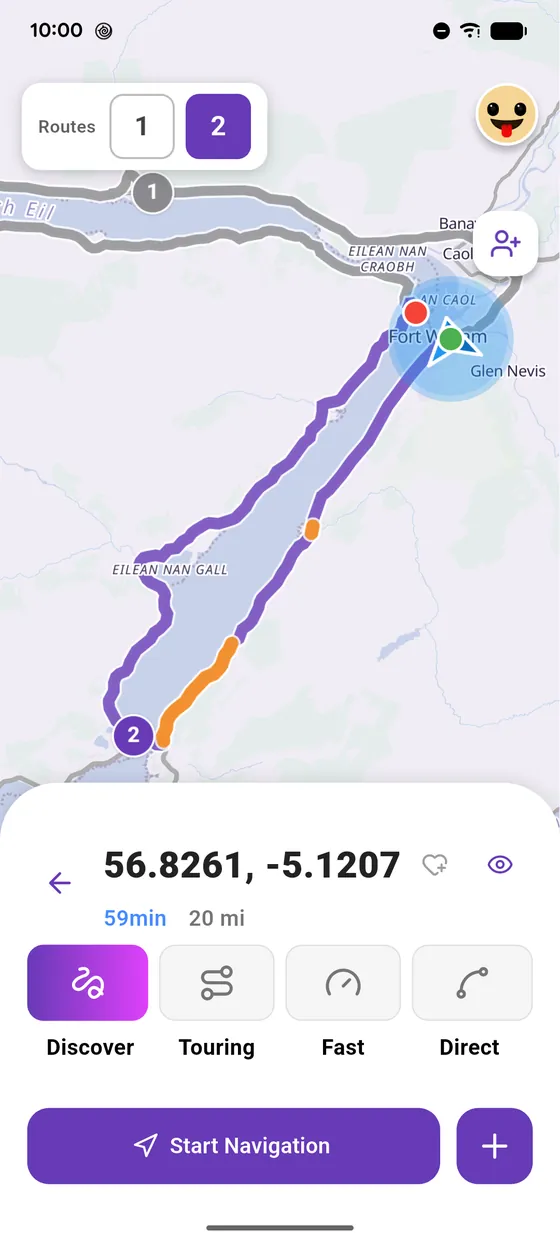
Long press on the map: Street View and go there
Spotted a place on the map with no address? A long press is all it takes: check it in Street View, then go there.
4 steps · Read the guide →
 Break-in
New
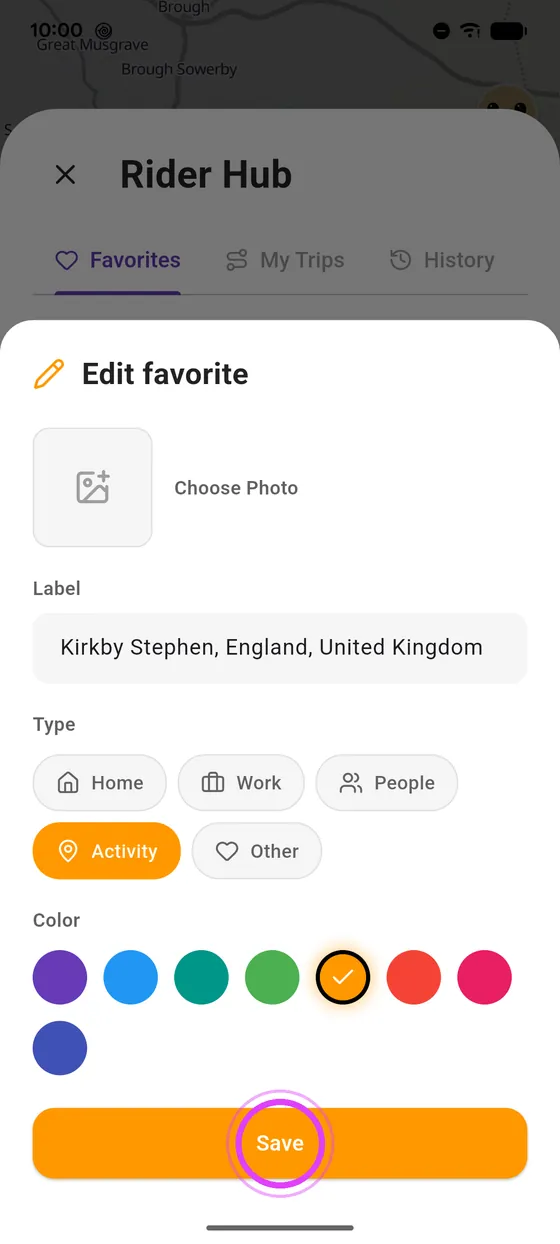
Add and manage your favourites in Vroom GPS
Your home, your biker café, your favourite pass: one heart to keep them, always within reach.
5 steps · Read the guide →
Voice guidance
 Cruising
New
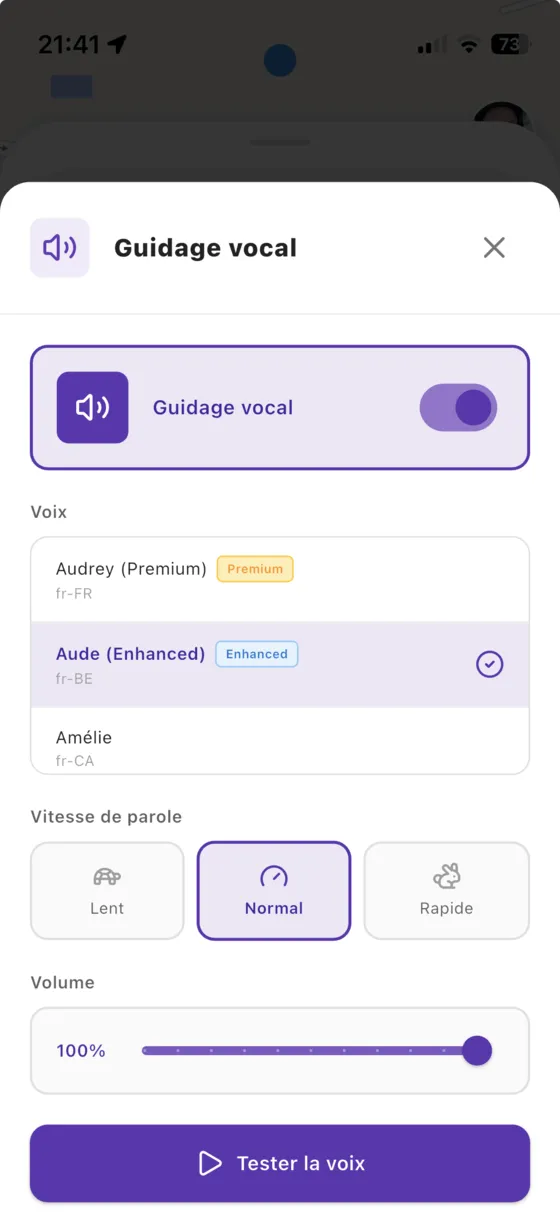
Guide: a Premium voice for voice guidance on iPhone
By default, iOS uses a compact voice that sounds robotic. Download a free Premium or Enhanced voice in your iPhone settings and Vroom GPS guidance becomes far more natural and easier to hear in your helmet.
7 steps · Read the guide →
 Cruising
New
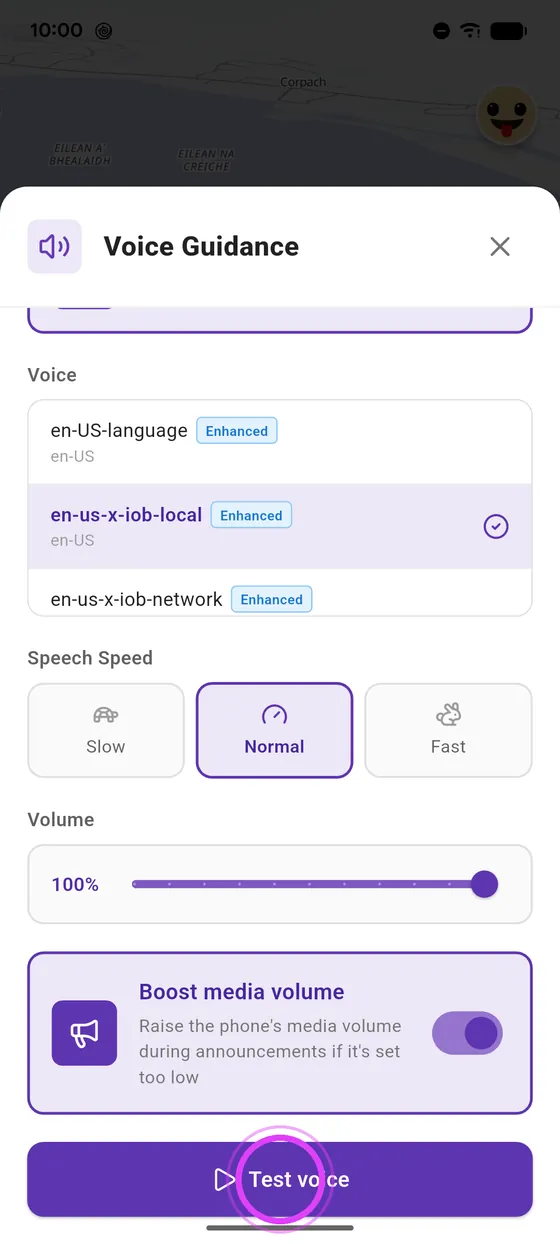
Set up voice guidance: voice, speed, volume
A clear voice in your helmet makes all the difference. Pick your voice, its speed and volume, and boost the sound if announcements are too quiet.
5 steps · Read the guide →
Settings
 Break-in
New
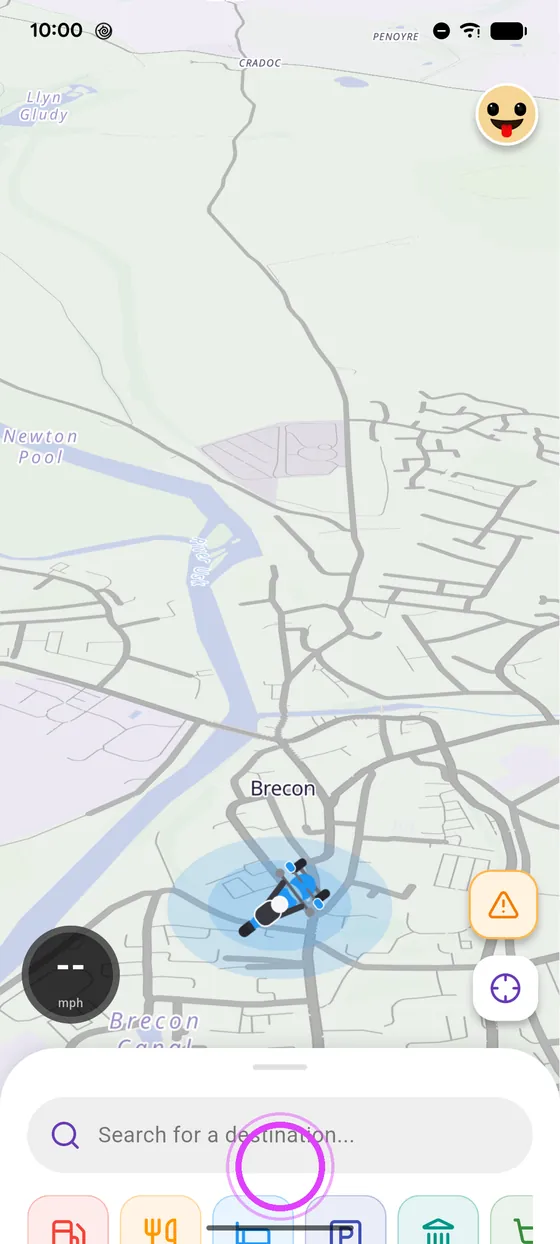
Change the rider icon on the map
Dot, arrow or your own bike: choose how you show up on the map, and enlarge the icon to spot it at a glance.
5 steps · Read the guide →
 Cruising
New
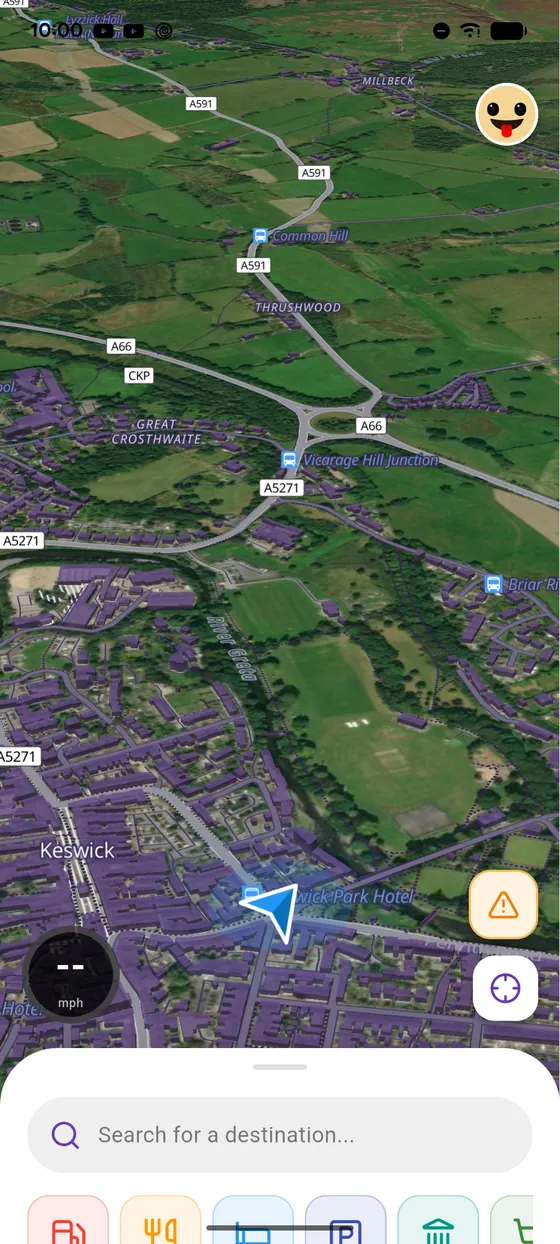
Customise the map: dark theme, 3D, relief, satellite
Light, dark or automatic theme, 3D buildings, relief, points of interest, road labels, satellite: set up the map the way you like it.
7 steps · Read the guide →
 Break-in
New
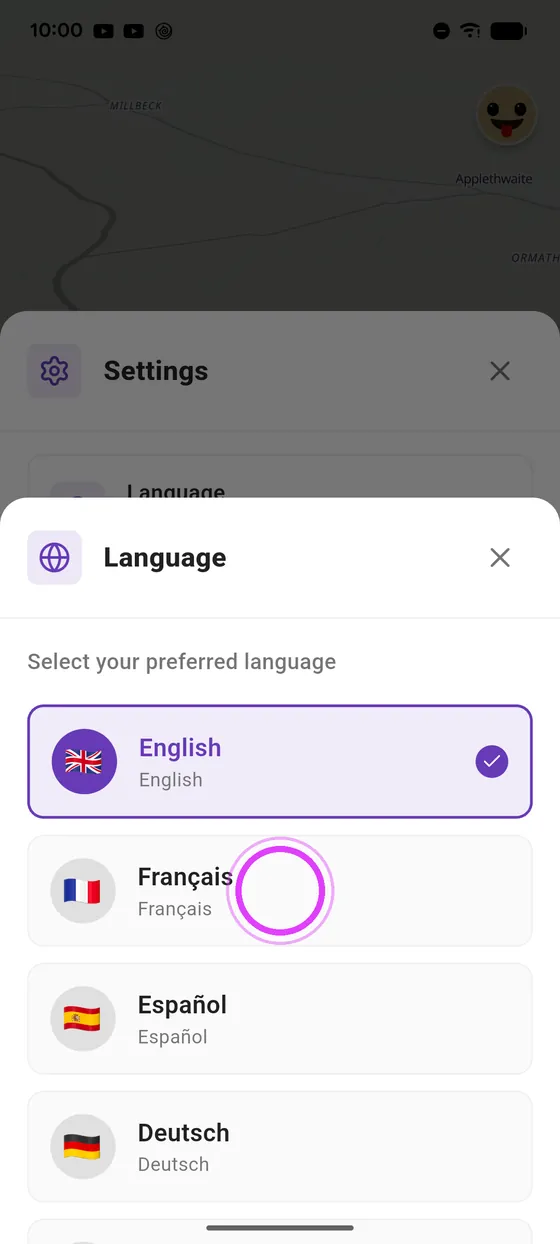
Change the app language and switch to miles
Vroom speaks 19 languages. Pick yours, and switch to miles if you prefer: distances and speeds follow.
4 steps · Read the guide →
 Knee down
New
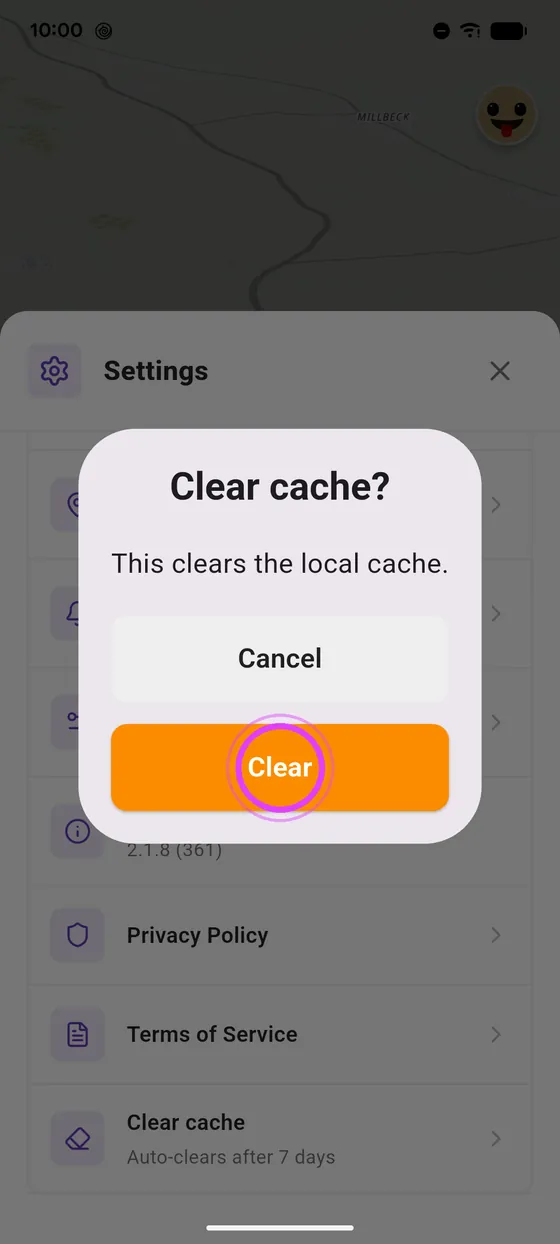
Clear the Vroom GPS cache
Map not showing properly, or the app feels slow? Clearing the cache gives a clean start, without losing any of your rides.
2 steps · Read the guide →
 Break-in
New
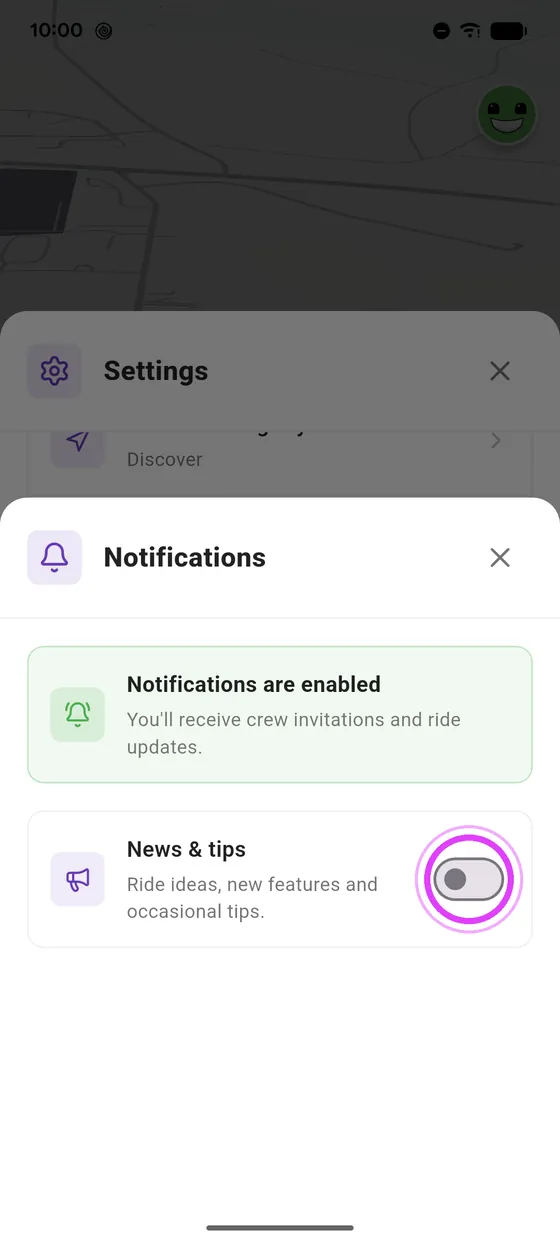
Set up Vroom GPS notifications
Crew invitations, yes; the rest is up to you. It is all in one place, in two taps.
4 steps · Read the guide →
Ready toride?
Install Vroom GPS and find your next ride this weekend.