Guide · Offline
Manage the spaceyour maps take
Your offline maps taking up room? It is all managed from one page.
Break-in
Tested with Vroom GPS v2.3.1
Step by step ↓
Step by step
Followthe guide
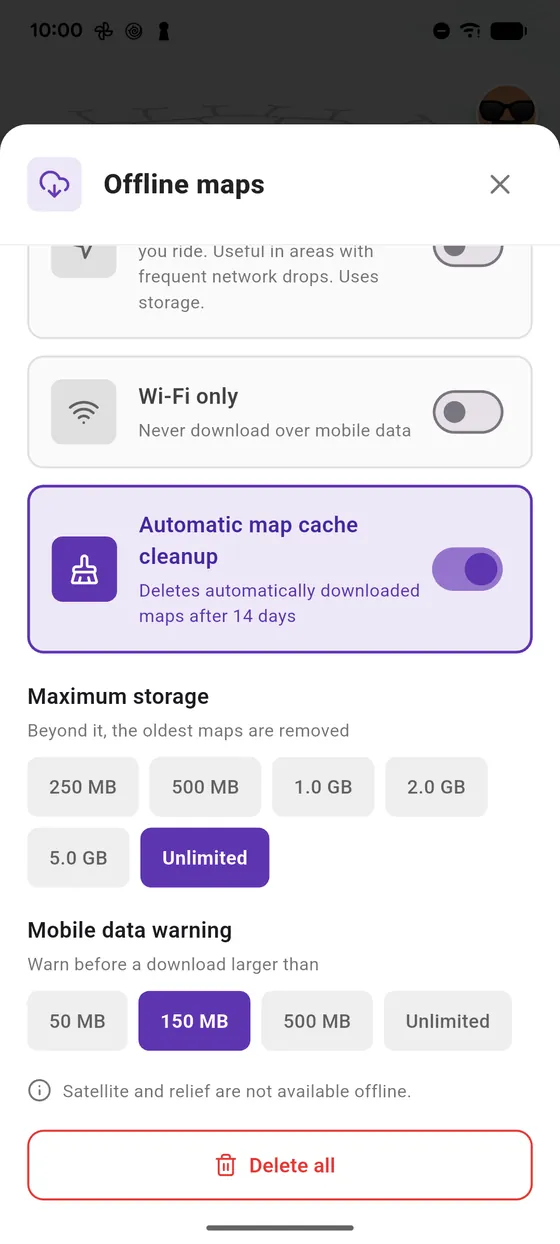
Beyond the maximum space, the oldest maps are deleted. Automatic cleanup clears the auto cache after 14 days.
-
1
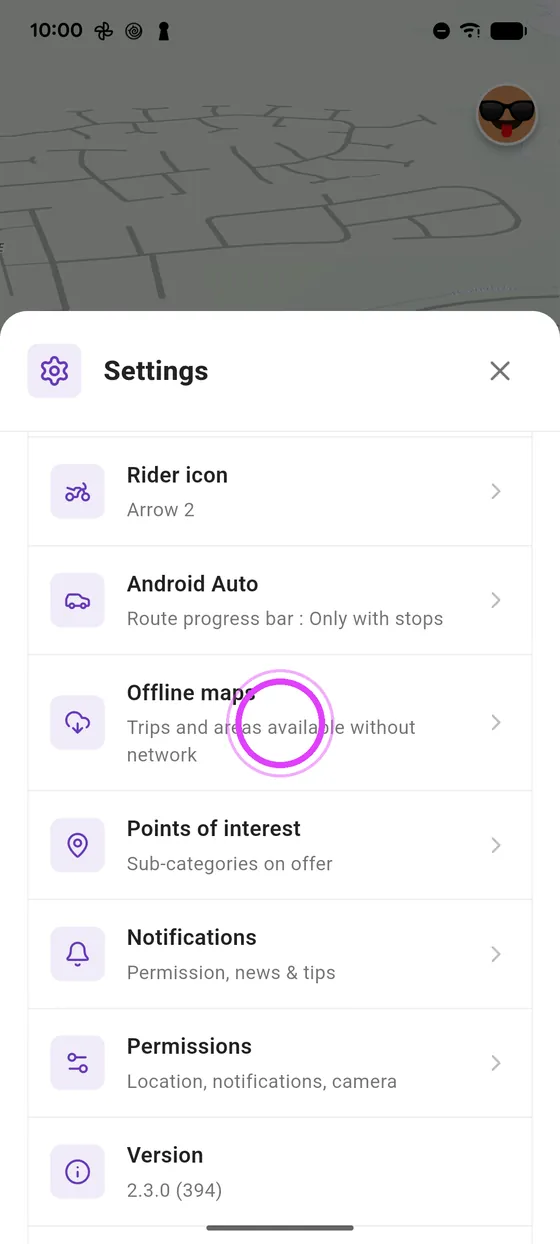
Offline maps
In settings, open Offline maps: the space used is at the top.
-
2
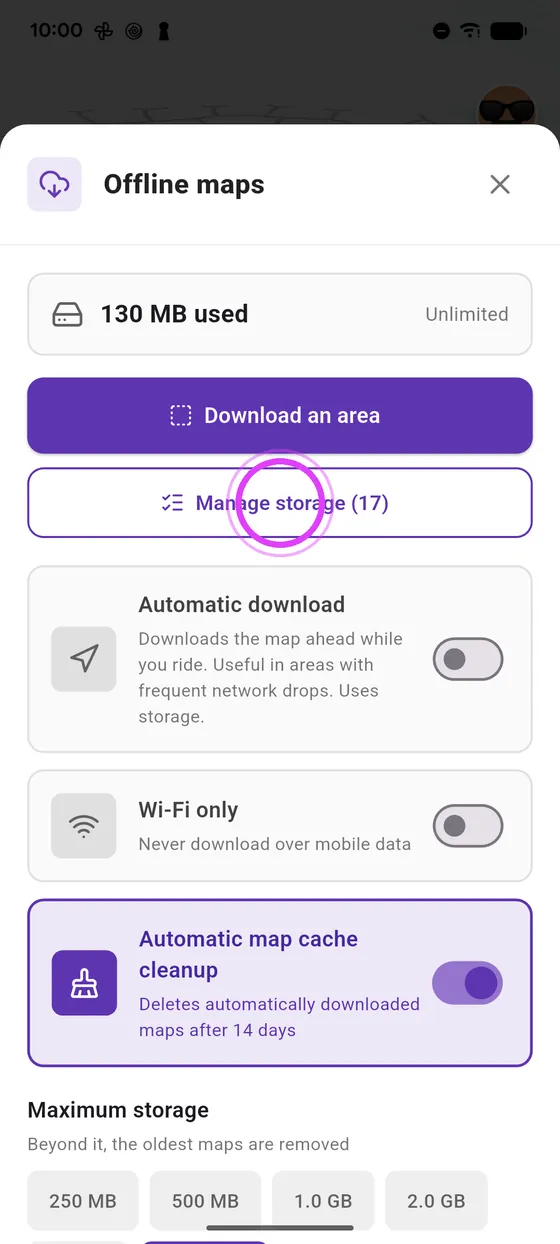
Manage storage
Tap Manage storage.
-
3
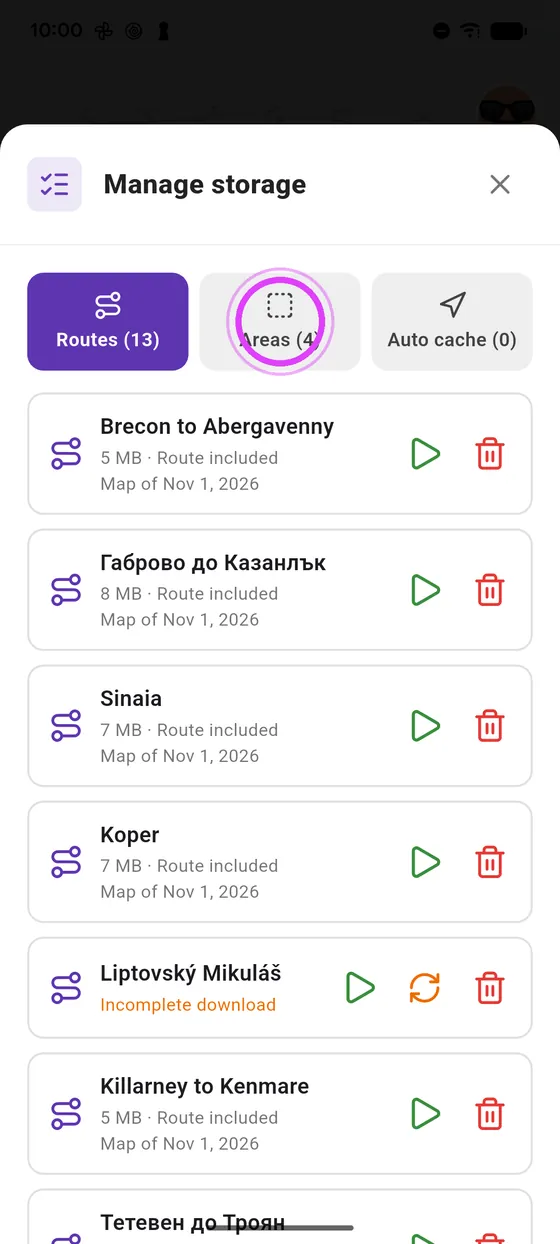
Three tabs
Your maps are sorted in three tabs: Rides, Areas and Auto cache.
-
4
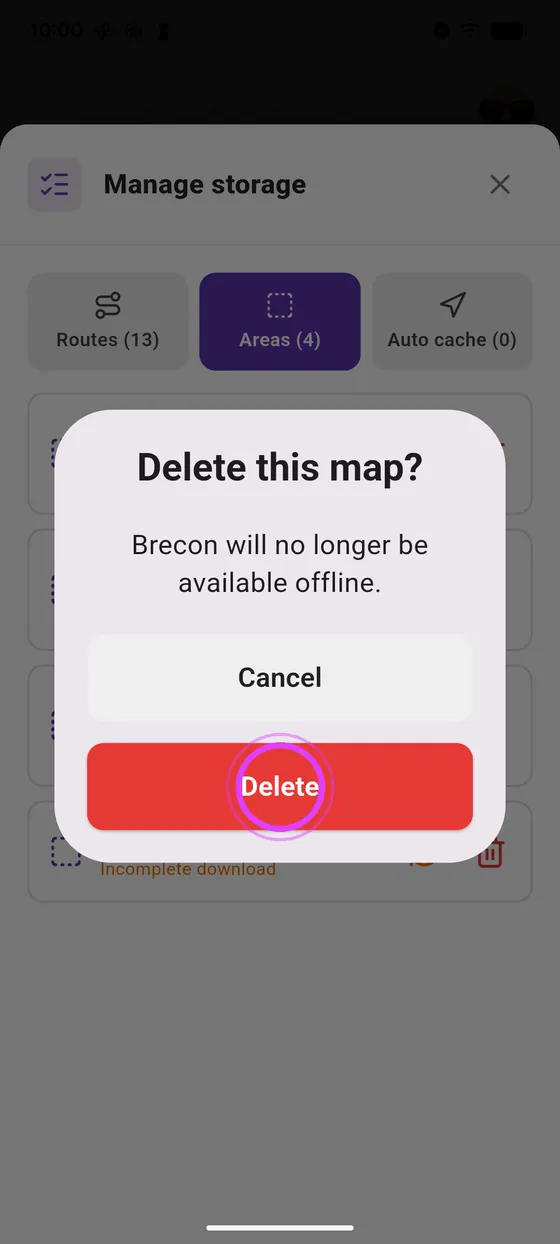
Delete a map
A map no longer needed? Tap the bin and confirm.
-
5
Auto cache
Auto cache: maps downloaded while riding. Clear map cache wipes them all.

-
6
Maximum space
Pick the maximum space: beyond it, the oldest maps are deleted.
← Vroom GPS guidesNext guide: Create a crew and invite your friends →
Not onVroom GPS yet?
Get the free app: voice guidance, speed cameras, curvy roads and CarPlay, no subscription.