Speed camerason your route
Where the law allows it, Vroom shows fixed speed cameras on your route and warns you as you approach, on screen and out loud.
Tested with Vroom GPS v2.1.8
Step by step ↓Followthe guide
The law: in the UK, apps showing fixed speed camera locations are legal; only laser jammers are banned. Vroom follows the law of the country you ride in: cameras where allowed, danger zones in France, nothing where it is banned.
-
1
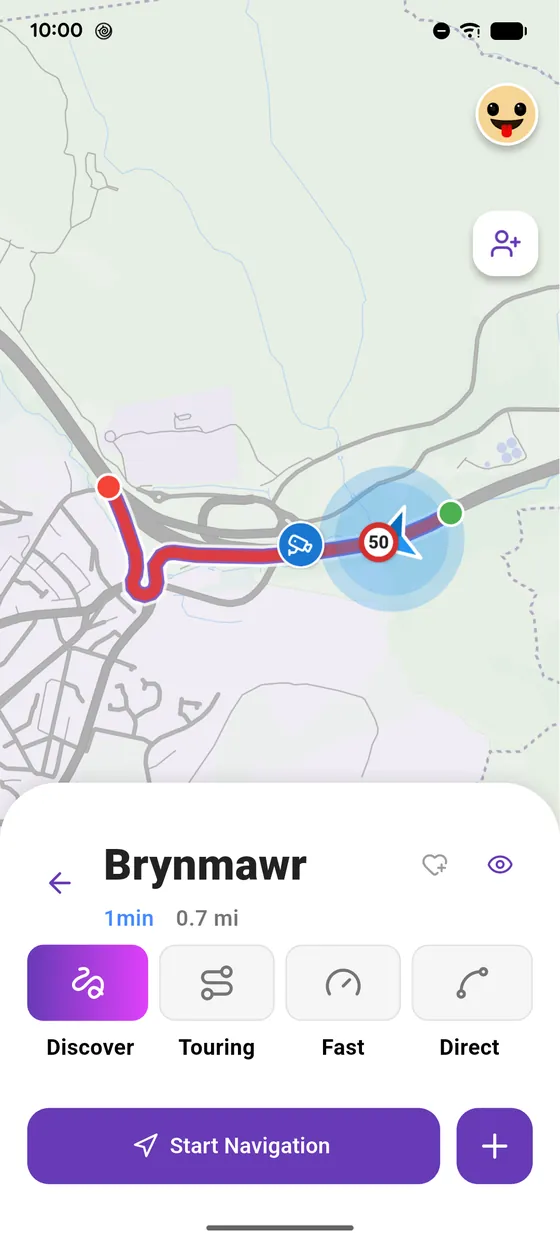
Cameras on your route
On your route: the camera icon, its zone in red, and the speed limit.
-
2
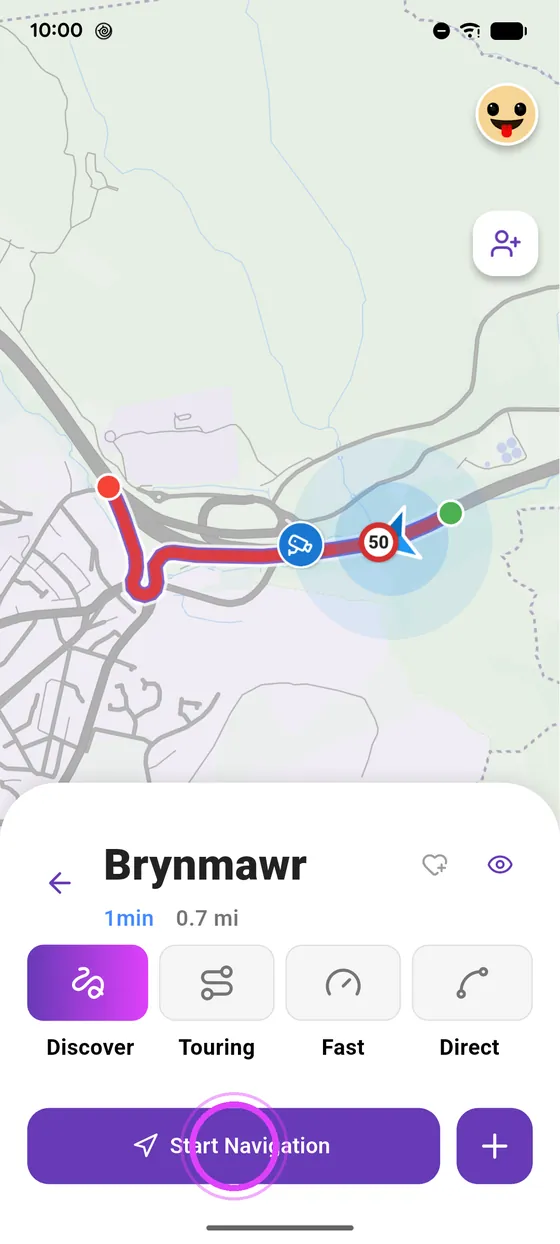
Start navigation
Start navigation.
-
3
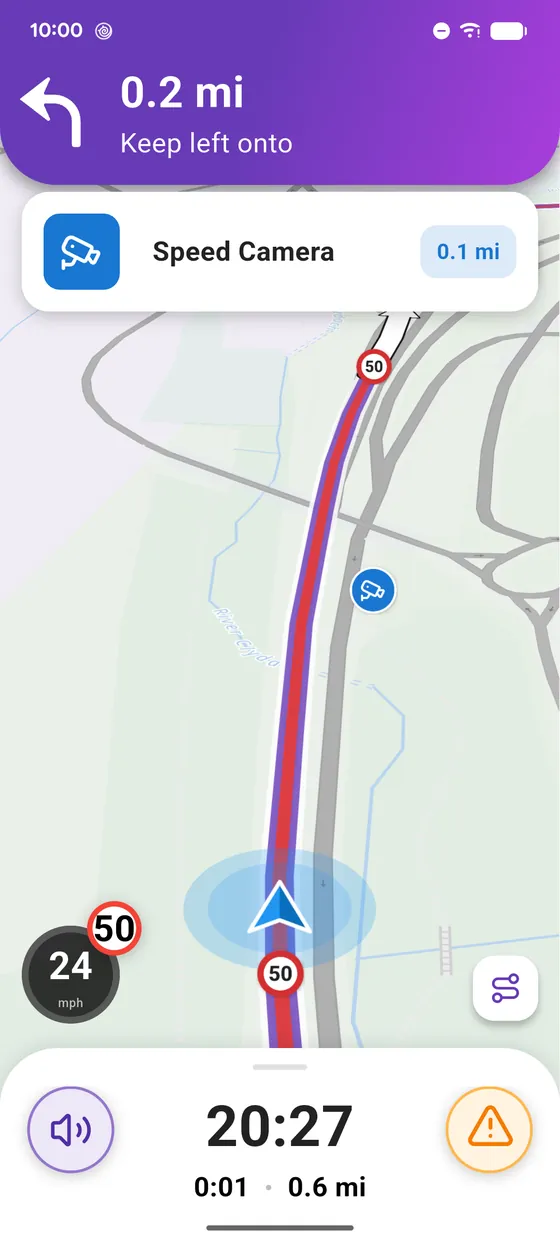
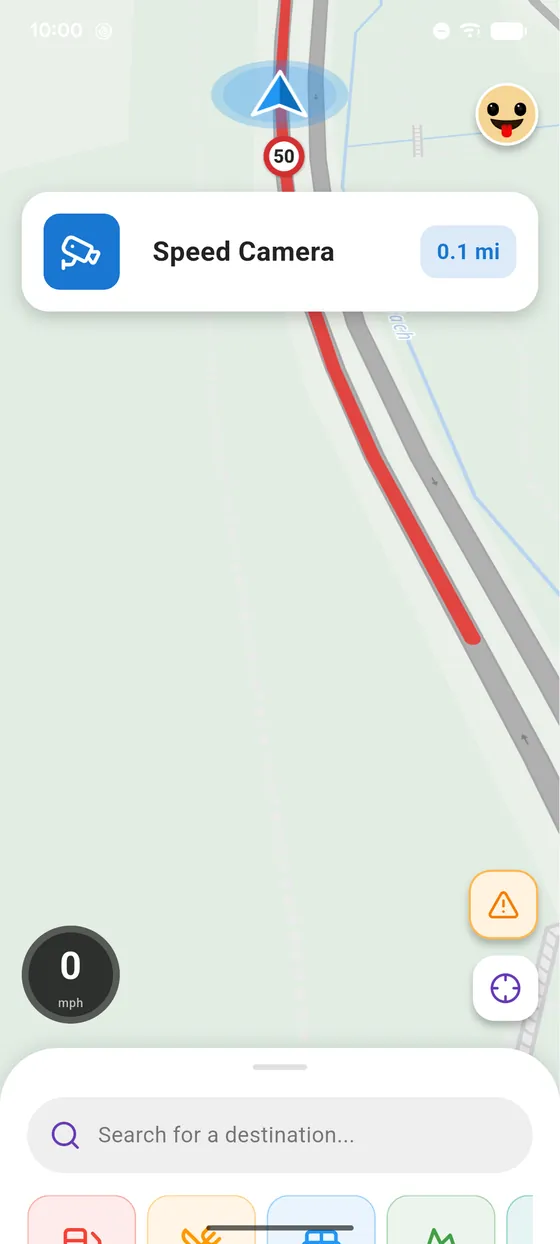
Camera ahead
As you get close, Vroom shows the distance to the camera and warns you out loud.
-
4
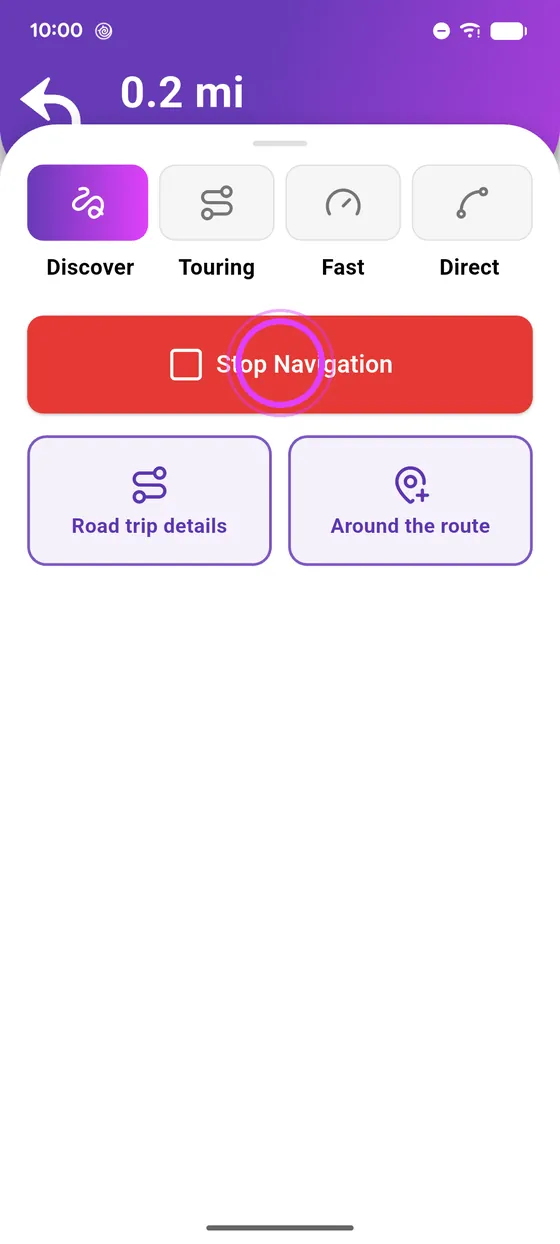
Back to the map
Stop navigation to get back to the map.
-
5
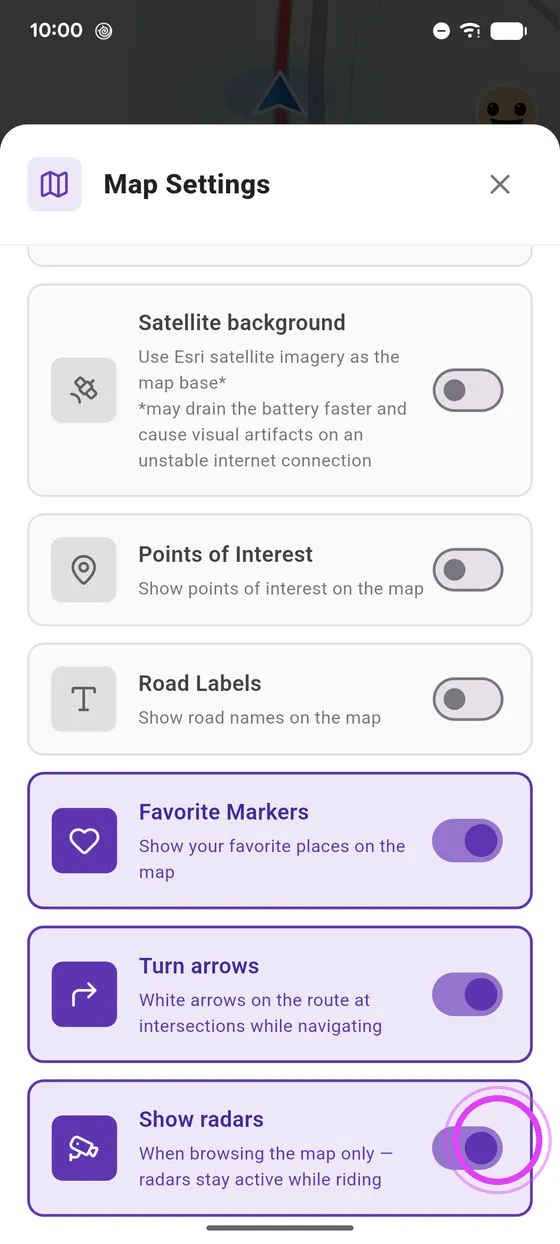
Hide the cameras
In Map settings, you can hide the cameras from the map if you prefer.
-
6
Hidden from the map
They disappear from the map, but Vroom still warns you while you ride.
Not onVroom GPS yet?
Get the free app: voice guidance, speed cameras, curvy roads and CarPlay, no subscription.