Guide · Voice guidance
Set upvoice guidance
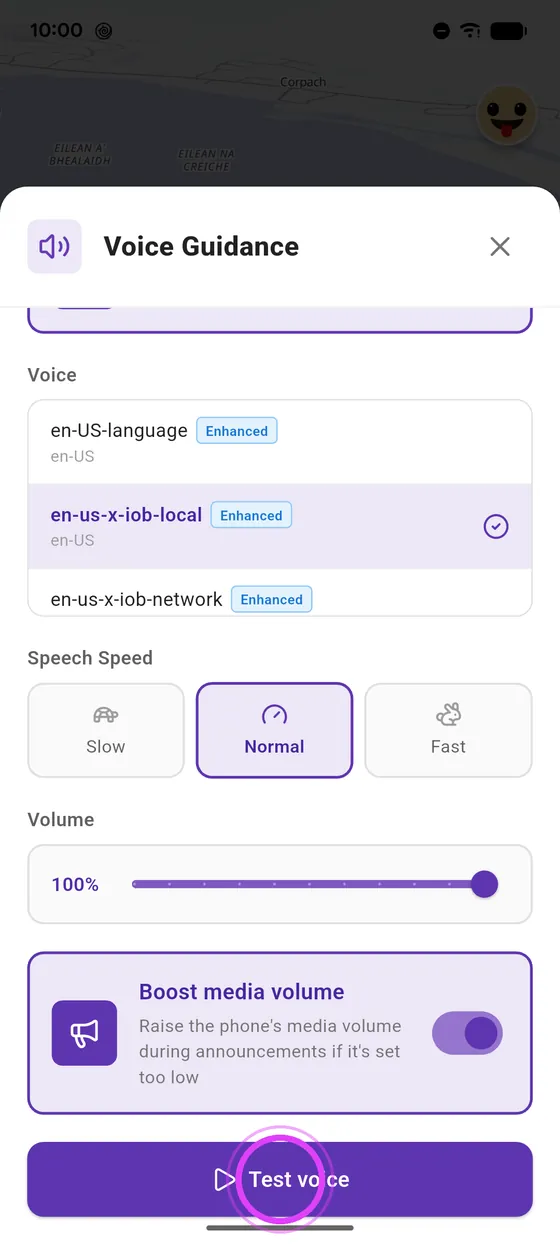
A clear voice in your helmet makes all the difference. Pick your voice, its speed and volume, and boost the sound if announcements are too quiet.
Step by step ↓
Step by step
Followthe guide
On iPhone you can download more natural Premium voices: see the dedicated guide.
-
1
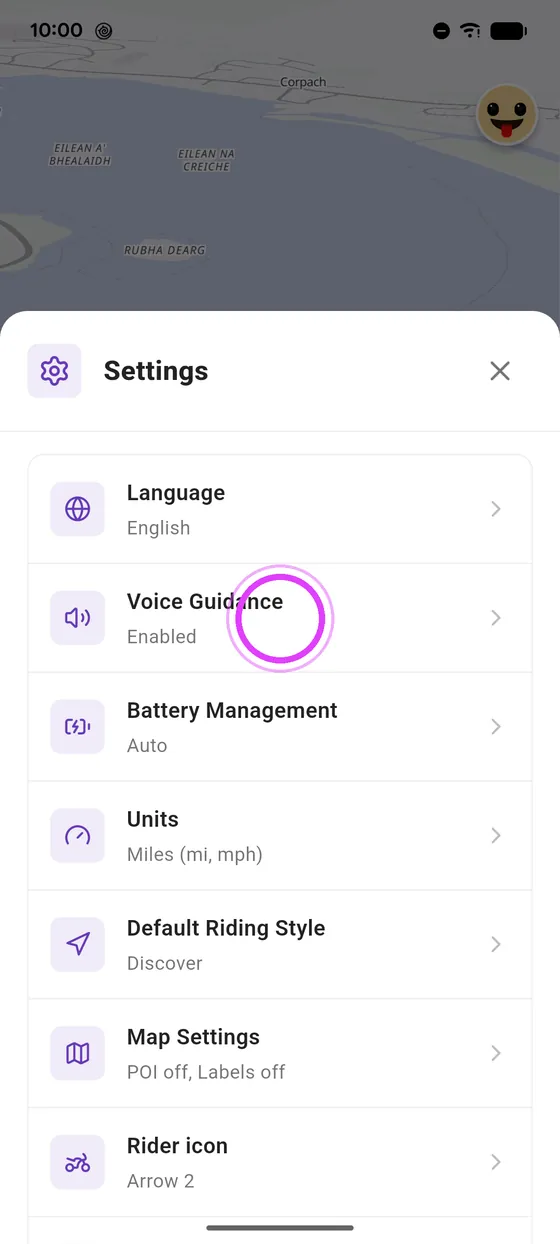
Open voice guidance
In settings, tap Voice Guidance.
-
2
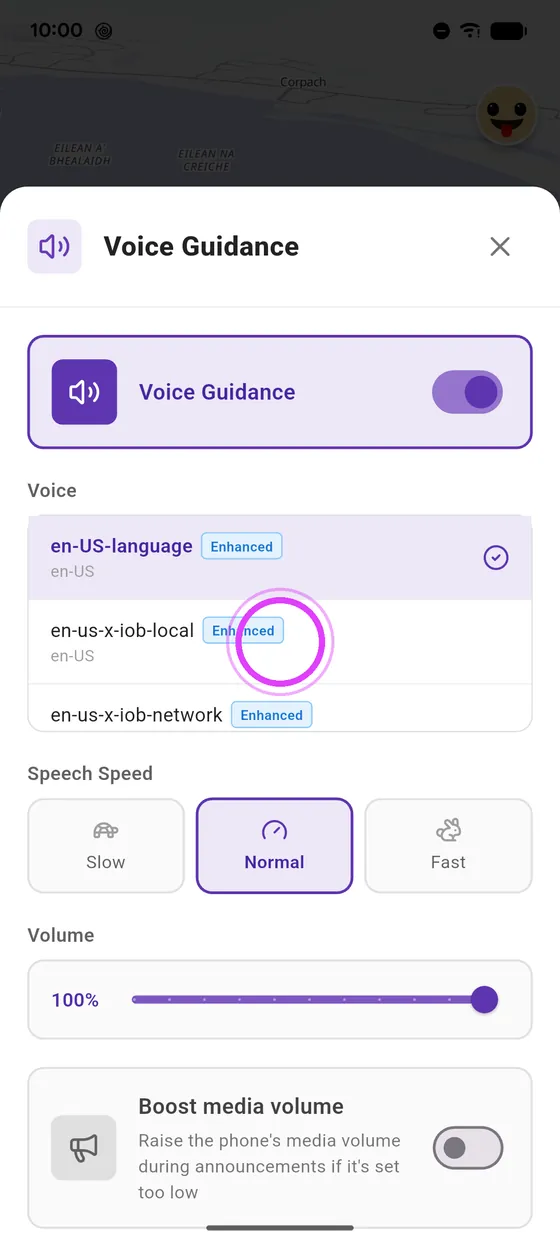
Pick your voice
Pick your voice from the list.
-
3
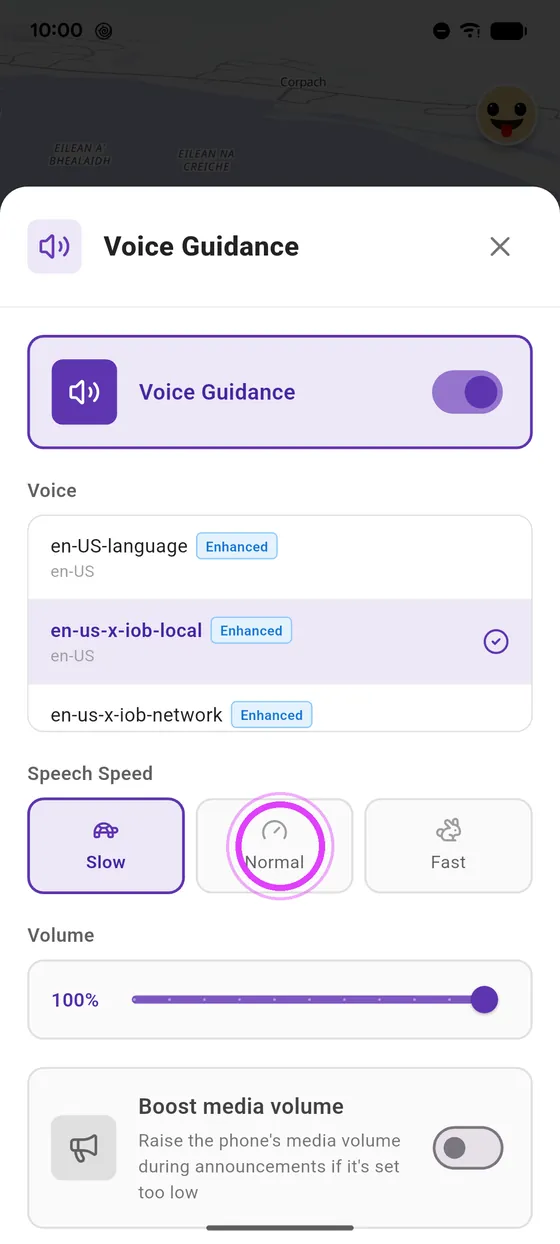
Speaking rate
Set the speaking rate: slow, normal or fast.
-
4
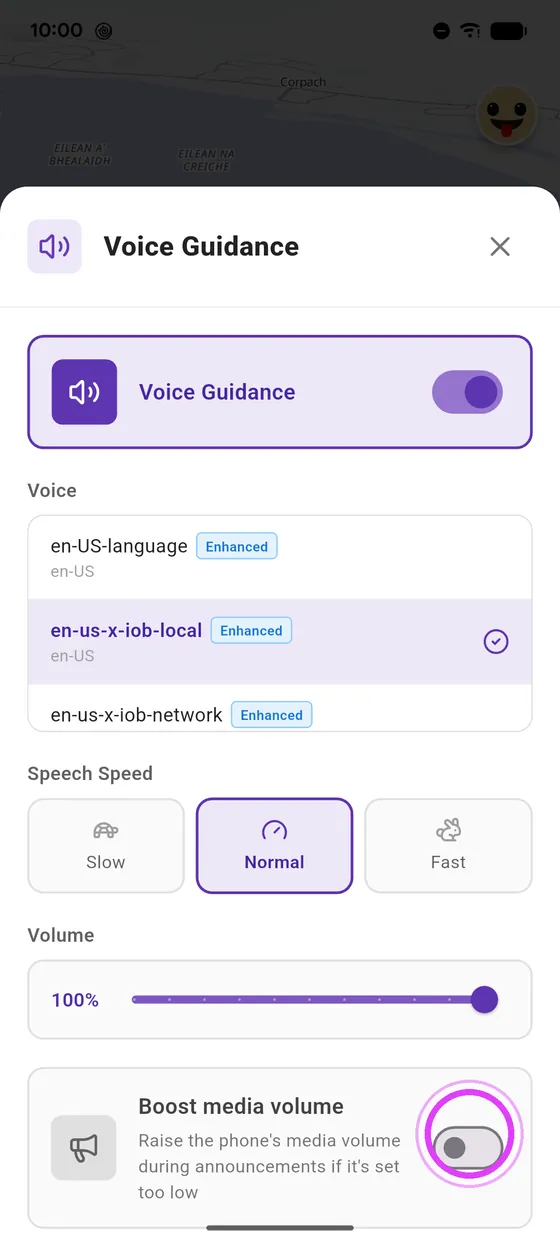
Boost the volume
Announcements too quiet? Turn on Boost media volume.
-
5
Test the voice
And tap Test voice to hear the result.
Not onVroom GPS yet?
Get the free app: voice guidance, speed cameras, curvy roads and CarPlay, no subscription.