Guide · Android Auto
Your screenon the go
No need to stop navigating: at a break, set up the bike screen from the phone companion.
Break-in
Tested with Vroom GPS v2.2.12
Step by step ↓
Step by step
Followthe guide
Every setting goes straight to the bike screen, navigation keeps running.
-
1
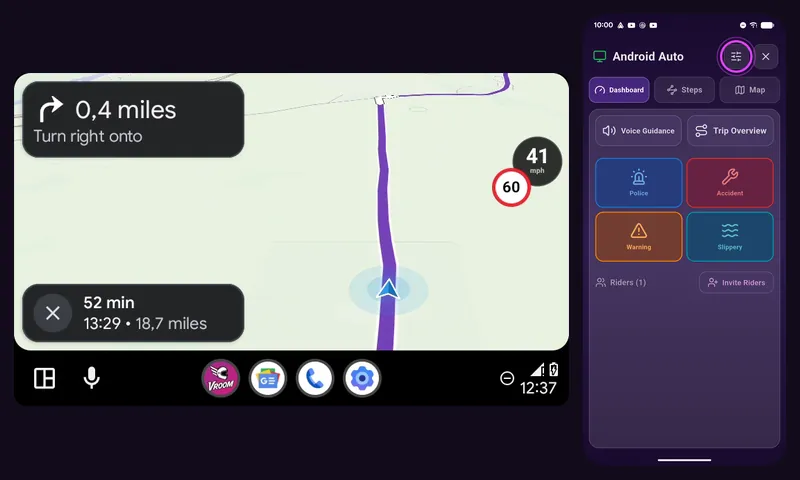
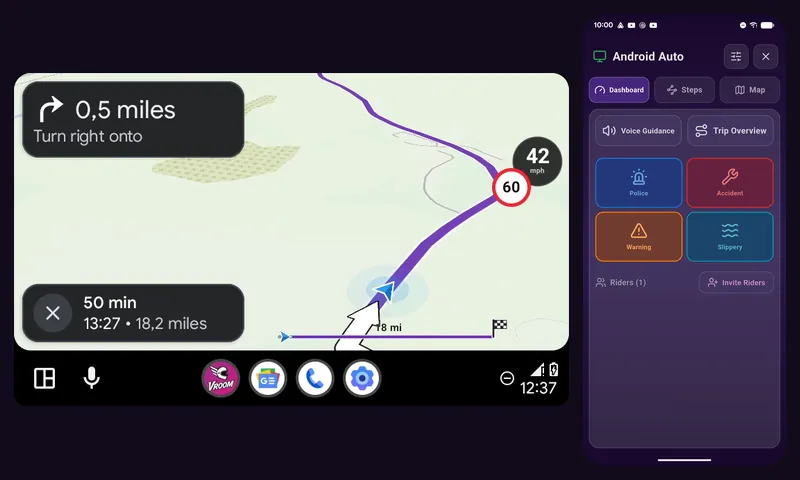
Tap the settings
On the phone companion screen, tap the settings button at the top.
-
2
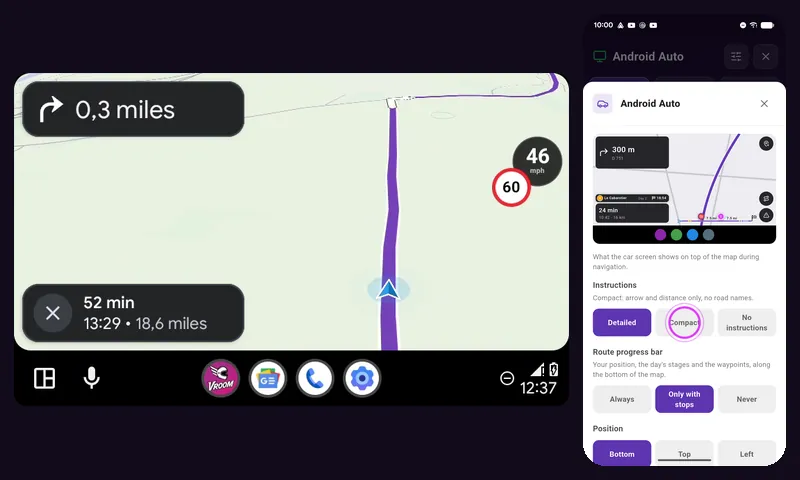
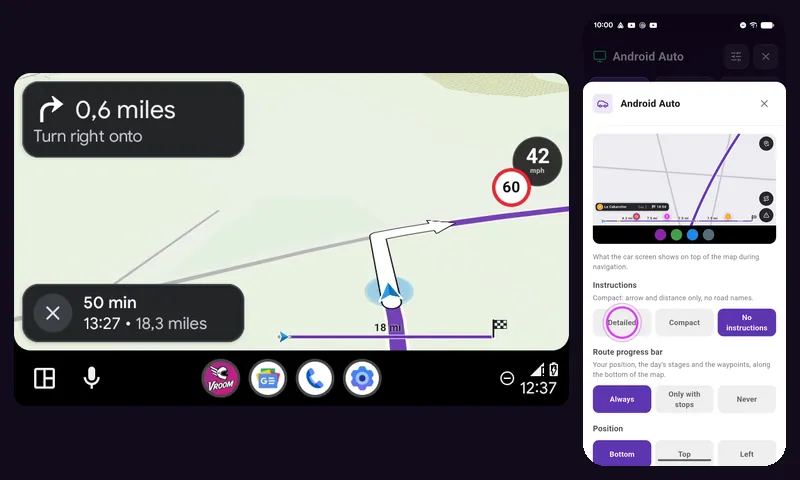
Compact
Compact: the bike screen changes right away, the arrow and the distance.
-
3
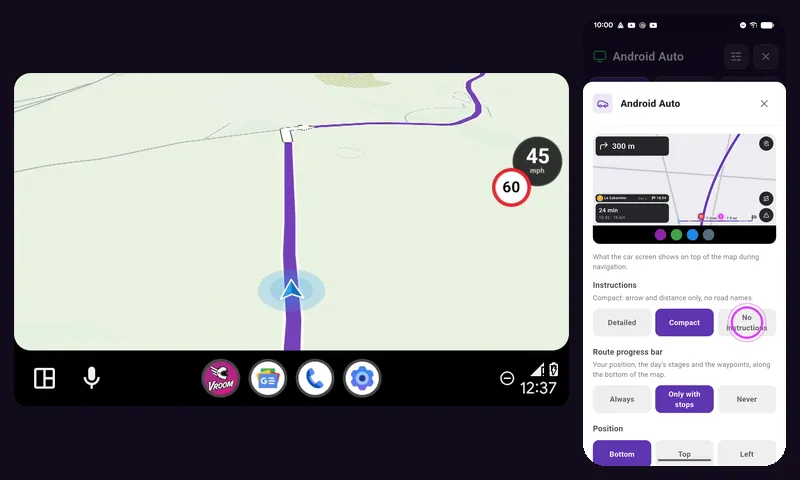
No instructions
No instructions: the map alone, voice guidance carries on.
-
4
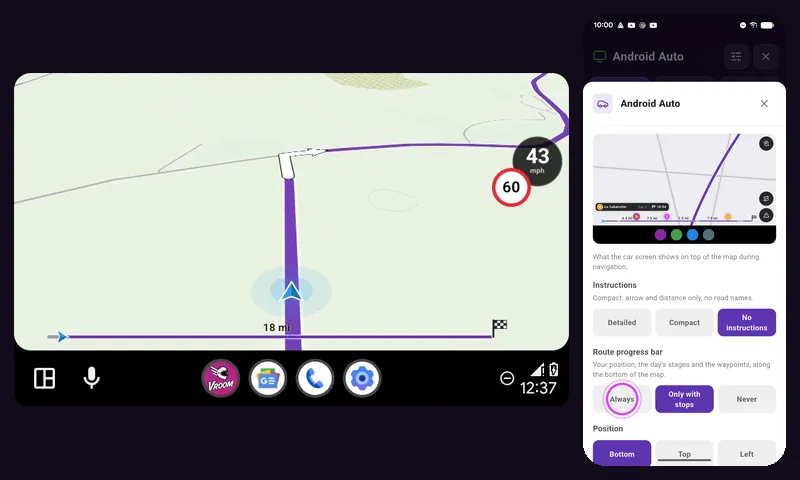
The progress bar
Always: the route progress bar shows at the bottom.
-
5
Detailed
Detailed: the full instructions come back, with street names.
-
6
Enjoy the ride
Your settings are kept for your next rides. Enjoy the ride!
← Vroom GPS guidesNext guide: Start an offline route on Android Auto →
Not onVroom GPS yet?
Get the free app: voice guidance, speed cameras, curvy roads and CarPlay, no subscription.