Guides
Get to gripswith Vroom
Short guides, step by step and on video, to get the most out of Vroom GPS: rides, navigation, voice guidance, road trips and settings.
Got a question? See the FAQ →No guide matches your search.
Navigation
 Break-in
New
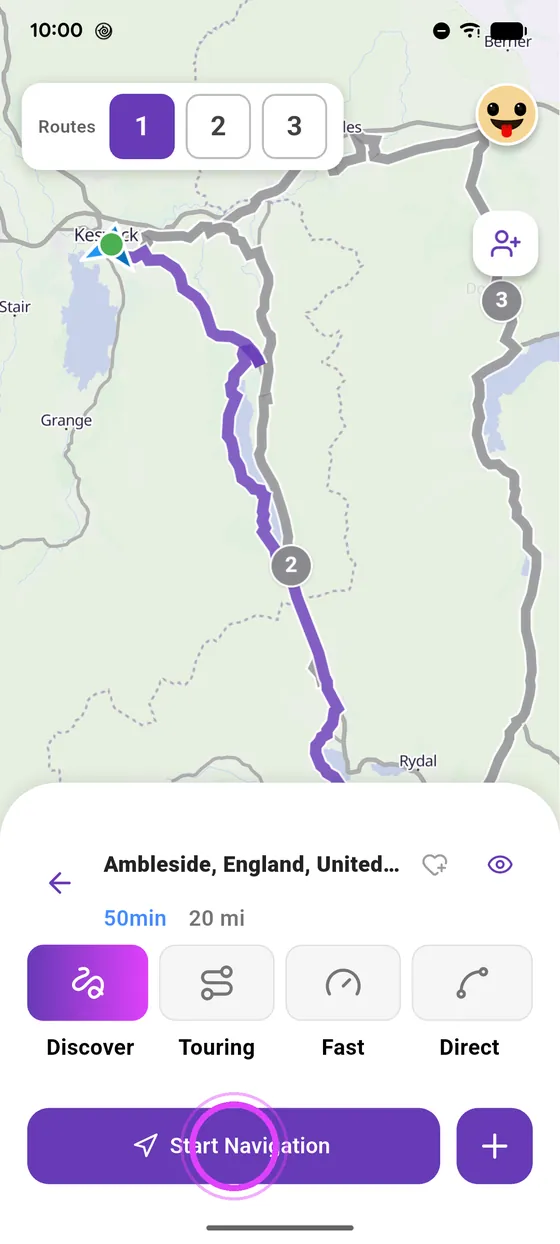
Search for a destination and pick your route
A town, an address, a place: type it in the search bar, Vroom computes your motorcycle route and suggests alternatives.
4 steps · Read the guide →
Break-in
New
Search for a destination and pick your route
A town, an address, a place: type it in the search bar, Vroom computes your motorcycle route and suggests alternatives.
4 steps · Read the guide →
 Cruising
New
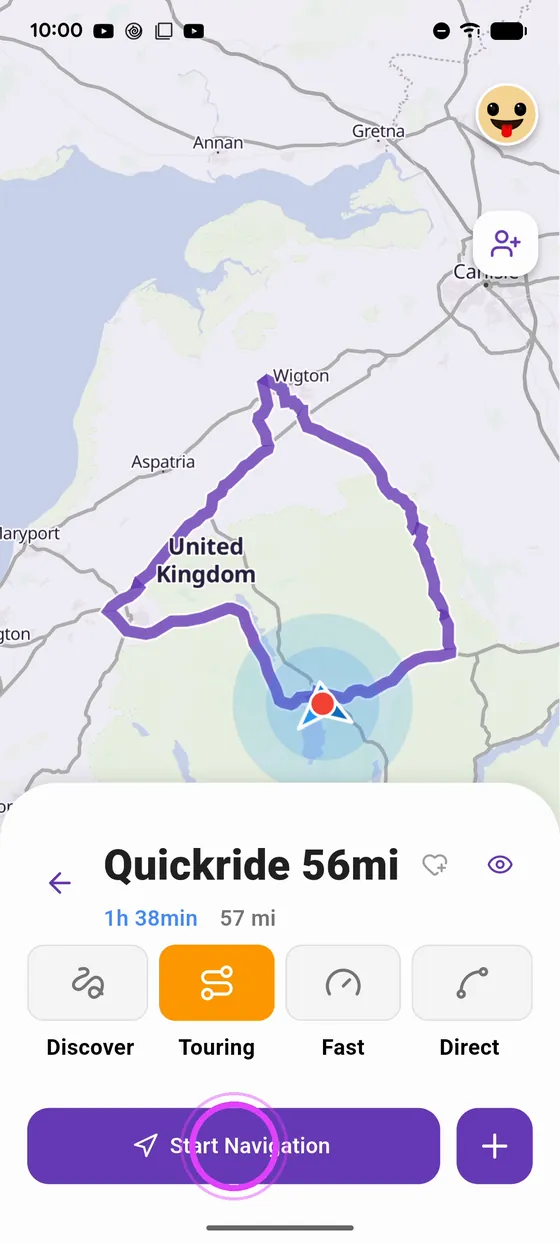
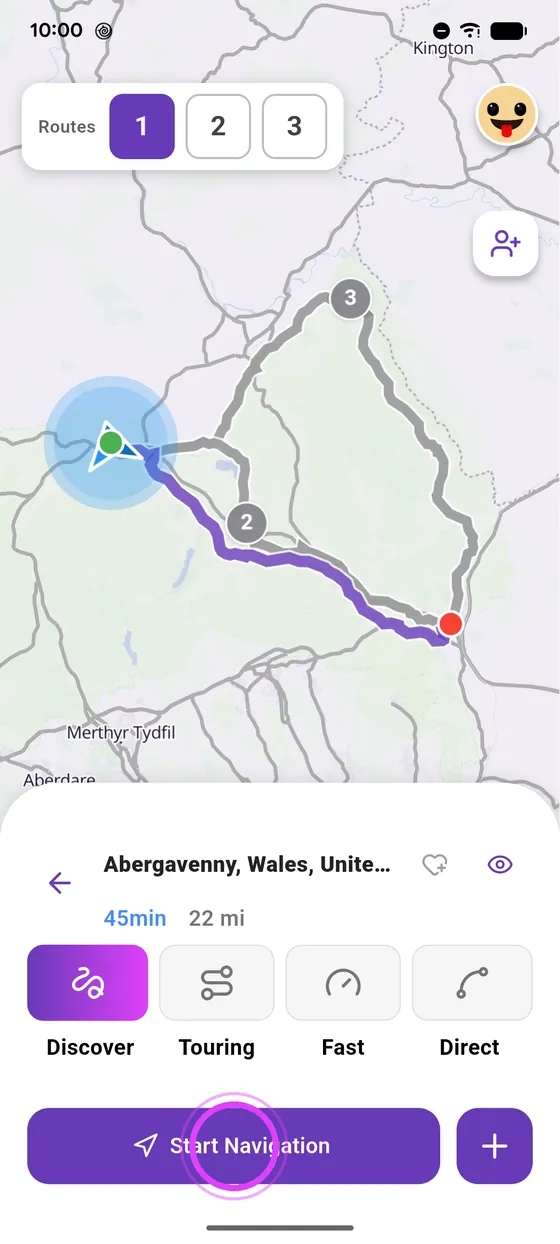
Choose your riding style: Discover, Touring, Fast or Direct
Discover, Touring, Fast, Direct: the same trip can give four very different routes. Here is what each style is for.
6 steps · Read the guide →
Cruising
New
Choose your riding style: Discover, Touring, Fast or Direct
Discover, Touring, Fast, Direct: the same trip can give four very different routes. Here is what each style is for.
6 steps · Read the guide →
 Break-in
New
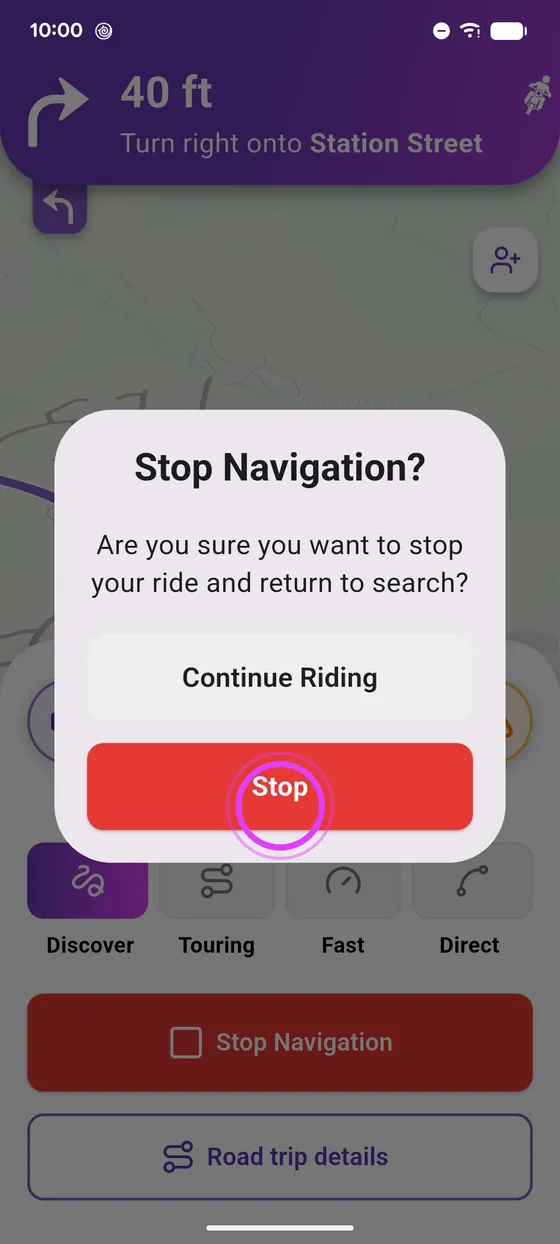
Start and stop motorcycle navigation
A destination, one button, and off you go. Here is how to start guidance, read the navigation screen and stop it once you have arrived.
4 steps · Read the guide →
Break-in
New
Start and stop motorcycle navigation
A destination, one button, and off you go. Here is how to start guidance, read the navigation screen and stop it once you have arrived.
4 steps · Read the guide →
 Cruising
New
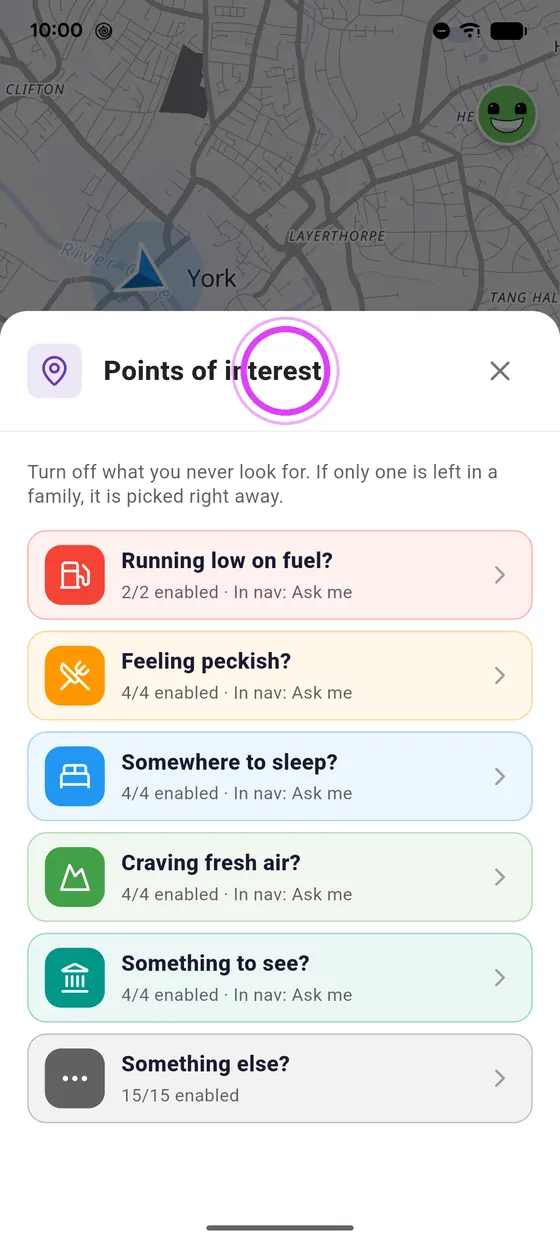
Find a petrol station, a restaurant or a hotel nearby
Running low on fuel, getting hungry or need a bed? The tiles under the search bar ask what you are after, and the places around you show up.
6 steps · Read the guide →
Cruising
New
Find a petrol station, a restaurant or a hotel nearby
Running low on fuel, getting hungry or need a bed? The tiles under the search bar ask what you are after, and the places around you show up.
6 steps · Read the guide →
 Cruising
New
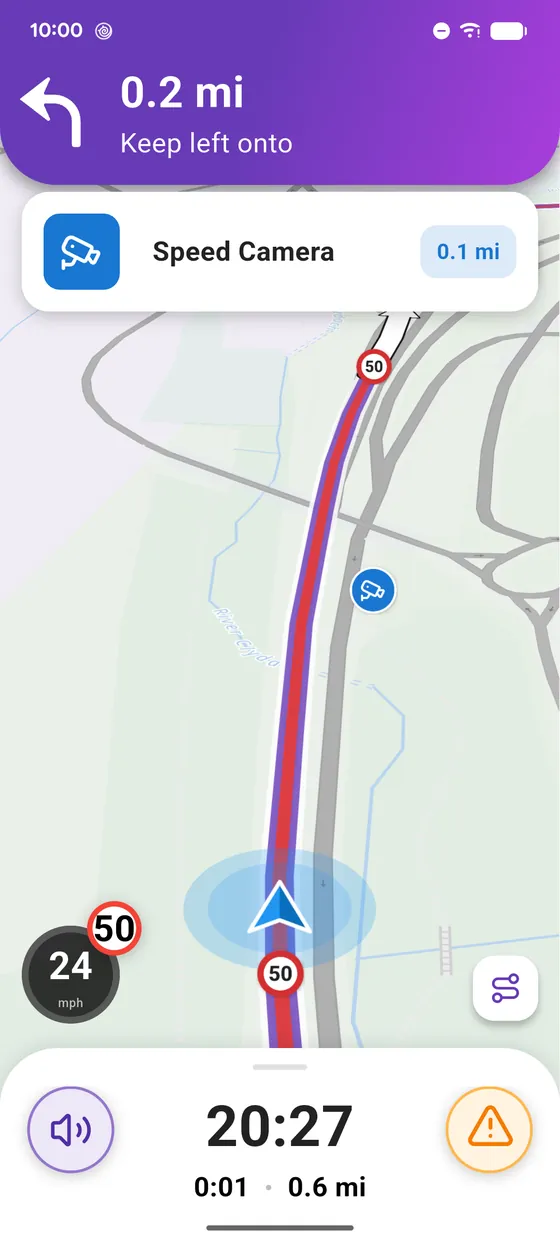
Speed cameras: shown and announced where the law allows it
Where the law allows it, Vroom shows fixed speed cameras on your route and warns you as you approach, on screen and out loud.
6 steps · Read the guide →
Cruising
New
Speed cameras: shown and announced where the law allows it
Where the law allows it, Vroom shows fixed speed cameras on your route and warns you as you approach, on screen and out loud.
6 steps · Read the guide →
 Break-in
New
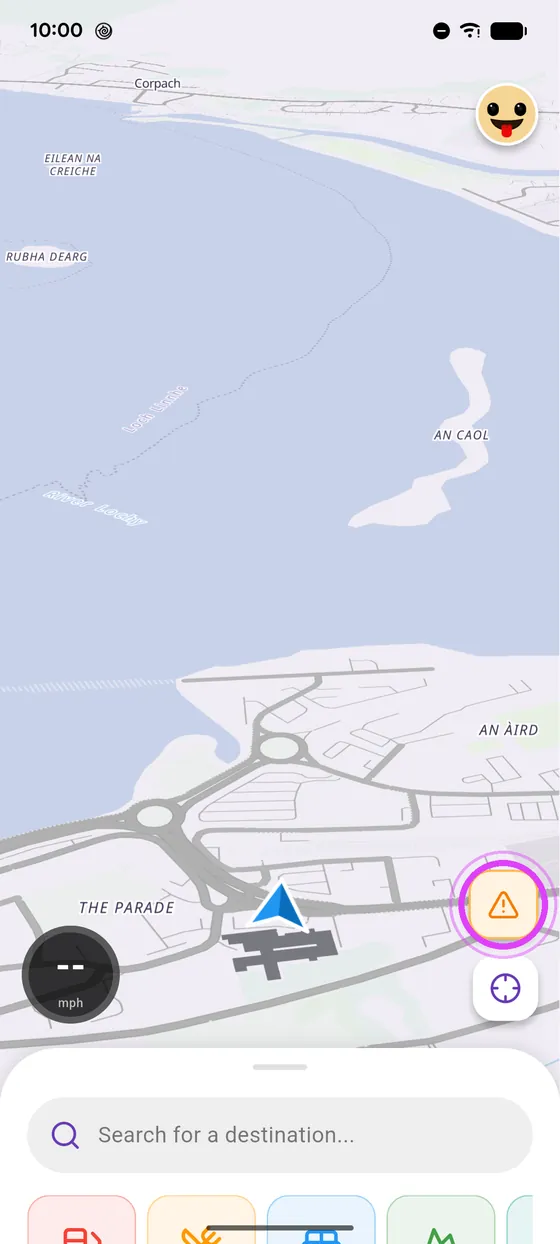
Discover the Vroom GPS home screen
Everything starts from the bottom panel: search, ride, plan a road trip or a ride with friends.
5 steps · Read the guide →
Break-in
New
Discover the Vroom GPS home screen
Everything starts from the bottom panel: search, ride, plan a road trip or a ride with friends.
5 steps · Read the guide →
 Break-in
New
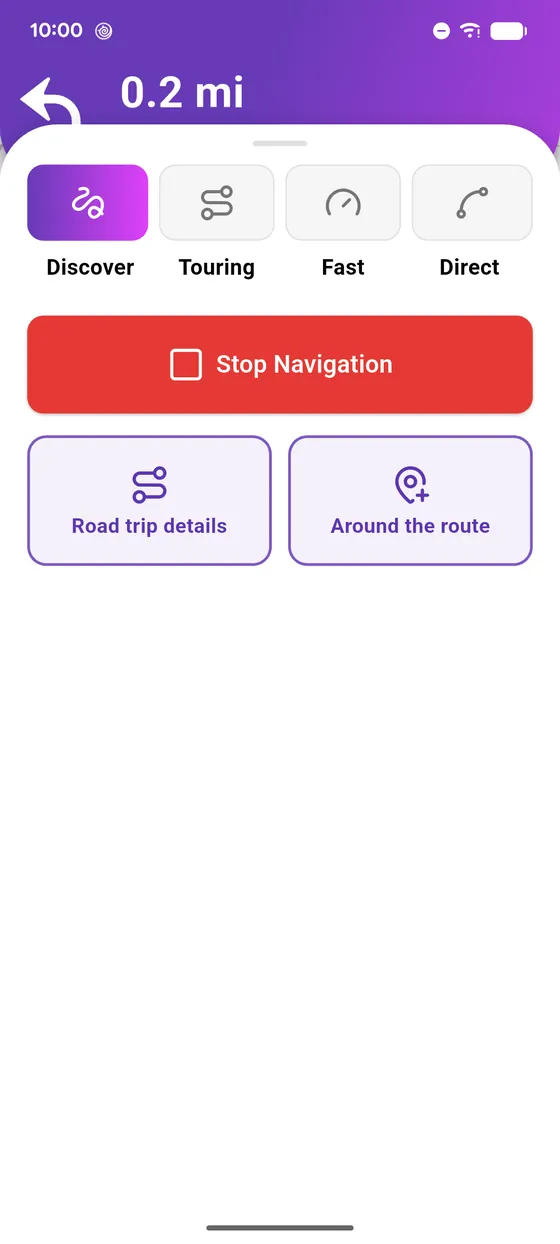
Understand the Vroom GPS navigation screen
One glance is enough: the next manoeuvre at the top, your speed and arrival at the bottom, everything else within glove reach.
5 steps · Read the guide →
Break-in
New
Understand the Vroom GPS navigation screen
One glance is enough: the next manoeuvre at the top, your speed and arrival at the bottom, everything else within glove reach.
5 steps · Read the guide →
 Knee down
New
Simulate a ride before you leave
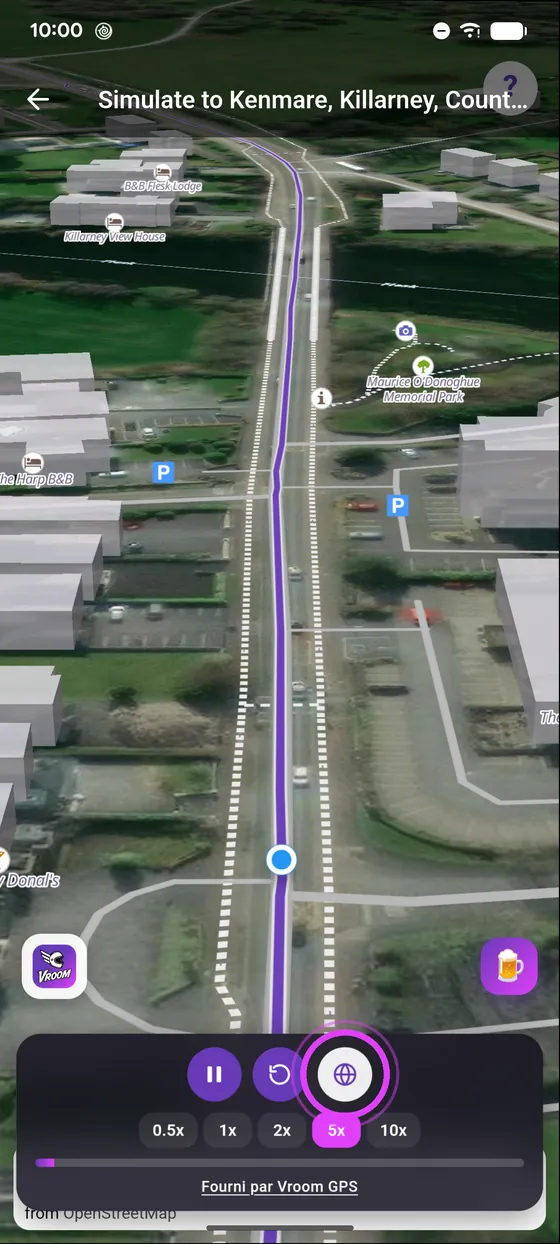
Before you leave, watch the road unfold: bends, villages, scenery. Sped up, and even in satellite view.
4 steps · Read the guide →
Knee down
New
Simulate a ride before you leave
Before you leave, watch the road unfold: bends, villages, scenery. Sped up, and even in satellite view.
4 steps · Read the guide →
 Cruising
New
Avoid tolls, ferries and U-turns
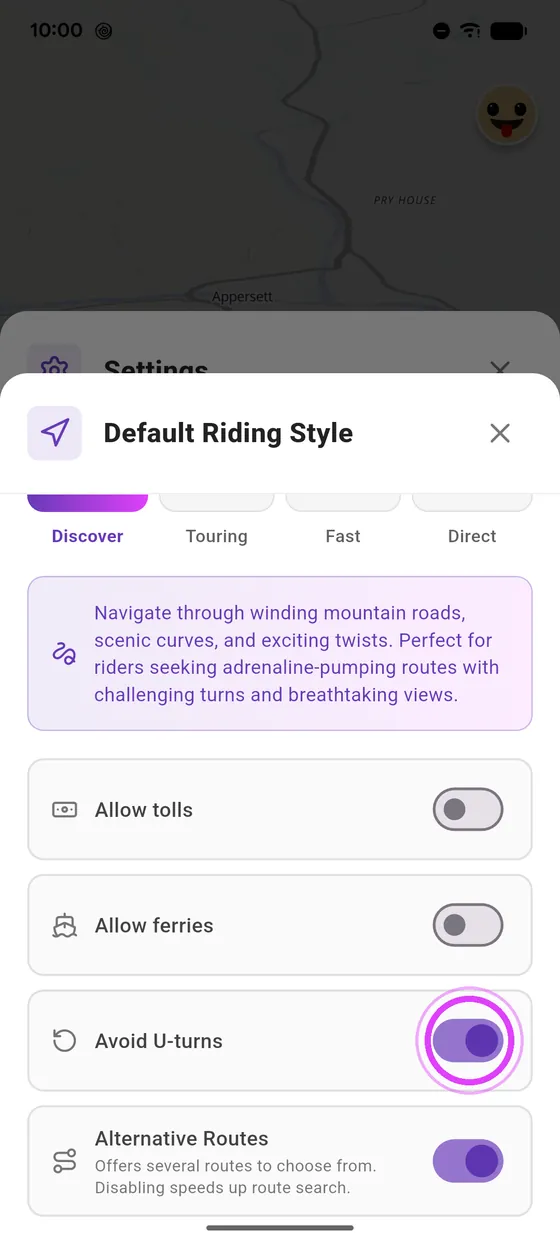
No toll roads, no boat crossings, no forced U-turns: three switches, and all your routes follow.
4 steps · Read the guide →
Cruising
New
Avoid tolls, ferries and U-turns
No toll roads, no boat crossings, no forced U-turns: three switches, and all your routes follow.
4 steps · Read the guide →
 New
Report a road hazard and confirm an alert
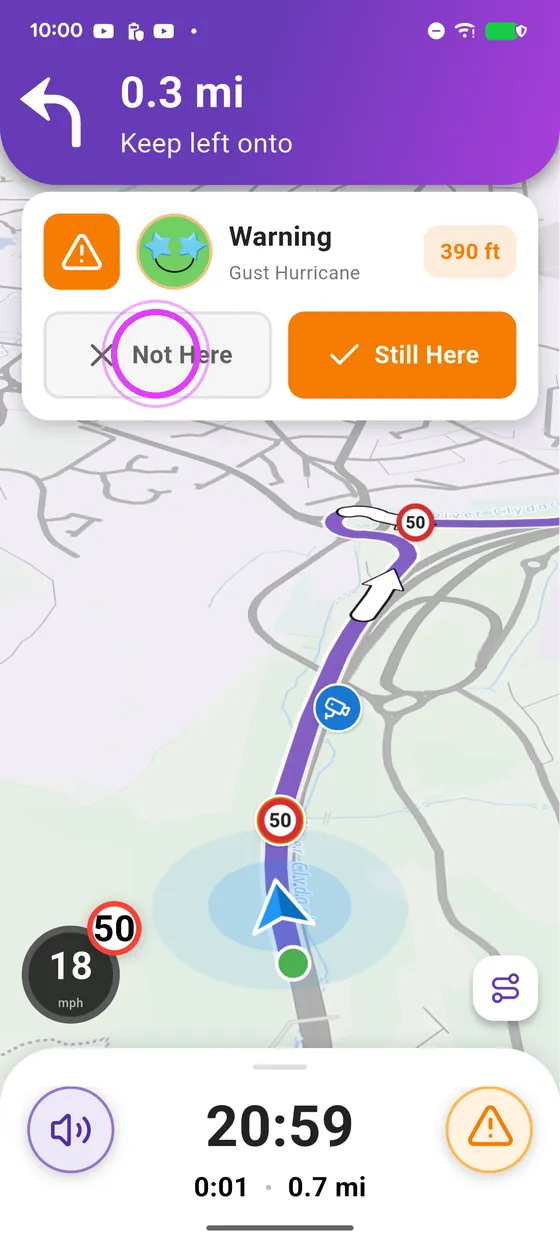
An accident, gravel, a slippery road? Report it in two taps: the alert shows up for every rider coming that way.
6 steps · Read the guide →
New
Report a road hazard and confirm an alert
An accident, gravel, a slippery road? Report it in two taps: the alert shows up for every rider coming that way.
6 steps · Read the guide →
Road trips
 Knee down
New
Create a motorcycle road trip with the AI wizard
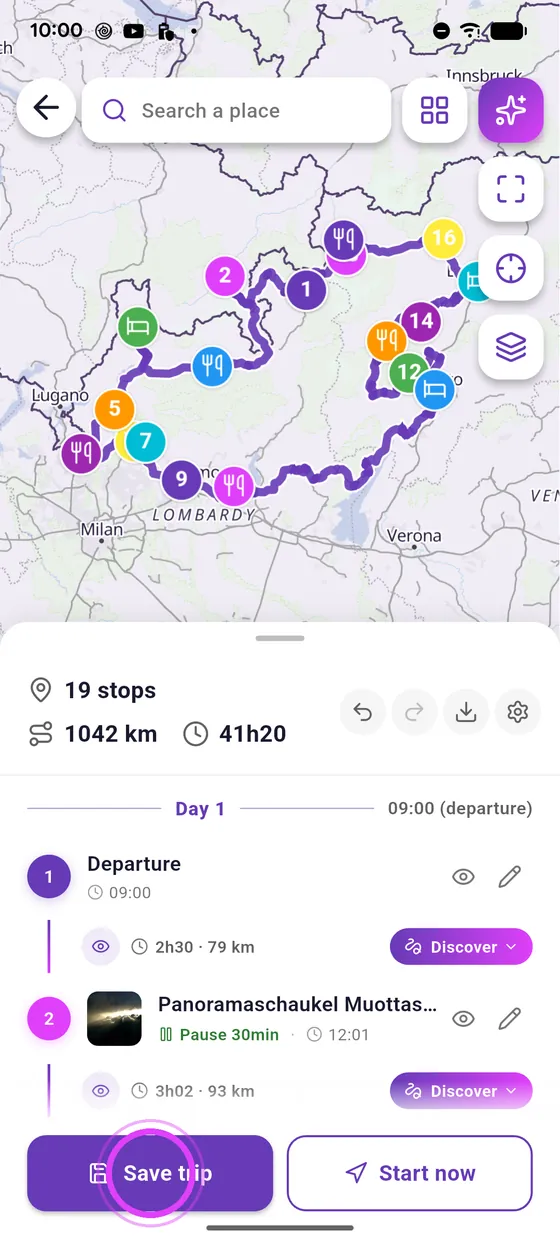
Start, length, riding time per day, interests, budget: the AI wizard suggests three road trips and builds the one you pick.
7 steps · Read the guide →
Knee down
New
Create a motorcycle road trip with the AI wizard
Start, length, riding time per day, interests, budget: the AI wizard suggests three road trips and builds the one you pick.
7 steps · Read the guide →
 Knee down
New
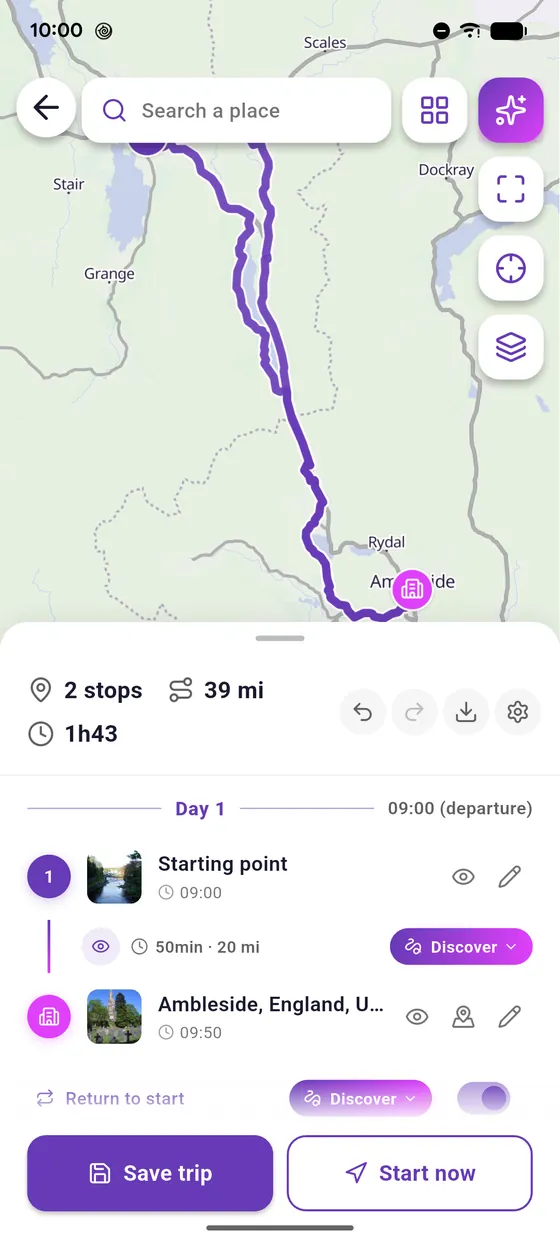
Create a road trip by hand in the editor
A long press on the map to drop a stop, the search to add more: the editor then works out the route on the best roads.
5 steps · Read the guide →
Knee down
New
Create a road trip by hand in the editor
A long press on the map to drop a stop, the search to add more: the editor then works out the route on the best roads.
5 steps · Read the guide →
 Knee down
New
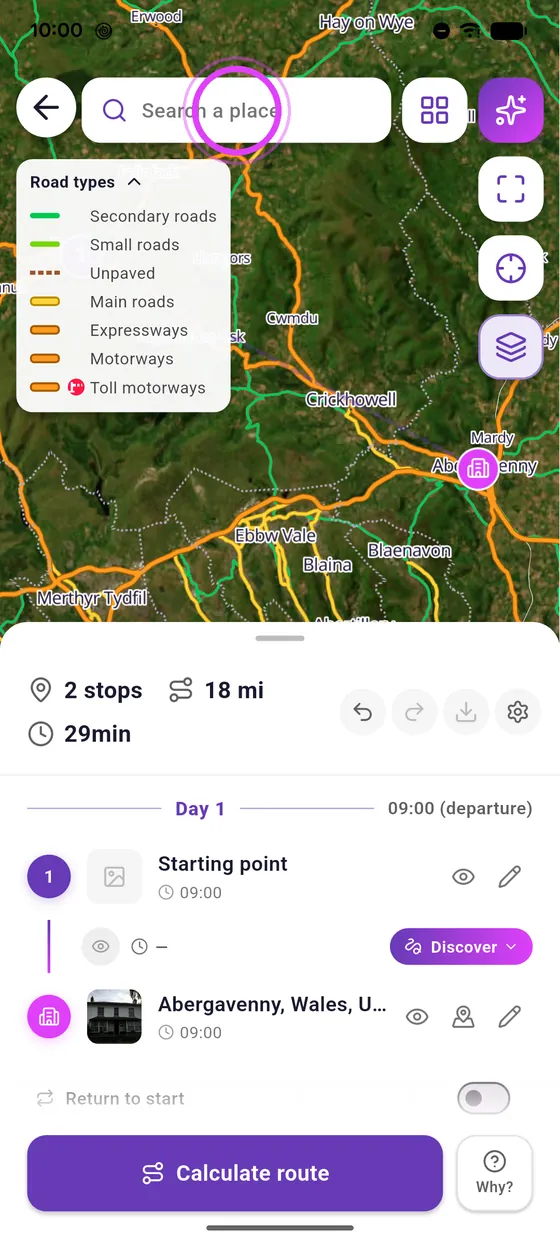
Rider view in the editor: spot the best roads
Where are the small twisty roads? Rider view colours them on the editor map: green for riding roads, orange for the ones to avoid.
5 steps · Read the guide →
Knee down
New
Rider view in the editor: spot the best roads
Where are the small twisty roads? Rider view colours them on the editor map: green for riding roads, orange for the ones to avoid.
5 steps · Read the guide →
Riding together
 Break-in
New
Create a crew and invite your friends
A crew is your riding gang in Vroom GPS: a name, your friends, and all your rides in one place.
6 steps · Read the guide →
Break-in
New
Create a crew and invite your friends
A crew is your riding gang in Vroom GPS: a name, your friends, and all your rides in one place.
6 steps · Read the guide →
 Cruising
New
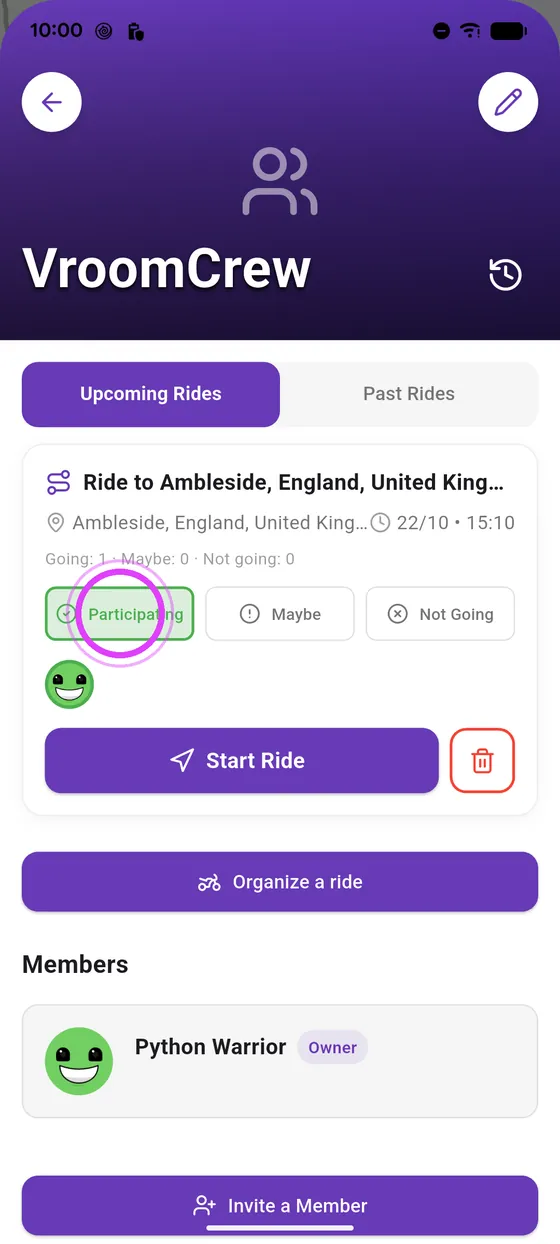
Organise a motorcycle ride with your crew
Where, when, who: in three screens your ride is planned and your whole crew gets the invitation.
7 steps · Read the guide →
Cruising
New
Organise a motorcycle ride with your crew
Where, when, who: in three screens your ride is planned and your whole crew gets the invitation.
7 steps · Read the guide →
 Break-in
New
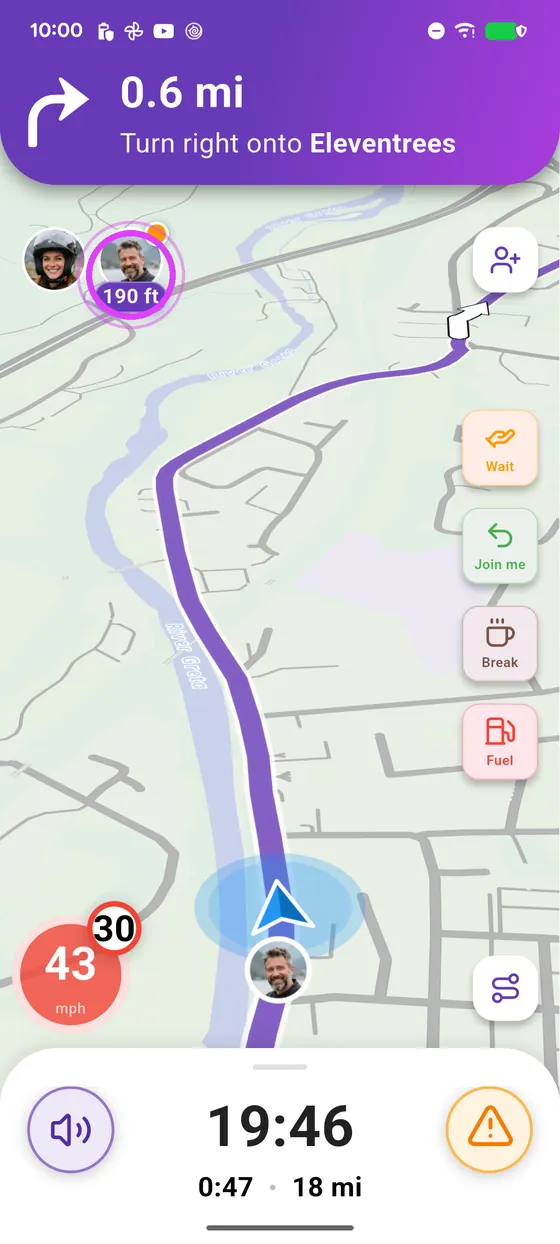
Invite a friend on your ride, no crew needed
No crew needed to ride together: a QR code, your friend scans it, and you are on the same ride.
4 steps · Read the guide →
Break-in
New
Invite a friend on your ride, no crew needed
No crew needed to ride together: a QR code, your friend scans it, and you are on the same ride.
4 steps · Read the guide →
 Cruising
New
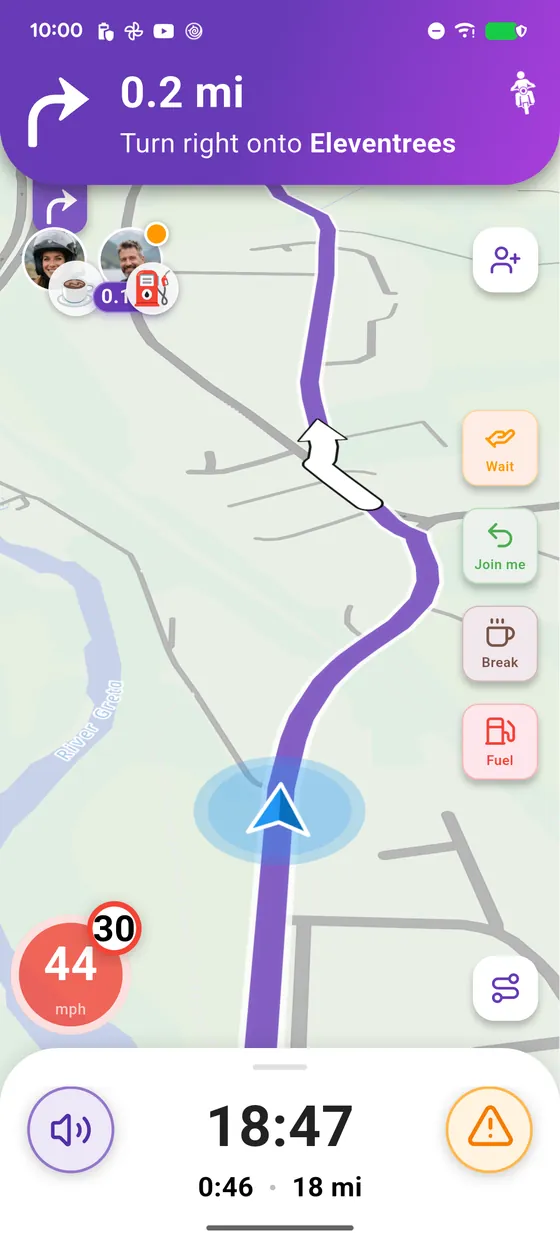
Riding together: distance, zoom on a friend and quick messages
On a group ride you always know where the others are: their distance at the top of the screen, and one tap to ask them to wait.
5 steps · Read the guide →
Cruising
New
Riding together: distance, zoom on a friend and quick messages
On a group ride you always know where the others are: their distance at the top of the screen, and one tap to ask them to wait.
5 steps · Read the guide →
 Break-in
New
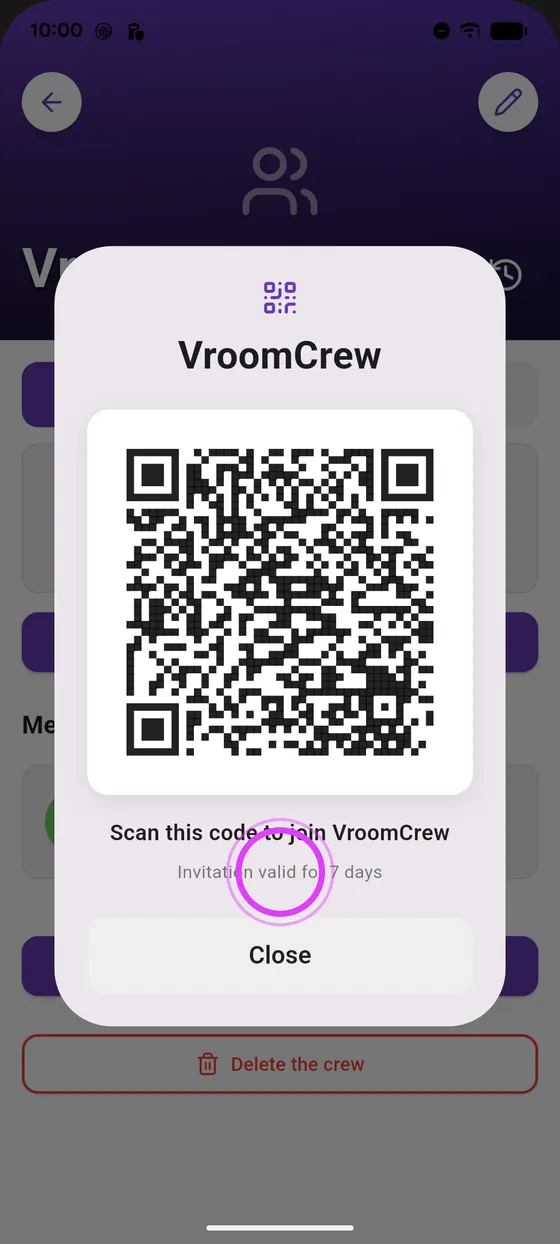
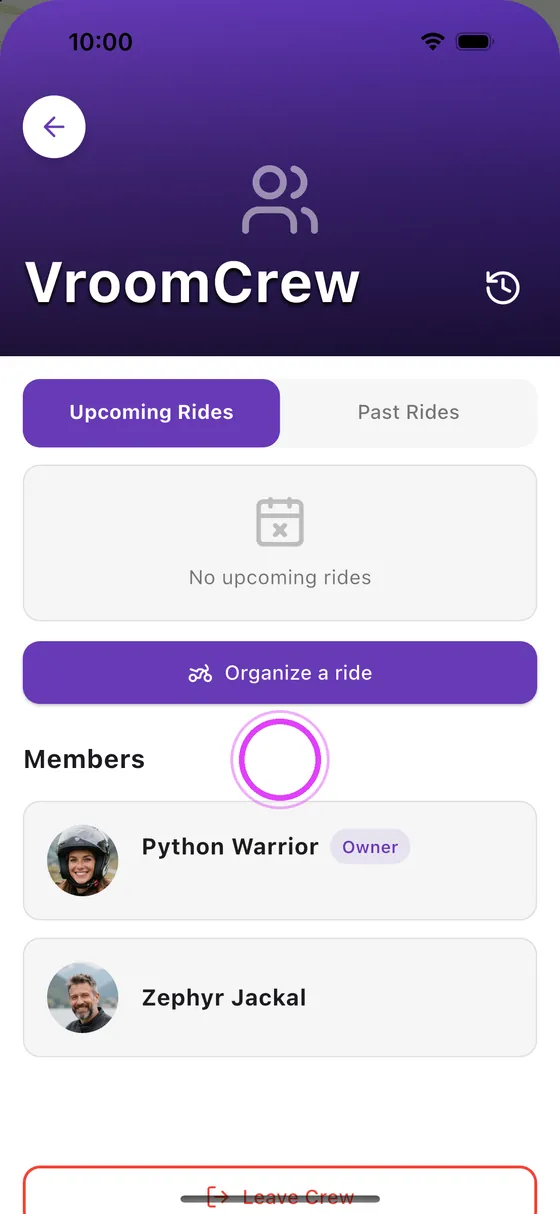
Get a friend to join your crew
Crew created? Only your friends are missing: a QR code, they scan it, and they are part of the gang.
3 steps · Read the guide →
Break-in
New
Get a friend to join your crew
Crew created? Only your friends are missing: a QR code, they scan it, and they are part of the gang.
3 steps · Read the guide →
 Cruising
New
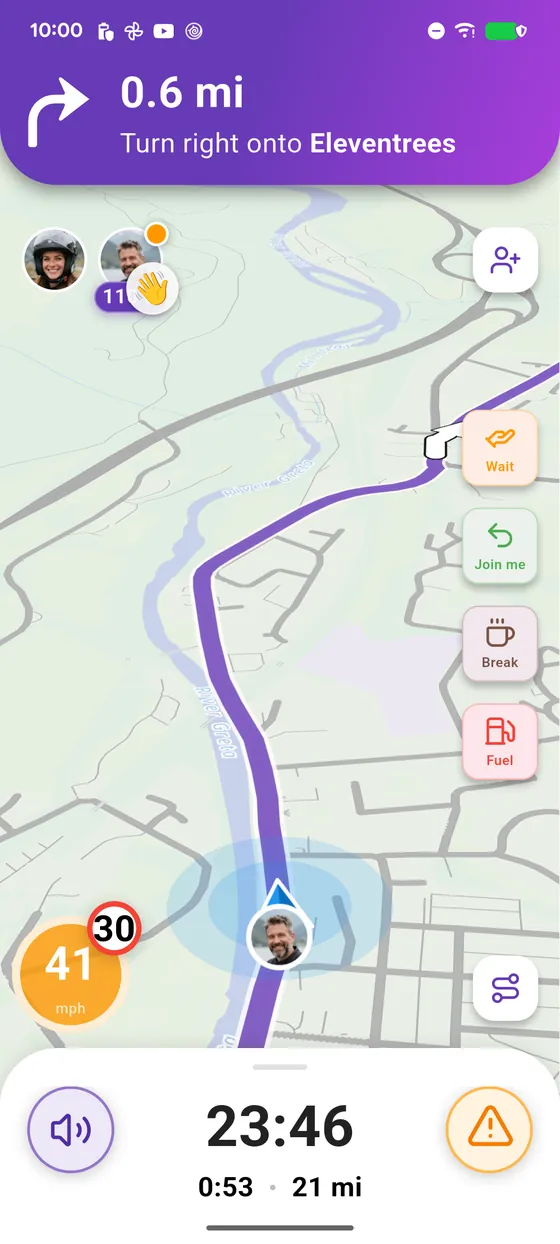
Go for a ride with your crew
Leaving now? Invite your crew in three screens: everyone starts the ride from the crew page, and you ride on the same route.
6 steps · Read the guide →
Cruising
New
Go for a ride with your crew
Leaving now? Invite your crew in three screens: everyone starts the ride from the crew page, and you ride on the same route.
6 steps · Read the guide →
Car screen
 Break-in
New
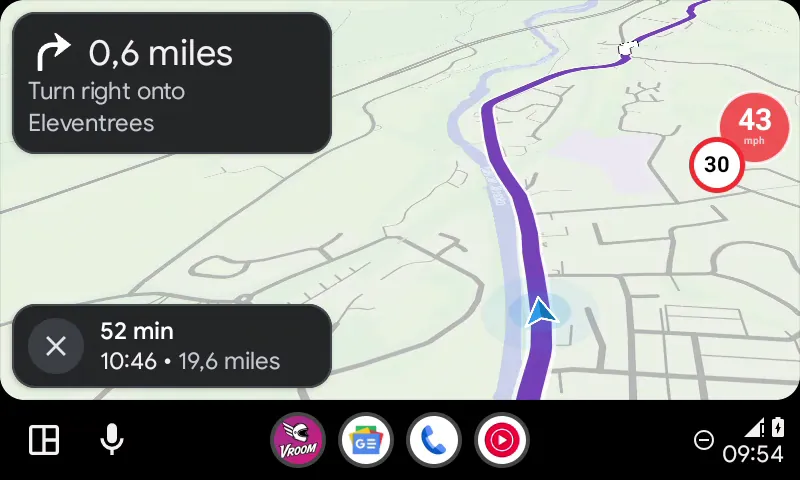
Start navigation from the car screen
Your phone stays in your pocket: everything starts from the car screen.
5 steps · Read the guide →
Break-in
New
Start navigation from the car screen
Your phone stays in your pocket: everything starts from the car screen.
5 steps · Read the guide →
 Break-in
New
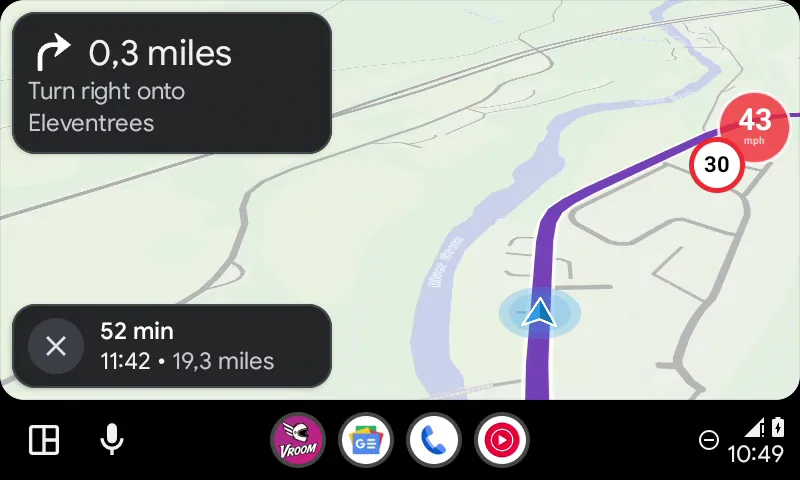
Add a fuel stop or a break from the car screen
Running low on fuel or getting hungry: Vroom finds the stop on your route in two taps.
5 steps · Read the guide →
Break-in
New
Add a fuel stop or a break from the car screen
Running low on fuel or getting hungry: Vroom finds the stop on your route in two taps.
5 steps · Read the guide →
 Cruising
New
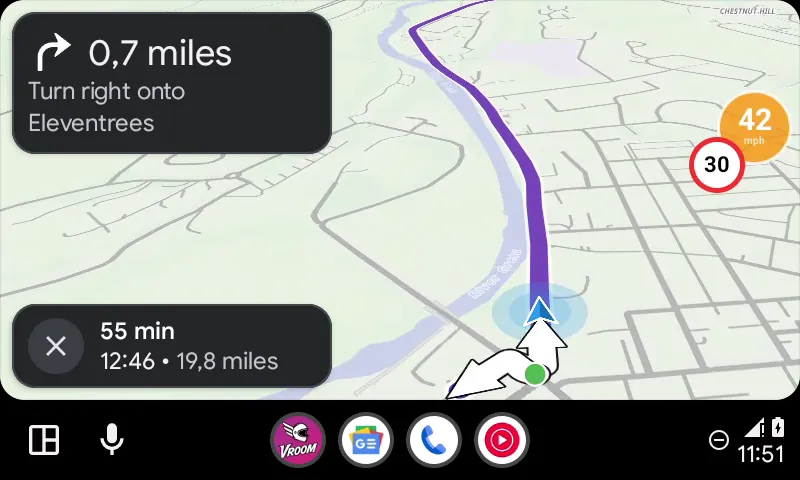
See your road trip details on the car screen
Your breaks, your stops and the finish, at a glance on the car screen.
5 steps · Read the guide →
Cruising
New
See your road trip details on the car screen
Your breaks, your stops and the finish, at a glance on the car screen.
5 steps · Read the guide →
 Cruising
New
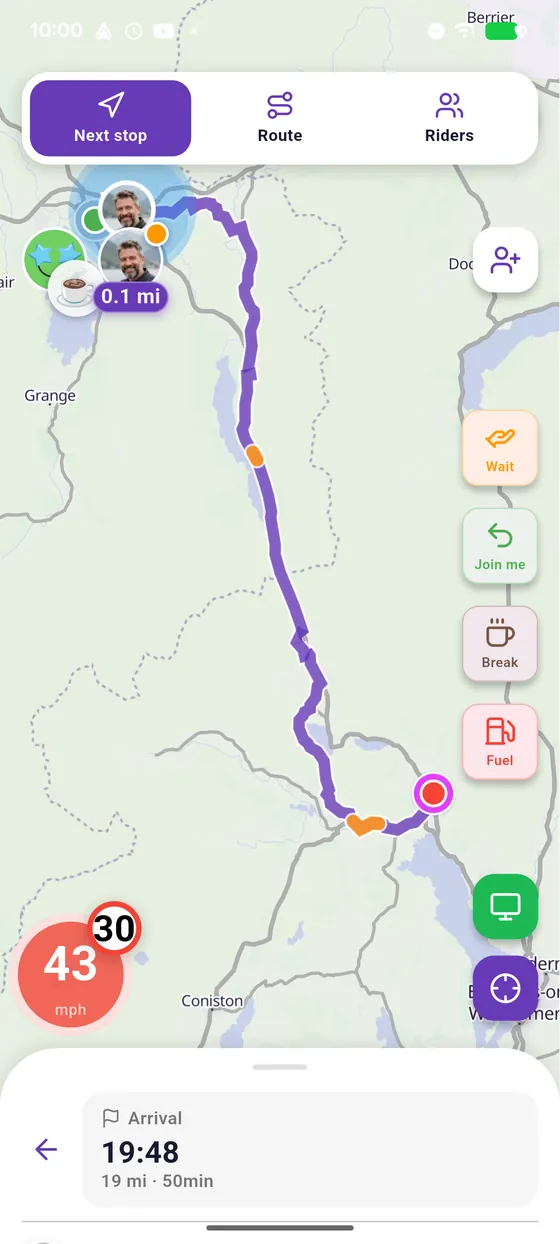
The phone companion screen during navigation
The map is on the car screen, your phone becomes your remote.
7 steps · Read the guide →
Cruising
New
The phone companion screen during navigation
The map is on the car screen, your phone becomes your remote.
7 steps · Read the guide →
 Break-in
New
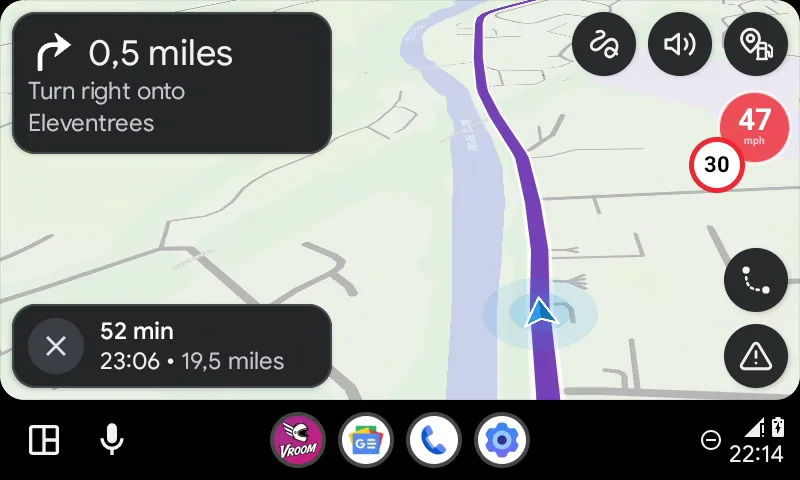
Report a hazard from the car screen
An accident, gravel, a slippery road? Two taps on the car screen and every rider is warned.
5 steps · Read the guide →
Break-in
New
Report a hazard from the car screen
An accident, gravel, a slippery road? Two taps on the car screen and every rider is warned.
5 steps · Read the guide →
Map
 Cruising
New
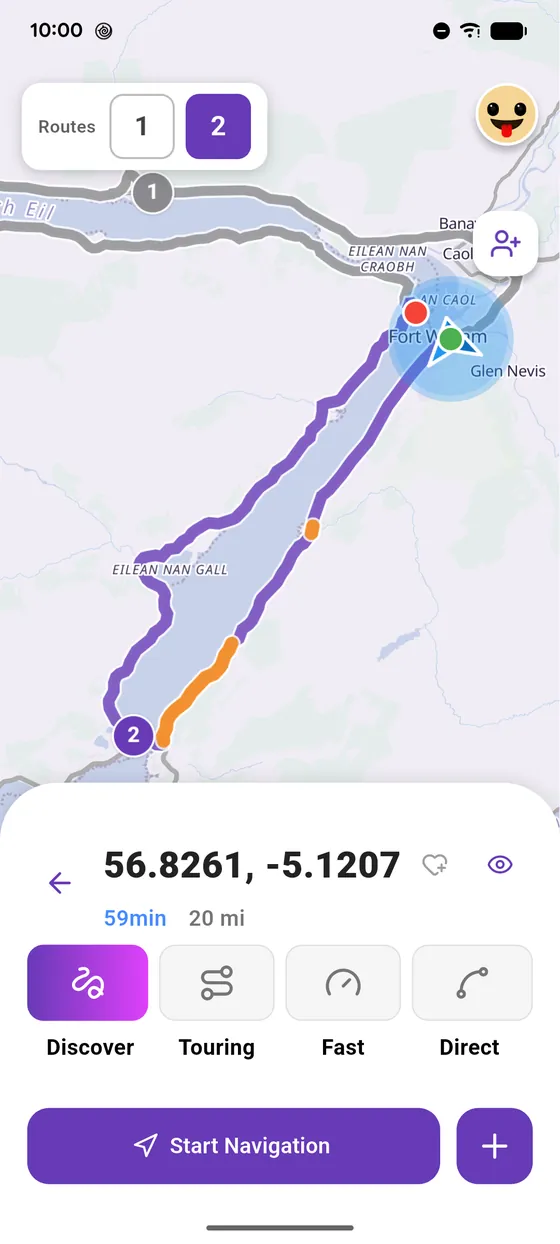
Long press on the map: Street View and go there
Spotted a place on the map with no address? A long press is all it takes: check it in Street View, then go there.
4 steps · Read the guide →
Cruising
New
Long press on the map: Street View and go there
Spotted a place on the map with no address? A long press is all it takes: check it in Street View, then go there.
4 steps · Read the guide →
 Break-in
New
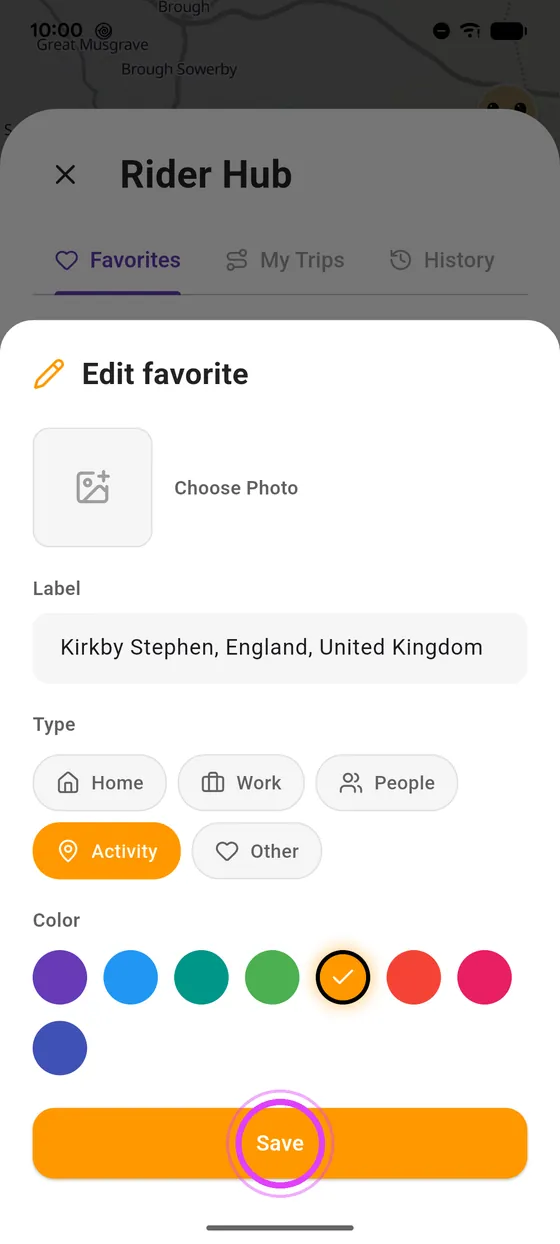
Add and manage your favourites in Vroom GPS
Your home, your biker café, your favourite pass: one heart to keep them, always within reach.
5 steps · Read the guide →
Break-in
New
Add and manage your favourites in Vroom GPS
Your home, your biker café, your favourite pass: one heart to keep them, always within reach.
5 steps · Read the guide →
Voice guidance
 Cruising
New
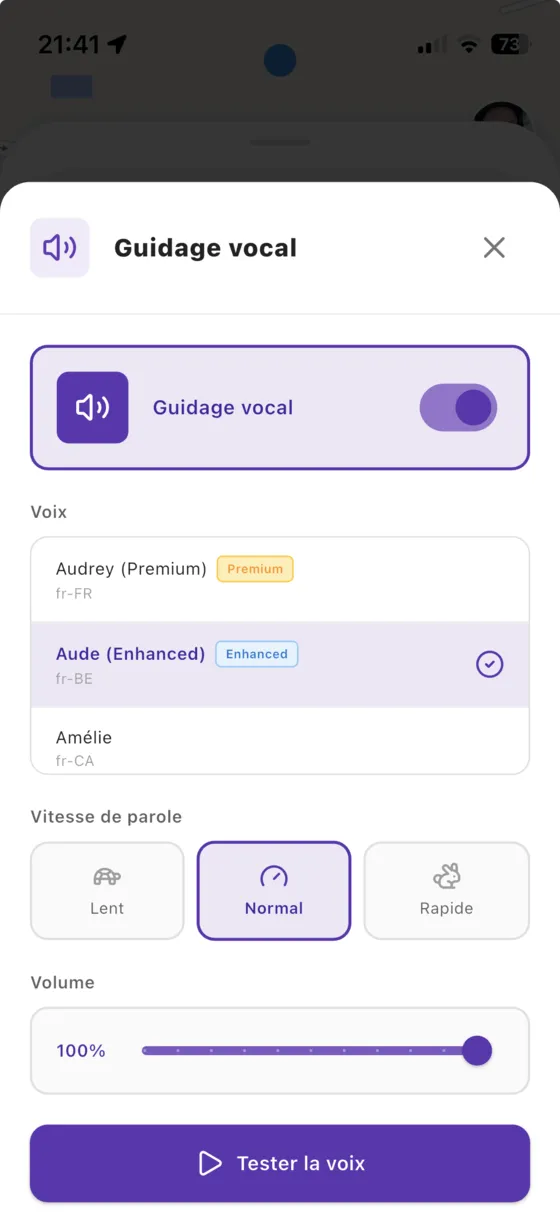
Guide: a Premium voice for voice guidance on iPhone
By default, iOS uses a compact voice that sounds robotic. Download a free Premium or Enhanced voice in your iPhone settings and Vroom GPS guidance becomes far more natural and easier to hear in your helmet.
7 steps · Read the guide →
Cruising
New
Guide: a Premium voice for voice guidance on iPhone
By default, iOS uses a compact voice that sounds robotic. Download a free Premium or Enhanced voice in your iPhone settings and Vroom GPS guidance becomes far more natural and easier to hear in your helmet.
7 steps · Read the guide →
 Cruising
New
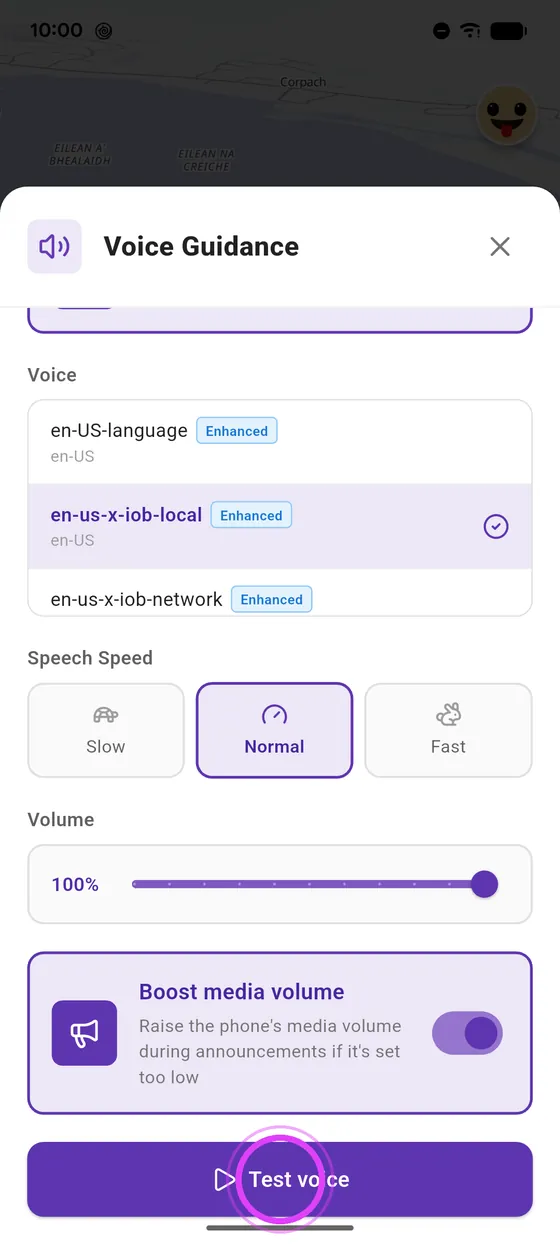
Set up voice guidance: voice, speed, volume
A clear voice in your helmet makes all the difference. Pick your voice, its speed and volume, and boost the sound if announcements are too quiet.
5 steps · Read the guide →
Cruising
New
Set up voice guidance: voice, speed, volume
A clear voice in your helmet makes all the difference. Pick your voice, its speed and volume, and boost the sound if announcements are too quiet.
5 steps · Read the guide →
Settings
 Break-in
New
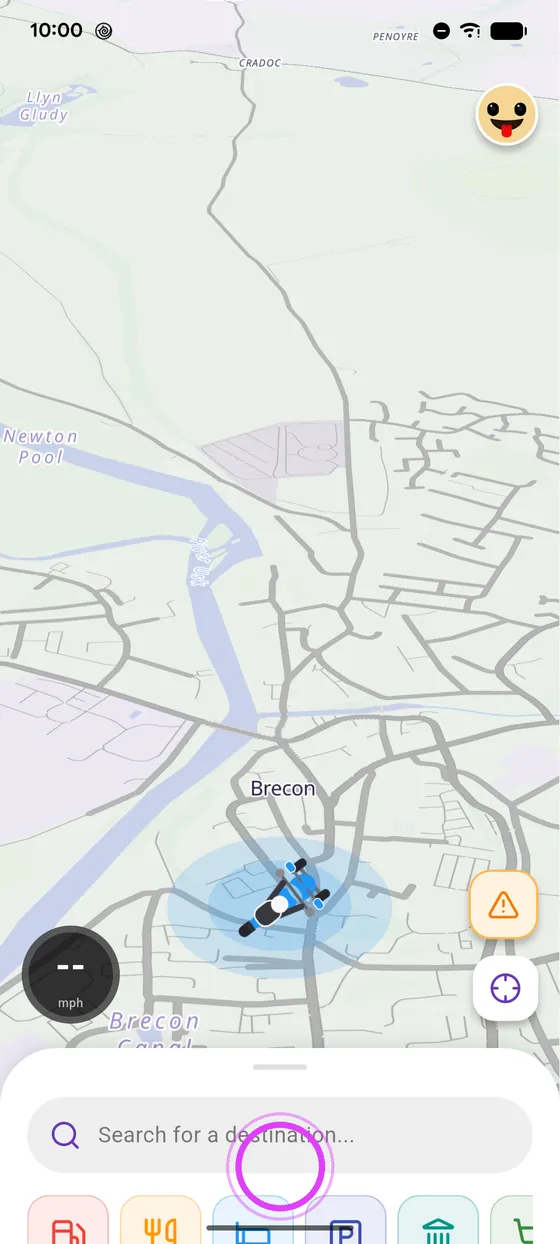
Change the rider icon on the map
Dot, arrow or your own bike: choose how you show up on the map, and enlarge the icon to spot it at a glance.
5 steps · Read the guide →
Break-in
New
Change the rider icon on the map
Dot, arrow or your own bike: choose how you show up on the map, and enlarge the icon to spot it at a glance.
5 steps · Read the guide →
 Cruising
New
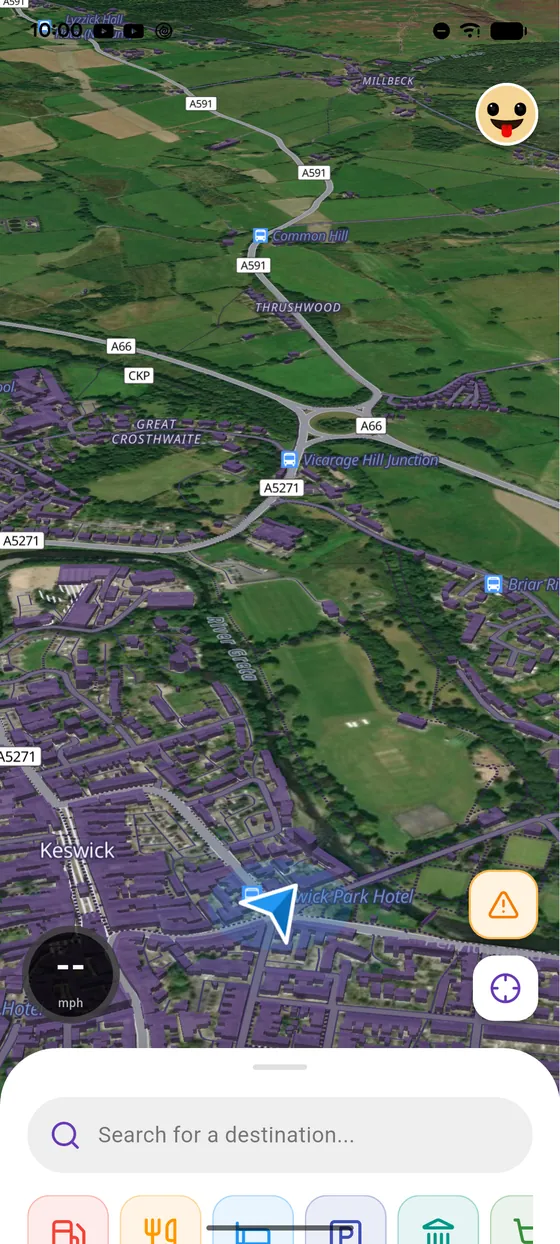
Customise the map: dark theme, 3D, relief, satellite
Light, dark or automatic theme, 3D buildings, relief, points of interest, road labels, satellite: set up the map the way you like it.
7 steps · Read the guide →
Cruising
New
Customise the map: dark theme, 3D, relief, satellite
Light, dark or automatic theme, 3D buildings, relief, points of interest, road labels, satellite: set up the map the way you like it.
7 steps · Read the guide →
 Break-in
New
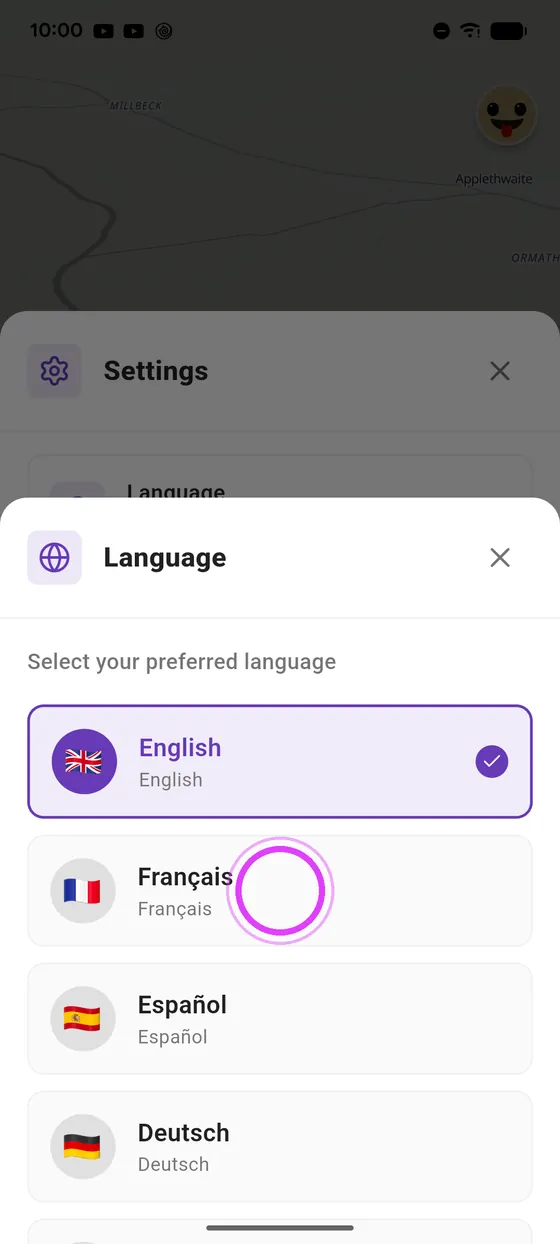
Change the app language and switch to miles
Vroom speaks 18 languages. Pick yours, and switch to miles if you prefer: distances and speeds follow.
4 steps · Read the guide →
Break-in
New
Change the app language and switch to miles
Vroom speaks 18 languages. Pick yours, and switch to miles if you prefer: distances and speeds follow.
4 steps · Read the guide →
 Knee down
New
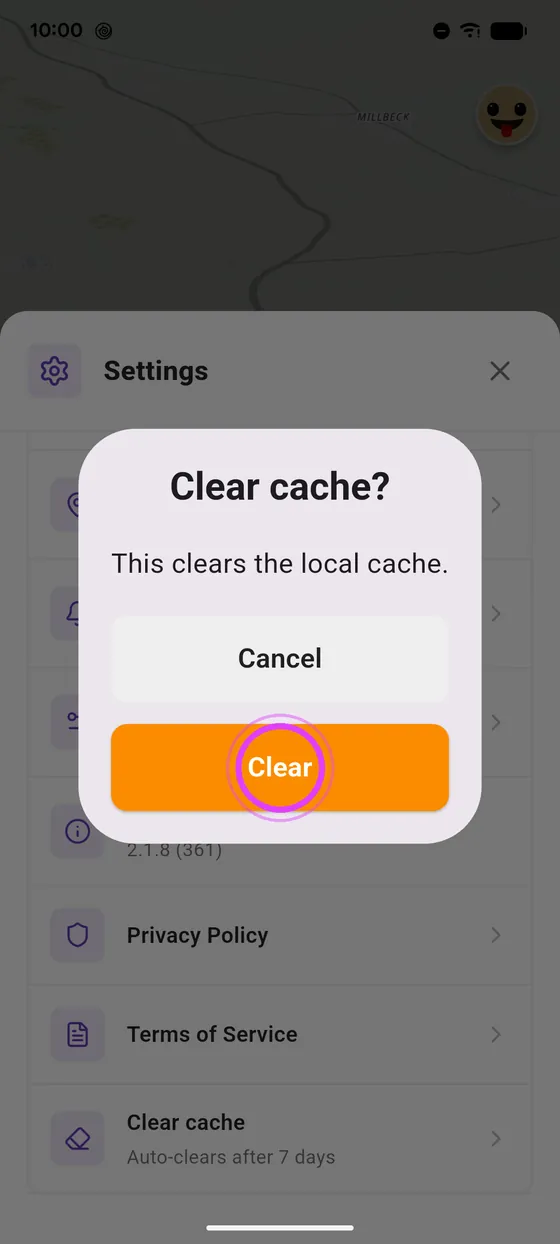
Clear the Vroom GPS cache
Map not showing properly, or the app feels slow? Clearing the cache gives a clean start, without losing any of your rides.
2 steps · Read the guide →
Knee down
New
Clear the Vroom GPS cache
Map not showing properly, or the app feels slow? Clearing the cache gives a clean start, without losing any of your rides.
2 steps · Read the guide →
 Break-in
New
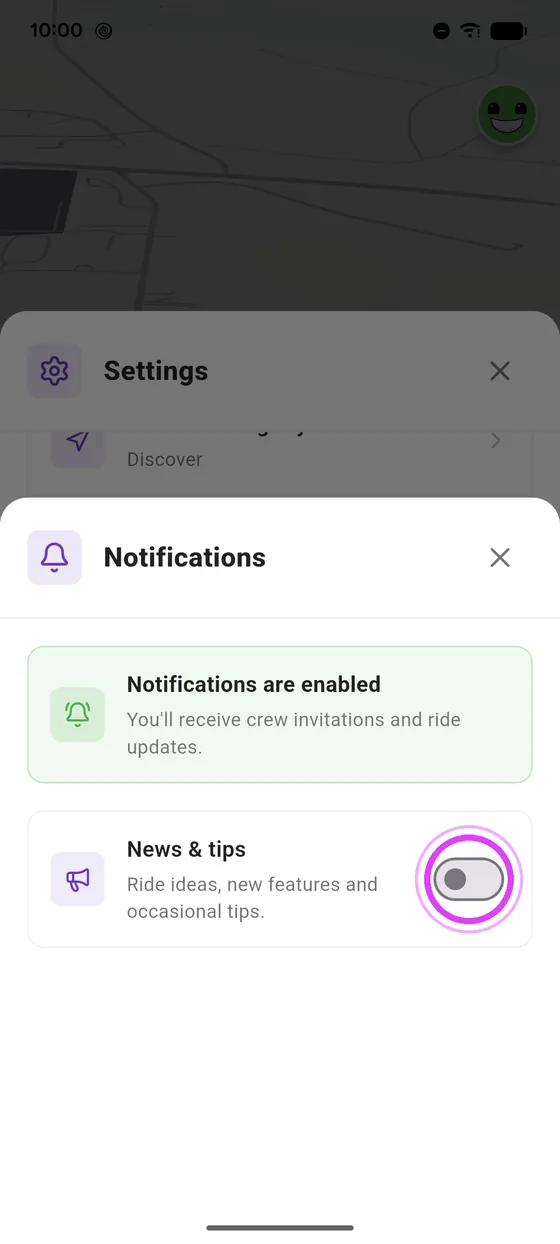
Set up Vroom GPS notifications
Crew invitations, yes; the rest is up to you. It is all in one place, in two taps.
4 steps · Read the guide →
Break-in
New
Set up Vroom GPS notifications
Crew invitations, yes; the rest is up to you. It is all in one place, in two taps.
4 steps · Read the guide →
Ready toride?
Install Vroom GPS and find your next ride this weekend.